
- 01The 30-Second Job That Kept Costing Me 30 Dollars a Month
- 02Why I Went Fully On-Device Instead of Building Another Cloud Tool
- 03How MotionCap Actually Works (Start to Export)
- 04The Features I Actually Care About as an Editor
- 05Where This Fits in a Real Editing Workflow
- 06Why One-Time Instead of a Subscription
- 07More Tools Where This Came From
- 08The Clips I Reach For It On
- 09The Small Caption Mistakes It Quietly Fixes
- 10Honest Limitations
- 11What It Costs, Plainly
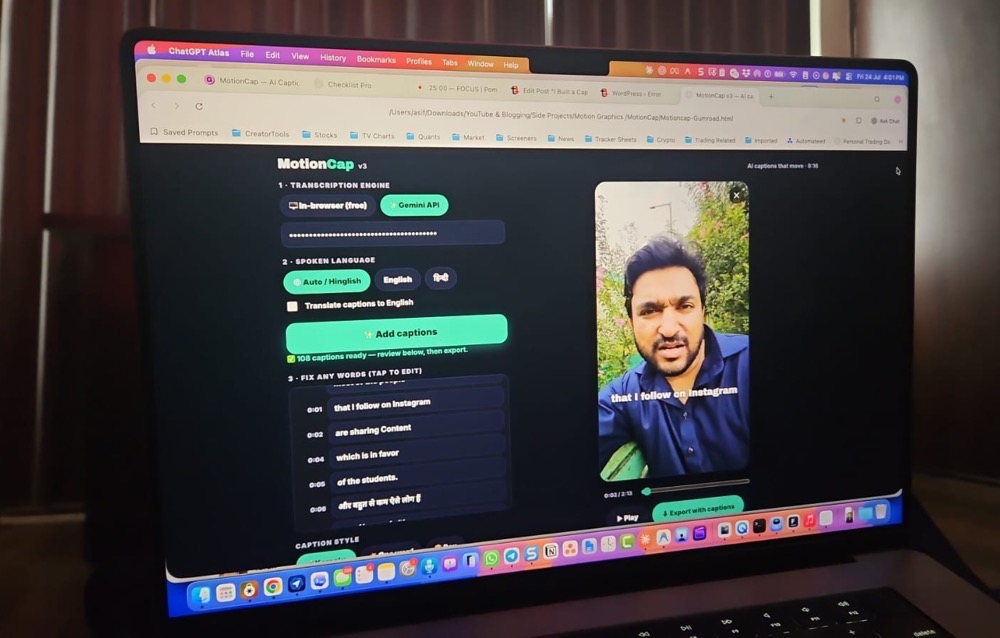
MotionCap is a one-time caption generator for short-form video that runs entirely in your browser. Drop in a clip, it transcribes on your device using on-device AI (or your own free Gemini API key for sharper multilingual results), you pick an animated style — karaoke highlight, one-word punch, box or clean — drag the captions where you want them, and export a captioned MP4. No subscription, no upload, no watermark, unlimited videos.
The 30-Second Job That Kept Costing Me 30 Dollars a Month
If you make Reels, Shorts or TikToks, you already know the single most important edit you can make: captions. Something like 85% of short-form video gets watched on mute, and the creators who win the first three seconds are almost always the ones with bold, animated, word-by-word captions punching across the screen. It is not optional anymore. It is the format.
Here is what bothered me. I am a video editor and a vibe coder — I cut clips in the day and build small tools with AI at night. Adding captions is genuinely a 30-second task. The transcription is basically solved. The animation is a template. And yet every single tool wanted me to sign up, upload my raw footage to their servers, and pay $20 to $40 every month for the privilege — forever — with a watermark I had to pay again to remove.
I did the math one evening. I was paying more per year to caption my own videos than I paid for my entire editing suite. For a task that runs in half a minute. That was the moment I decided to build my own.
Why I Went Fully On-Device Instead of Building Another Cloud Tool
The obvious way to build a caption generator in 2026 is the lazy way: spin up a server, take the user’s upload, run it through a transcription API, send back the result, charge a monthly fee. Easy business model. But it has two problems I could not get past.
The first is privacy. When you upload a client’s footage — or your own face, your home, your kids in the background of a vlog — to some caption startup’s cloud, you have no idea where it lands or how long it lives there. For a lot of creators, and definitely for anyone doing client work under an NDA, that alone is a dealbreaker.
The second is speed and cost. Round-tripping a video to a server and back is slow, and someone has to pay for that compute every month. That is the real reason these tools are subscriptions — not because captioning is hard, but because their server bill never stops.
So I built MotionCap the other way. The transcription happens on your machine using on-device AI. Your footage never leaves your computer. There is no server for me to pay for, which is exactly why I can sell it once instead of renting it to you forever. It is a single HTML file — you literally open it in Chrome or Edge and it runs.
How MotionCap Actually Works (Start to Export)
The whole point was speed, so the workflow is deliberately short. Here is the entire thing:
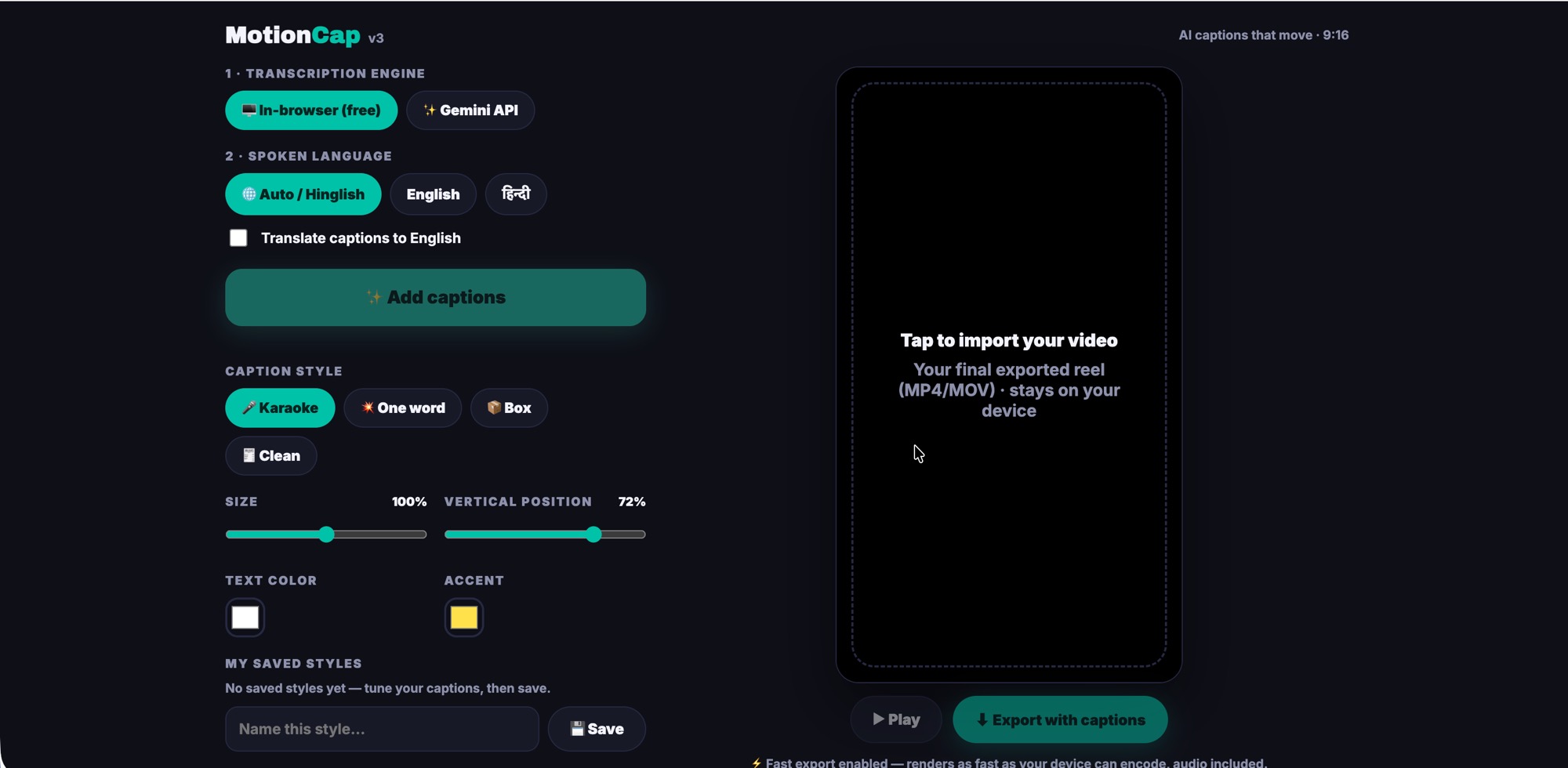
1. Open and drop. Open the file in Chrome or Edge, drag your video in. The first time you run it, it downloads a small (~75MB) AI model once, then caches it — after that it works offline, on a plane, wherever.
2. Tap ‘Add captions’. The AI transcribes your clip right there on your device. If you want even sharper results — especially for Hindi, Hinglish or other languages — you can plug in your own free Gemini API key and it will use that instead.
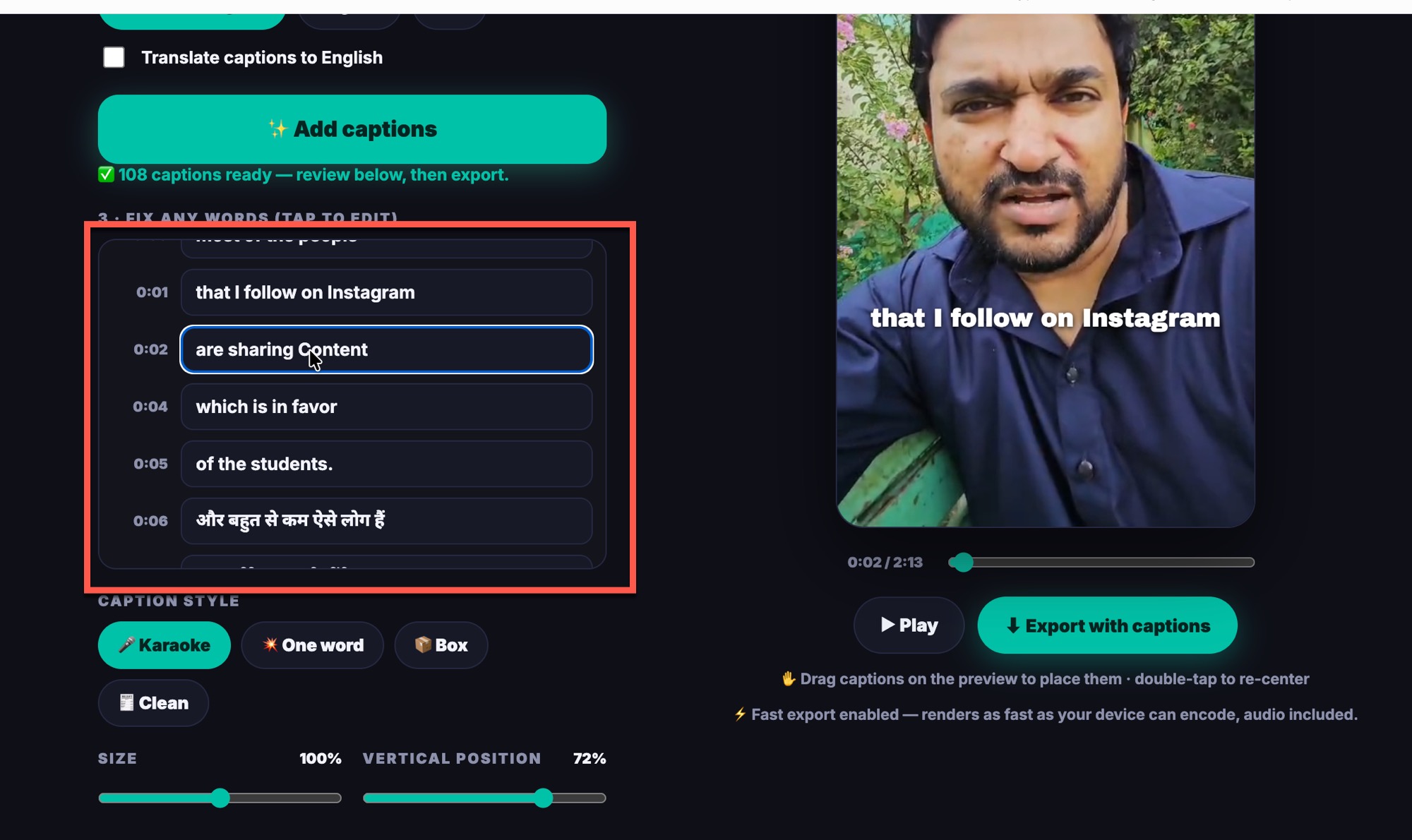
3. Fix the words. This is the part other tools get wrong. You can edit any word before export — names, brand spellings, slang, that one word the AI always hears wrong. A scrubber and playhead let you move through the clip fast.
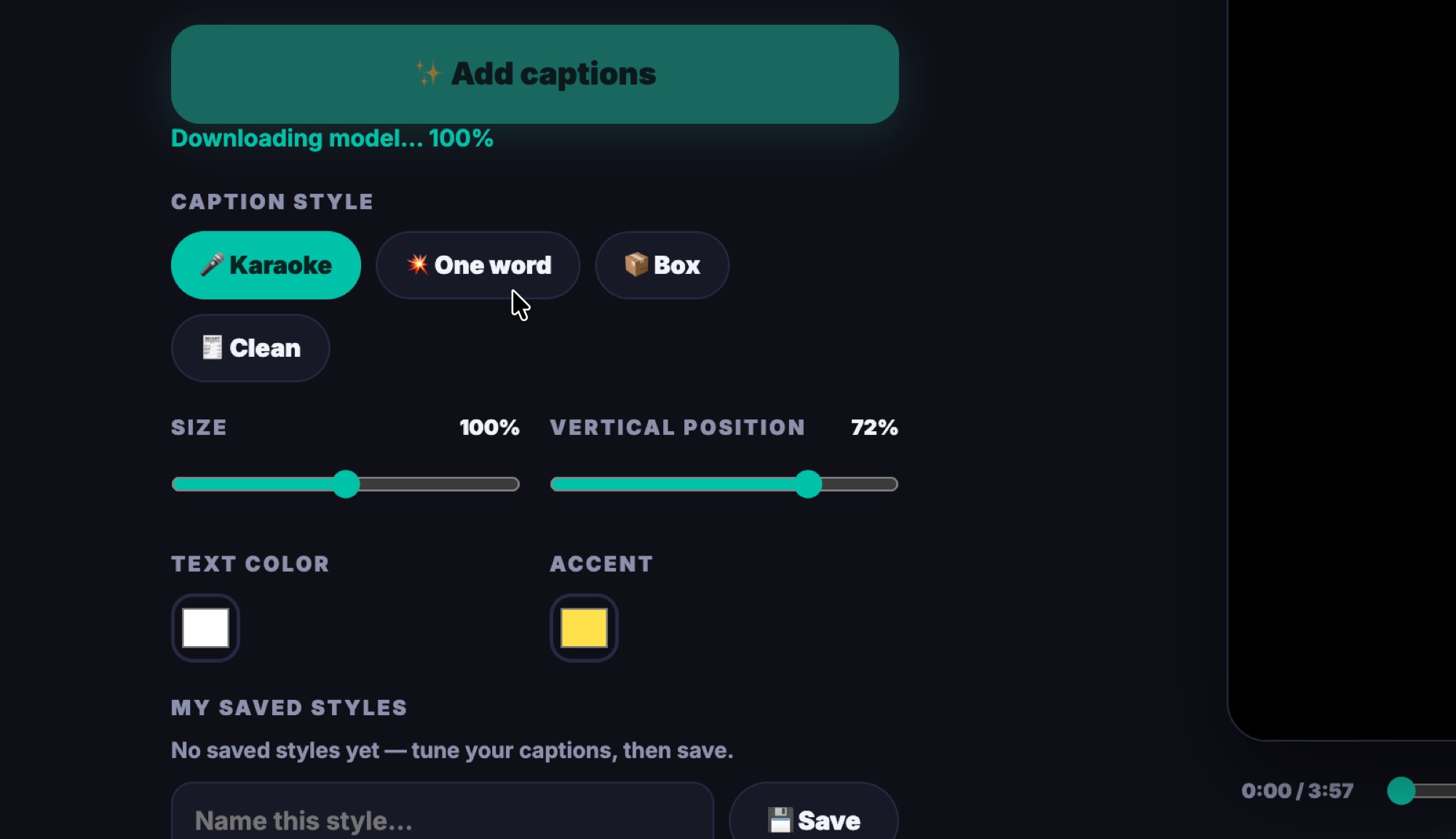
4. Pick a style and place it. Choose from four animated caption styles — karaoke highlight, one-word punch, box, and clean — then literally drag the captions anywhere on the frame to position them exactly where you want, clear of your face and the platform UI.
5. Export. Hit export and MotionCap renders a captioned MP4 frame-by-frame, with audio included. On Chrome and Edge this uses a browser feature called WebCodecs, so the export runs faster than real-time — quicker than watching the clip back.
The Features I Actually Care About as an Editor
When you build a tool for yourself, you only add what you would genuinely use. Here is what made the cut:
- ✅ On-device transcription — your video stays private, always. Nothing is uploaded.
- ✅ Optional Gemini API support — bring your own free key for sharper multilingual transcripts
- ✅ Four animated styles — karaoke highlight, one-word punch, box, and clean
- ✅ Drag-to-place captions — position them anywhere on the frame, not locked to the center
- ✅ Word-level editing — fix names, spellings and slang before you export
- ✅ One-tap style presets — save your look once and reuse it on every video
- ✅ Fast MP4 export with audio — frame-by-frame, faster than real-time on Chrome/Edge
- ✅ English, Hindi and Hinglish — genuinely handles code-switching, which most tools butcher
Where This Fits in a Real Editing Workflow
MotionCap is not trying to replace your editor. You still cut in whatever you love — Premiere, Final Cut, CapCut, DaVinci, Descript, whatever. You edit your video exactly the way you always have. Then, right at the end, instead of fighting with a clunky in-app caption panel or exporting to some subscription web app, you open MotionCap, drop the finished clip in, and one export later you have your captioned MP4 ready to post.
It is the last step, and it is the fast step. That separation is on purpose. Caption tools that try to be full editors end up being bad at both. MotionCap does one thing — beautiful animated captions, fast, private, paid for once.
Because MotionCap is a single HTML file that runs locally with no server, there is no account, no login, and nothing phoning home. If you are the kind of person who reads what a tool actually does before running it — and you should be — that transparency is the whole point.
Why One-Time Instead of a Subscription
I could have charged monthly. The tooling exists, the pattern is proven, and honestly it would probably make more money. I chose not to because I was tired of being on the other side of that deal. Captioning a video is a solved, cheap, half-minute task. Charging rent for it forever never sat right with me.
So MotionCap is a one-time price. You pay once, you caption unlimited videos, there is no monthly cap, and there is no watermark you have to buy your way out of. If you make even four Reels a month, it pays for itself against a single month of any subscription tool.
MotionCap works best on Google Chrome or Microsoft Edge on a desktop or laptop, because the fast export uses WebCodecs. Safari works but export runs in slower real-time mode. The first run downloads a ~75MB model once, then caches it. This is a browser tool, not a phone app — edit on your computer, then caption.
More Tools Where This Came From
MotionCap is part of a small, growing set of no-nonsense creator tools I am building — the same philosophy every time: one-time price, privacy-first, no subscription tax on simple work. You can see the full lineup, including my clipboard, prompt and dictation tools, on the Techtippr tools page.
Browse everything here: techtippr.com/products. If you have ever muttered “why is this a subscription” at your screen, you will probably like the rest of them too.
The Clips I Reach For It On
Since I started using MotionCap in my own workflow, it has quietly become the last thing I touch before anything goes out. Talking-head Reels are the obvious one — the one-word-punch style keeps eyes locked on the screen even with the sound off. But it has been just as useful for tutorial Shorts, where the box style keeps step-by-step instructions readable over busy screen recordings, and for podcast clips, where accurate word-level captions make a 60-second audio pull actually watchable on a feed.
The Hinglish support turned out to be the sleeper feature. If you create for an Indian audience, you already know most caption tools mangle code-switched speech — they either force everything into English or produce nonsense in the middle of a sentence. Plugging in a free Gemini API key gets you transcripts that actually respect the way people really talk, which no amount of manual fixing in a mainstream tool gets you to cleanly.
The Small Caption Mistakes It Quietly Fixes
A lot of what separates a professional-looking Short from an amateur one comes down to caption details that are easy to get wrong. MotionCap was built around fixing the ones that used to cost me the most time.
Captions covering your face or the platform UI. Because you drag the text anywhere on the frame, you can keep it clear of your chin, the Reels progress bar, and the right-side action buttons that cover the bottom third on every platform. Center-locked caption tools force you to accept whatever position they pick.
Wrong names and brand spellings. Word-level editing means you fix ‘Techtippr’ or a guest’s name once before export, instead of discovering the error after you have already posted. Small thing, but it is the kind of mistake that makes a clip look careless.
Presets so every video matches. Save your style once as a one-tap preset and every clip you post shares the same look. Consistent captions are a surprisingly strong part of a recognisable channel identity, and doing it by hand every time is where most creators drift.
Honest Limitations
I would rather tell you where it is not the right fit than have you buy it and be surprised. MotionCap is a desktop browser tool — it runs on Chrome or Edge on a laptop or desktop, not as a phone app, so it fits a workflow where you edit on a computer and caption as the final step. If you shoot, edit and post entirely on your phone and never touch a desktop, this is not built for you.
It is also focused. MotionCap does animated captions extremely well and does not try to be your editor, your thumbnail maker, or your scheduler. That is a feature, not a gap — but if you want an all-in-one suite, this is a specialist tool that slots into your existing setup rather than replacing it.
What It Costs, Plainly
MotionCap is a one-time purchase with no subscription and no watermark. You caption unlimited videos for a single price. The first 50 buyers get it for $9.99 using the code EARLY50 at checkout, after which it settles at its standard one-time price. Against any monthly caption tool, it pays for itself inside the first month if you post even a handful of clips.
It is one of a small set of one-time creator tools I am building under the same philosophy — solve a real, repetitive task, charge once, respect your privacy. You can see the rest on the Techtippr tools page.
MotionCap runs in your browser, keeps your footage on your device, and never charges you again. First 50 buyers get it for $9.99 with code EARLY50 at checkout.