
Short Answer
Channel Desk is a local content workspace for creators who manage multiple YouTube channels and social accounts. It keeps each video idea, script, title, description, file, and destination together, then opens the appropriate publishing page in your signed-in Chrome profile. You still review and publish the video yourself in YouTube Studio, Facebook, or Instagram.
You finish a video for one YouTube channel, open Studio, and start uploading. Halfway through, you notice the wrong channel is selected. Or the file is ready, but the title lives in a notes app, the description is in another document, and the final export is hiding somewhere in Finder. These are ordinary problems when you run more than one creator account.
I built Channel Desk because I needed a clearer path from an idea to a published video across my own channels. It gives every project a place to live and keeps its destination visible while the work moves forward. If you are a YouTuber, creator, or small team managing several channels, here is how the app works and where it fits into your publishing routine.
What Is Channel Desk?
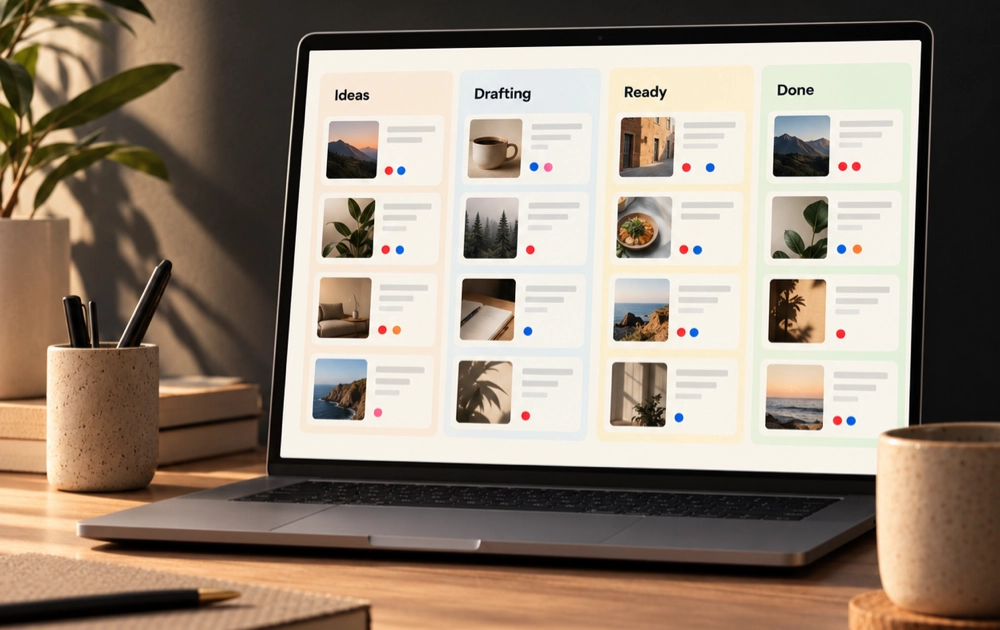
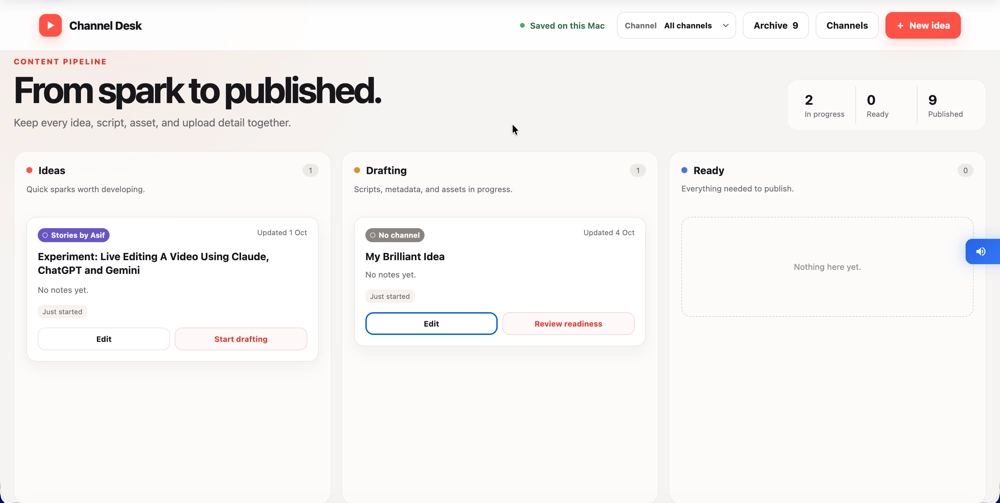
Channel Desk is a content planning and publishing preparation app for Apple Silicon Macs. Think of it as a private desk for your video projects: you can capture an idea, write its script or angle, prepare its title and description, link the video file and optional thumbnail, and associate it with the right YouTube channel or social destination. The board shows which projects are still ideas, which are being drafted, which are ready, and which are done.
I first coded Channel Desk as a browser-based tool for my own use. That version ran with a local server and kept its project data in the browser’s local storage; it is the version shown in my video walkthrough. I have since turned it into a Mac app. The idea-to-publishing workflow is the same, but the current download is the app described below, so you do not have to set up the old server-based version.
The important distinction is the final step. Channel Desk prepares the handoff and opens the correct destination in Chrome; it does not automatically upload or publish videos through a social media API. You remain in control of the final review inside YouTube Studio, Facebook, or Instagram. That makes the app useful if you want a more organized creator workflow without handing over your account credentials to another publishing service.
Why Managing Multiple YouTube Channels Gets Messy
YouTube lets you switch between channels, and Instagram offers account switching too. Those controls solve part of the login problem, but they do not organize the work around a video. A creator still needs to remember which account gets the upload, which version of the file is final, and where the copy for that particular platform was saved.The risk rises when two projects look similar. Perhaps one video is for a tech tips channel and another is for a personal storytelling channel. Both can sit in a general “Ready” folder, yet each needs its own title, description, audience, and destination. A rushed upload is exactly when an account or file mix-up becomes likely. Channel Desk puts those decisions on the project card before you open the publishing screen.
It also gives you a quick answer to “What should I work on next?” You can see unfinished ideas without searching through notes, distinguish active drafts from finished edits, and focus the board on one channel when you want to plan its next batch of videos.
How the Channel Desk Workflow Works
1. Capture an idea while it is fresh
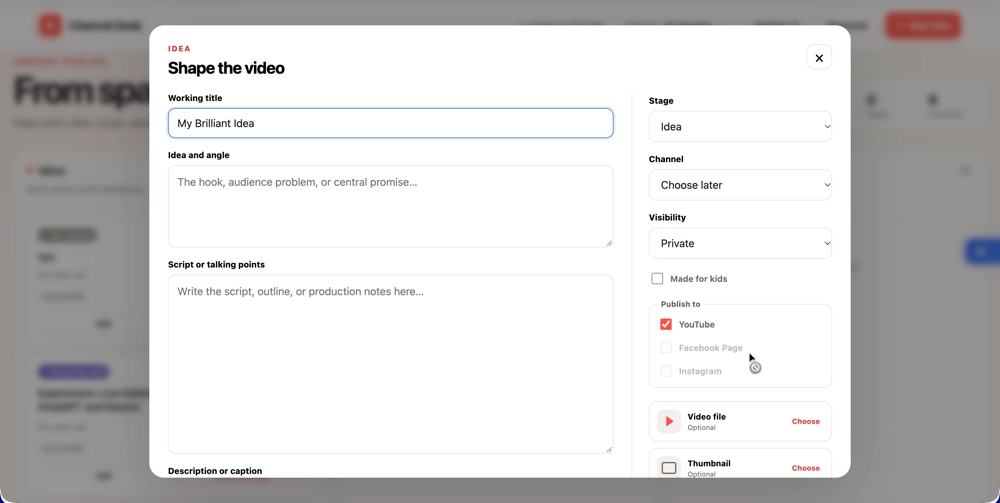
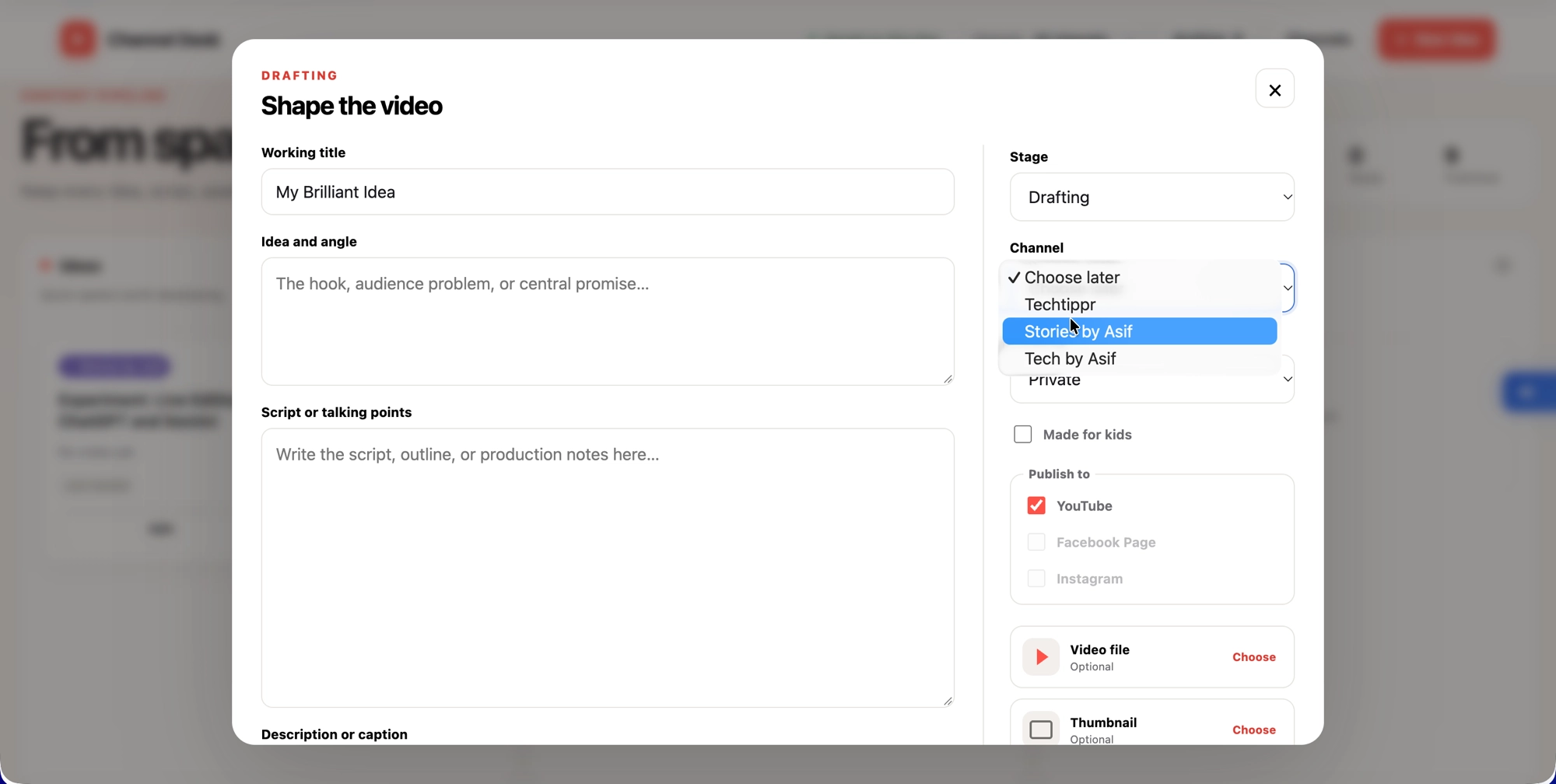
Start a new project when a video idea appears. Give it a working title and write down the story, angle, or rough script. You can add the description and tags later; the point is to keep the idea attached to a real project instead of leaving it in a loose note that you may never find again. Choose the channel the video is meant for, and add a Facebook Page or Instagram destination if that content will be shared there too.
In my demonstration, I save a quick example idea and it immediately appears in the Ideas stage. That small step matters: a new concept is visible without pretending it is already in production. When I am ready to write or record it, I move it into Drafting.
2. Move the project through clear stages
Channel Desk uses Ideas, Drafting, Ready, and Done to show where each project stands. An idea moves to Drafting when the script or production work begins. It moves to Ready when the edit and publishing details are prepared. Done is for work that has already been published or otherwise completed. This is a simple board, but it is easier to scan than a folder full of filenames with no indication of what still needs attention.
Each project stays associated with its chosen channel as it moves across the board. In the video, two ready projects sit in the same stage but belong to two different channels. I can tell which one is for my tech channel and which one is for my storytelling channel without opening a separate spreadsheet. Channel colors and the channel filter make that distinction easier to see when the board fills up.
3. Keep the publishing details with the video
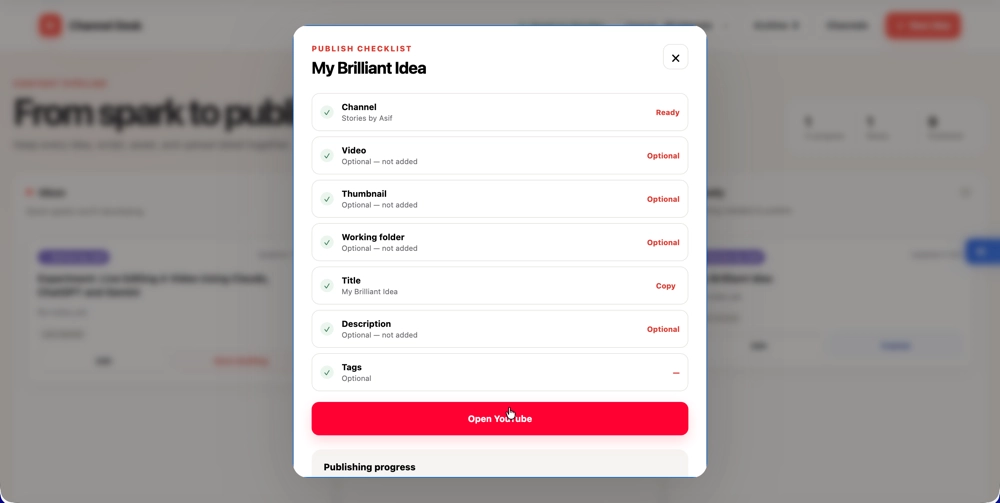
When you finish editing, add the final title, description, tags, publishing notes, and video file to the project. Channel Desk can also keep an optional thumbnail with it. This is where it becomes more than a list of ideas. A ready project has the information you need for the upload, rather than a reminder to search several folders and documents.
Suppose the final export is called something unhelpful like “final-v3-new.mp4.” Instead of guessing which folder contains it, you can use the linked file from the publishing checklist and reveal it in Finder. The file is highlighted so you can confirm the export before dragging it into the platform’s uploader. The same idea applies to a linked thumbnail.
4. Open the right account and publish deliberately
From a ready project, open its YouTube destination. Channel Desk opens the configured Chrome profile and publishing page for that channel, so you start the upload in the account you intended to use. You can copy the prepared title and description, reveal the linked video, and complete the upload in YouTube Studio. For projects with Facebook or Instagram destinations, you can open those destinations from the same project workflow.
Before pressing Publish, check the channel name in Studio, the file preview, the title, visibility, and any platform settings you normally review. Channel Desk reduces the amount of context you must reconstruct, but it cannot replace that final check. YouTube and the other platforms still handle the actual upload and publication.
Who Should Use Channel Desk?
Channel Desk is designed for creators who publish to more than one destination and want a calmer way to prepare content. It makes the most sense for a solo YouTuber with two or more channels, a creator who repurposes a video for YouTube and Instagram, or a small operation that needs to see what is in Ideas versus Ready without building an elaborate project management system.It is also useful if your pain point is not scheduling but handoff. Many tools can store an idea; fewer connect that idea to the exact export, the correct account, and the text you need when the upload screen opens. Channel Desk is built around that last mile of a creator’s workflow.
If you need automatic posting, cloud collaboration, approval flows, or analytics across a team, this beta is not that kind of platform. It is a local workspace that helps one creator prepare and complete manual publishing across several accounts. That narrower scope is part of its appeal when you mainly want clarity and fewer account mistakes.
What You Need to Run It
The current Channel Desk release is a Mac beta for Apple Silicon machines. The product listing names M1, M2, M3, and M4 Macs, macOS, and Google Chrome. You should already be signed into the Chrome profiles you use for your creator accounts. You need internet access when you open YouTube, Facebook, or Instagram to publish, as you would with those platforms normally.The download includes the Channel Desk desktop app, a visual HTML installation guide, and a printable Markdown guide. Unlike the original browser-based version shown in my walkthrough, the current app does not require Node.js, a terminal command, an API key, or a separate local server. There is no Channel Desk account or subscription to create. The present beta does not support Intel Macs or Windows.
Because this is an unsigned Mac beta, macOS may warn you the first time you open it. Follow the installation guide supplied with the download and review the app before granting access. Once your Chrome profiles and channels are configured, you can create your first project and test the workflow with a noncritical video before using it for a full publishing schedule.
A note about local data
The browser version in my video stored projects in browser local storage. The current Mac app keeps your board and project details locally on your Mac, while your social media login sessions remain in Chrome. Keep a backup of your Mac and follow the included guide before moving or removing the app. Do not assume your project data will automatically appear on another computer.
What Channel Desk Does and Does Not Do
The app collects the pieces of a video project in one place: the idea, draft, script, title, description, tags, notes, destination, video file, and optional thumbnail. It shows the stage of each project, can filter the board by channel, and opens the intended publishing destination in Chrome. Those features address the practical confusion that comes from juggling several channels.It does not create a social media account for you, store your Chrome login sessions, or send your credentials to a cloud dashboard. It does not upload a file in the background, schedule a YouTube video, or press Publish on your behalf. You still use each platform’s own publishing interface. That is why the project’s channel and file deserve a final visual check before you complete an upload.
Frequently Asked Questions
Can Channel Desk manage more than one YouTube channel?
Yes. Multiple channels are the main reason I built it. You can associate projects with different channels and scan or filter the board by channel. The three channels shown in my demonstration are examples from my own workflow, not a stated limit on the product page.
Does it publish videos automatically?
No. It opens the right Chrome profile and destination with your project details ready. You copy or use the prepared information, select the linked media, and complete the upload in YouTube Studio, Facebook, or Instagram yourself.
Is Channel Desk a Chrome extension or a web app?
The video shows the original browser tool, which ran with a local server. I later converted Channel Desk into the desktop app now offered on Gumroad for Apple Silicon Macs. The app still uses your signed-in Chrome profiles to open the right publishing destination, but the current release does not need a separate server.
Where does it keep my project data?
The current product listing says your Channel Desk board and project details stay locally on your Mac. It also says your Chrome login sessions remain in Chrome. Treat the local workspace like other important creator files and keep a backup.