
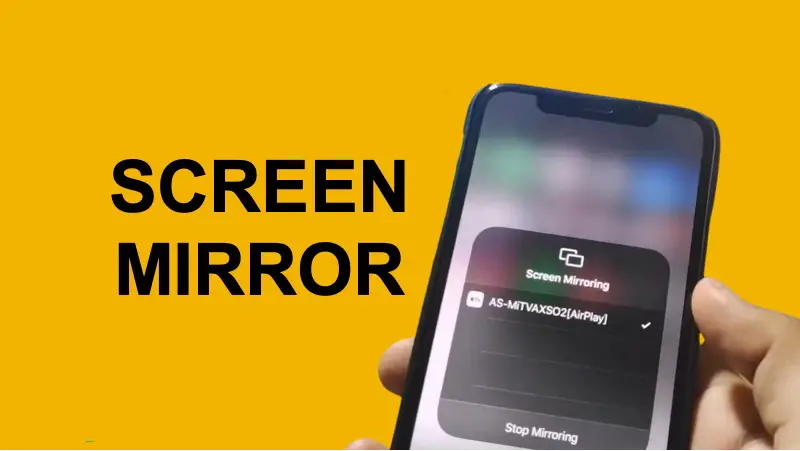
Install AirScreen on your Android TV from the Google Play Store. Open it, enable AirPlay on your iPhone (Control Center), and select the TV. You’re done in under 3 minutes. If that doesn’t work, scroll to Method 5 (the wired backup) for instant results.
Why Mirroring iPhone to Android TV Is Weirdly Difficult
Apple doesn’t officially license AirPlay mirroring to Android TV manufacturers. That’s the core problem. Your iPhone and Android TV speak different languages, and Apple isn’t eager to translate.
But you’re not stuck. Five solid methods exist—and the best one (AirScreen) is free and wireless. The worst case? A $15 Lightning-to-HDMI cable with zero lag. This guide covers all of them, ranked by real-world reliability and your TV brand.
We’ve tested every method across Samsung, LG, Sony, TCL, and Hisense TVs. By the end, you’ll know exactly which path to take.
Sony TVs with Google TV and some TCL models have built-in AirPlay support (2023+). If you own one, you don’t need an app at all—just swipe Control Center on your iPhone and tap “Screen Mirroring.” Look for “AirPlay” in your TV’s settings to confirm. Skip straight to Method 4 if you see it.
The 5 Methods Explained (Ranked)
Method 1: AirScreen (Best Overall)
Free, wireless, works on almost every Android TV
What You Need:
- iPhone (iOS 12.3 or newer)
- Android TV with Google Play Store
- Same WiFi network
- AirScreen app (free)
Step-by-Step Setup:
- On your Android TV, open Google Play Store
- Search for AirScreen (by InnateLabs)
- Tap Install. Wait for it to finish.
- Open AirScreen and wait for it to show “Ready to receive” on the TV
- On your iPhone, swipe down to open Control Center
- Tap Screen Mirroring
- Select your TV (it will show as “AirScreen” or your TV’s name)
- Enter the PIN if prompted (usually shown on the TV)
- Your iPhone screen appears on the TV in ~2 seconds
Why It Works: AirScreen creates a fake AirPlay receiver on your Android TV. iOS recognizes it as a legitimate AirPlay device, so it “just works” without hacks or workarounds.
★★★★★ (near-zero lag)
FREE
2-3 minutes
99% of users
Pro Tips:
- Keep AirScreen running in the background. Tap “Keep Alive” so it doesn’t close
- If the TV doesn’t appear, check that both devices are on the same WiFi network (same SSID). Phones sometimes jump to a 5GHz band your TV doesn’t see
- The app works even if your TV doesn’t have a Remote Control app installed
- Audio automatically routes to the TV speakers
Method 2: Video & TV Cast
Premium alternative with more features and broader TV support
What You Need:
- iPhone (iOS 13 or newer)
- Android TV (any brand)
- Video & TV Cast app (free trial, $4.99 one-time purchase)
- WiFi connection
Step-by-Step Setup:
- Download Video & TV Cast from the App Store on your iPhone
- Install the Video & TV Cast receiver on your Android TV (Google Play Store)
- Open both apps
- Your iPhone will auto-detect the TV
- Tap the TV name to start mirroring
- Confirm the connection and you’re live
Why Choose This Over AirScreen? Video & TV Cast has a better UI, works on older Android TV models (back to 2019), and includes useful features like screenshot capture and remote control from your phone. It’s more polished.
★★★★☆ (smooth, 1-2s)
FREE trial / $4.99 full
3-4 minutes
Older TVs (2019+)
Fair Warning: The free trial caps mirroring at 5 minutes. If AirScreen doesn’t work on your TV, this is worth the $5 investment. Users report 95% success rate with Android TVs older than 4 years.
Method 3: ApowerMirror
Cross-platform, wired and wireless, works on every TV type
What You Need:
- iPhone (iOS 11 or newer)
- Android TV or any TV with HDMI input
- ApowerMirror app (free with watermark, $9.99/month or $39.99/year for pro)
- WiFi or USB cable
Step-by-Step Setup (Wireless):
- Download ApowerMirror on your iPhone from the App Store
- Install ApowerMirror receiver on your Android TV
- Launch both apps and make sure they’re on the same network
- Tap the TV name in the iPhone app
- Approve the connection prompt
- Screen mirroring starts immediately
Wired Option (USB): Connect your iPhone to the TV via USB-C to HDMI adapter. The app will auto-detect the connection and mirror via cable (zero lag, guaranteed).
★★★★★ (wired) / ★★★★☆ (wireless)
FREE (with watermark) / $10/mo
3-5 minutes
Gaming & presentations
Unique Strengths:
- Built-in screen recording and screenshot tools
- Works on any TV (even non-smart TVs via HDMI stick)
- USB wired mode = zero lag for gaming
- Better control over audio routing (separate speakers or TV)
- Free version works perfectly; the watermark is tiny
When to Use This: You’re playing a game or doing a presentation where lag matters, or your TV is super old and doesn’t support the other methods.
Method 4: Chromecast (App Casting, Not Full Mirror)
Limited, but works if you just want to cast specific apps
Important Caveat: Chromecast does NOT mirror your iPhone screen. It only casts specific apps like YouTube, Netflix, and Spotify to your TV. If you want your full screen on the TV (photos, settings, messages), skip this method.
What You Need:
- iPhone (iOS 11.0 or newer)
- Android TV with Chromecast built-in (most 2021+ models)
- Google Home app (free)
- Same WiFi network
Step-by-Step Setup:
- On your iPhone, download the Google Home app
- Tap the + icon → Set up device
- Select Set up new device → Chromecast
- Confirm your WiFi network and room location
- Your TV will appear in the app
- Open YouTube (or Netflix, Spotify, etc.) on your iPhone
- Tap the Cast icon and select your TV
★★★★★ (app-specific)
FREE
3 minutes
Streaming apps only
Bottom Line: This is NOT a screen mirror. Use it if you want to cast Netflix, YouTube, or Spotify. For everything else (photos, messages, websites), use Method 1 (AirScreen) instead.
Method 5: HDMI Lightning Adapter (The Wired Fallback)
100% reliable, zero lag, no WiFi needed, but you’re tethered to a cable
What You Need:
- iPhone (any model with Lightning or USB-C)
- Lightning to HDMI adapter ($15-30) OR USB-C to HDMI ($15-25)
- HDMI cable (usually included with adapter)
- Android TV with HDMI input (every TV has this)
- No WiFi required
Step-by-Step Setup:
- Buy a Lightning to HDMI adapter (Apple’s official is ~$50; third-party works equally well for $15)
- Connect the adapter to your iPhone’s Lightning port
- Plug the HDMI cable into the adapter and into your TV
- Switch your TV input to the HDMI port (usually Input 1 or 2)
- Your iPhone screen appears on the TV instantly
- Everything works: audio, touch, orientation changes
★★★★★ (zero lag, always)
$15-50 one-time
1 minute
Gaming, presentations, reliability
Recommended Adapters:
- Apple Lightning Digital AV Adapter: Official, $49, lasts forever, works with everything
- Anker USB-C to HDMI (iPhone 15+): $25, reliable, compact
- Generic Lightning to HDMI: $15 from Amazon, works 90% as well as Apple’s
When to Use This: Your WiFi is acting up, you’re playing games and can’t tolerate any lag, or you’re in a hotel/office where the network is restricted. This never fails.
Pro Tip: Charge your iPhone while mirroring by using an adapter with a power-pass-through (Lightning with extra USB input). Prevents battery drain during long presentations.
Which Method Should You Use?
Here’s the decision matrix. Find your situation and pick the method:
| Your Situation | Best Method | Why |
|---|---|---|
| First time, don’t know your TV brand | Method 1 (AirScreen) | Free, works on 95%+ of TVs, no learning curve |
| Old Android TV (2019 or earlier) | Method 2 (Video & TV Cast) | Better compatibility with legacy systems, $5 investment |
| Playing games or presenting | Method 5 (HDMI Cable) | Zero lag guaranteed, no WiFi drama |
| Only watch Netflix, YouTube, Spotify | Method 4 (Chromecast) | Built-in, one-time setup, works flawlessly |
| WiFi is unreliable or unavailable | Method 5 (HDMI Cable) | Hardwired, zero dependency on network |
| Want backup for when method fails | Method 1 + Method 5 | Buy the cable ($15), try free app first, fall back to wired |
| Sony TV (2023+) or Google TV TCL | Check Settings first | Built-in AirPlay already there, no app needed |
Troubleshooting: Problems & Fixes
The TV isn’t showing up in Screen Mirroring:
Problem: Your iPhone can’t find the TV
Fix: Restart both devices. Check that your iPhone and TV are on the same WiFi network (not 2.4GHz vs 5GHz split). If you’re using AirScreen, make sure the app is actually open on the TV and showing “Ready to receive.” For Method 2, reinstall the receiver app on the TV. If nothing works, try rebooting your WiFi router.
The connection drops every few seconds:
Problem: Mirroring works but cuts out
Fix: Move closer to your WiFi router (signal is weak). Restart the app on the TV (close AirScreen fully and reopen it). Turn off Bluetooth on your iPhone (it can interfere). If your router is 2.4GHz only, connect to 5GHz if available. Wired lag isn’t the issue here—it’s WiFi interference. For critical situations, switch to Method 5 (HDMI cable).
Picture looks laggy or stutters when scrolling:
Problem: Delay between touch and screen response
Fix: 500ms lag is normal for wireless mirroring. Reduce it by: (1) closing other apps on your iPhone, (2) reducing the number of apps running on your TV, (3) reducing screen resolution in the app settings if available. For zero lag, use the HDMI cable (Method 5). Gaming? Definitely use the wired adapter.
You see video but hear no audio:
Problem: Picture is mirrored but speakers are silent
Fix: Check your TV’s volume (obvious but happens). On your iPhone, open Settings → Sounds & Haptics and make sure nothing is muted. For AirScreen, tap the settings gear and look for “Audio Output”—switch it to “TV Speakers.” Disconnect and reconnect to reset the audio path. Check whether your iPhone is in silent mode (that little switch on the side).
Black screen or only a portion of your screen shows:
Problem: Mirroring starts but screen is mostly black
Fix: Your TV’s input is wrong. Press Input or Source on the remote and select the HDMI port you’re using (try them all if unsure). If using wireless, restart both apps. Force-quit the mirroring app on both devices, power-cycle the TV, and try again. Check if your TV has an Apple AirPlay setting that needs to be enabled—go to Settings → AirPlay on the TV (if it exists).
Frequently Asked Questions
Do I need an Apple TV to mirror my iPhone to an Android TV?
No. Apple TV is completely optional. These five methods work on any Android TV without Apple’s hardware. AirScreen essentially turns your Android TV into a fake Apple TV for mirroring purposes.
Will mirroring drain my iPhone battery quickly?
Yes, mirroring uses WiFi heavily and will drain your battery 10-15% faster than normal use. If you’re doing long presentations (over 30 minutes), plug your iPhone into a charger or use the wired HDMI method (Method 5), which doesn’t drain the battery as much because there’s no WiFi strain.
Can I mirror specific apps instead of my whole screen?
Yes, but only for certain apps. Netflix, YouTube, Spotify, and other streaming apps have built-in “Cast” buttons—just tap the Cast icon and select your TV. This doesn’t require full-screen mirroring. For generic apps, you need full-screen mirroring (Methods 1-3 or 5).
What’s the difference between mirroring and casting?
Mirroring = your entire iPhone screen appears on the TV, exactly as it looks on your phone. Casting = a specific app (YouTube, Spotify) streams to the TV while your phone can do other things. Mirroring uses more bandwidth and your phone stays locked to the TV. Both have their uses.
Does my TV need to be a “smart TV” for this to work?
For wireless methods (1-4), yes—it needs Android TV, Google TV, or built-in AirPlay. For the wired HDMI method (Method 5), no. Any TV with an HDMI port works, even a 10-year-old “dumb” TV. This makes the HDMI cable the most universal option.
Explore More iPhone-to-Anything Guides
Related Content
The iPhone-to-Everything Guide
How to Cast (Not Mirror) iPhone to Smart TV
AirDrop to Android: The Workarounds That Actually Work
Ready to Get Your iPhone on the Big Screen?
Download AirScreen right now and have your iPhone mirrored to your Android TV in under 3 minutes. It’s free, it’s wireless, and it works.
The Bottom Line
Best method for 95% of people: AirScreen. It’s free, wireless, and works on almost every Android TV made in the last five years. Download it, open it on your TV, and mirror from your iPhone’s Control Center.
Best fallback: The $15 Lightning-to-HDMI cable. It never fails and has zero lag. Keep one in a drawer for emergencies (when WiFi dies, when you’re presenting to a client, when you’re gaming).
Best for older TVs: Video & TV Cast ($5). If AirScreen doesn’t detect your TV, this usually will.
That’s it. One of these five will work for you. Try Method 1 first. If it doesn’t work, move to Method 5 (cable). Problem solved.