
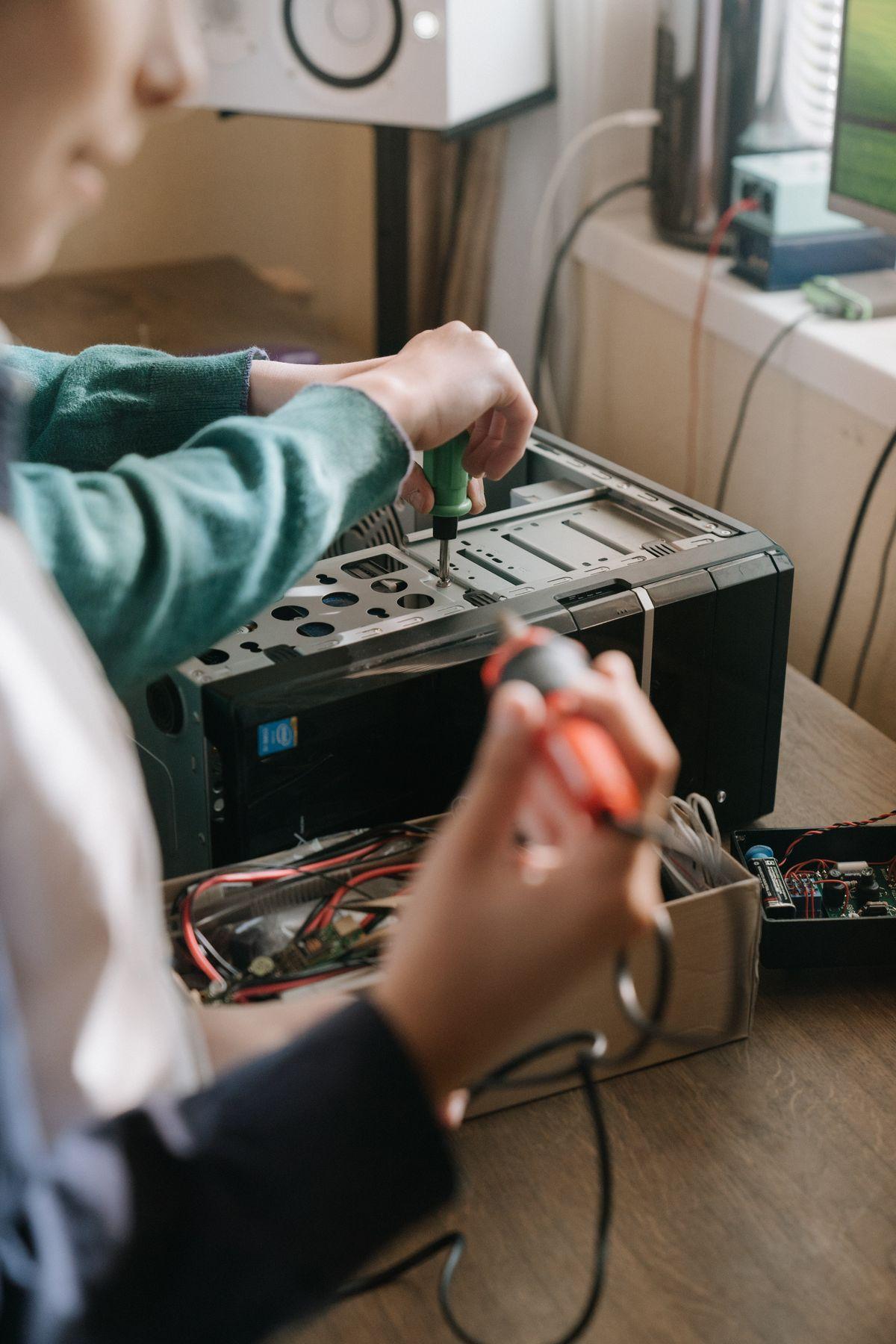
If your PC won’t turn on, work through the basics first: check the power cable and outlet, make sure the power supply switch is on, and try a different cable or socket. If there’s no power at all, the issue is usually the cable, outlet, or power supply. If it powers on but shows nothing on screen, check the monitor and its cable, then reseat the RAM. A laptop that won’t start often just needs a charged battery and a forced restart by holding the power button. Most no-boot problems have simple, free fixes.
Few things cause panic like pressing the power button and getting nothing. But a PC that won’t turn on is often suffering from something simple — a loose cable, a dead outlet, a battery at zero — rather than a catastrophic failure. Working through the possibilities in the right order finds the cause quickly and usually fixes it for free. This guide covers desktops and laptops, from no-power-at-all to powers-on-but-no-display, so you can diagnose and revive your machine methodically.
First, define the problem
Before fixing anything, pin down exactly what happens when you press the power button, because ‘won’t turn on’ covers several different faults with different solutions. Is there absolutely no sign of life — no lights, no fans, no sound? Or does it power on — lights and fans running — but nothing appears on the screen? Or does it start to boot then shut down or restart? Each of these points to a different cause, so identifying which one you’re facing is the essential first step that directs everything after it.
Take a moment to observe carefully: watch for any lights on the machine or keyboard, listen for fans spinning or beeps, and check whether the screen shows anything at all, even briefly. These small signs are diagnostic gold. A completely dead machine suggests a power problem, while one that powers on but stays dark points to a display or hardware issue. With the symptom clearly identified, you can go straight to the relevant fixes rather than guessing, saving time and frustration.
No power at all: check the basics
If there’s no sign of life whatsoever, the cause is almost always in the power delivery, and the fixes are simple and free. Check that the power cable is firmly connected at both the wall and the computer, try a different wall outlet to rule out a dead socket, and test with a different power cable if you have one, since cables do fail. On a desktop, confirm the power supply’s own switch, usually at the back near the cable, is set to on — it’s easily knocked off.
For a desktop, also check that any surge protector or power strip is switched on and working by testing it with another device. For a laptop, the equivalent step is ensuring it’s actually charging: connect the charger, check the charging light comes on, and let it charge for a while, because a fully drained battery can leave a laptop seemingly dead until it regains some charge. These basic power checks resolve a large share of no-boot cases without any cost or technical skill.
- Check the power cable is firmly connected at both ends.
- Try a different wall outlet and, if possible, a different power cable.
- On a desktop, confirm the power supply switch on the back is set to on.
- On a laptop, connect the charger, confirm the charging light, and let it charge.
- Do a forced restart: hold the power button for 10–15 seconds, then try again.
The forced restart and power drain
A surprisingly effective fix for both laptops and desktops that seem unresponsive is a forced power cycle, which clears a stuck electrical state. Hold the power button down for ten to fifteen seconds to force the machine fully off, then press it again to start. For a deeper reset on a desktop, unplug it, hold the power button for around thirty seconds to drain residual power, then reconnect and try. This ‘power drain’ often revives a machine stuck in a bad state.
On laptops with a removable battery, taking the battery out, holding the power button to drain power, then reinserting it and trying again achieves the same thing. Many modern laptops have sealed batteries, in which case the long power-button hold is the equivalent. This step costs nothing and resolves a genuinely common cause of no-boot — a machine that has power but is electrically stuck — so it’s always worth trying early before assuming a hardware failure.
Powers on but no display
If the computer clearly powers on — fans spinning, lights on — but the screen stays black, the problem is with the display or an internal component rather than power. Start with the monitor: confirm it’s switched on, its cable is firmly connected at both ends, and it’s set to the correct input, since a monitor on the wrong input shows nothing. Try a different cable or a different monitor if you can, as a faulty cable or screen is a common and easily fixed culprit here.
If the display checks out and there’s still nothing, the most common internal cause for a desktop is loose or faulty memory. Reseating the RAM — removing the memory sticks and firmly pushing them back into their slots — fixes a surprising number of no-display problems, as memory can work loose over time or after moving the machine. It’s a simple, free step for anyone comfortable opening their desktop, and it resolves many cases that otherwise look serious.
Before opening a desktop to reseat RAM, switch it off, unplug it from the wall, and touch a metal part of the case to discharge static from your body. If you’re not comfortable working inside the machine, a repair shop can do it inexpensively.
When to seek help
If you’ve checked the power, done a forced restart, verified the display, and reseated the memory, and the PC still won’t start, the fault may lie in a component like the power supply, motherboard, or, on a laptop, the internal battery or charging circuit. These are harder to diagnose at home and often warrant professional help. Beeps during startup, if your PC makes them, are actually useful — their pattern indicates the faulty component, and looking up the code can pinpoint the issue.
For a laptop that shows no charging light with a known-good charger, the charger, charging port, or battery is the likely suspect, and testing with another compatible charger helps narrow it down. Knowing you’ve exhausted the simple, free fixes lets you take the machine for repair with a clear description of the symptoms, which speeds diagnosis and saves money. Often, though, the steps above revive the machine, and the panic of a dead PC turns out to have a simple, cost-free solution.
FAQ
Why won’t my PC turn on at all?
With no lights or fans, it’s almost always a power issue: a loose or faulty cable, a dead outlet, an off power-supply switch, or, on a laptop, a fully drained battery. Check these basics and try a forced restart before assuming worse.
My PC powers on but the screen is black. Why?
The machine has power but isn’t displaying. Check the monitor is on, its cable is connected, and it’s on the right input, then try a different cable or monitor. On a desktop, reseating the RAM fixes many black-screen cases.
What is a forced restart?
Holding the power button for 10–15 seconds to force the computer fully off, then pressing it again to start. It clears a stuck electrical state and is one of the most effective free fixes for an unresponsive PC or laptop.
When should I take my PC to a repair shop?
If power checks, a forced restart, display checks, and reseating memory all fail, an internal component like the power supply or motherboard may be at fault. These are best diagnosed professionally, ideally with a description of the exact symptoms.
Preventing future no-boot problems
Once your PC is running again, a few habits reduce the chance of it happening once more. Keep the machine and its vents clean and dust-free, since overheating from blocked airflow can cause shutdowns and instability that mimic power problems. Use a surge protector to shield the power supply from electrical spikes, which are a genuine cause of sudden failures, and shut the computer down properly rather than cutting the power, which can leave it in a bad state.
For laptops, avoid letting the battery fully drain repeatedly and use a good-quality charger, since power and charging issues are common causes of a laptop that won’t start. Keeping your system updated also prevents software-related boot failures. None of this guarantees a machine will never refuse to start, but these simple habits address the most common preventable causes, meaning that if your PC does fail to boot in future, it’s more likely to be a quick fix than a serious fault — and you’ll already know the steps to diagnose it.
The Bottom Line
A PC that won’t turn on is usually less serious than it feels. Identify the symptom first — no power at all, or powers on with no display — then work the basics: check cables and outlets, confirm the power-supply switch, charge a laptop, and do a forced restart to clear a stuck state. For a black screen, check the monitor and reseat the RAM. Most no-boot problems yield to these simple, free steps, and if they don’t, you’ll know it’s time for professional help — armed with exactly what you’ve tried.