
Short Answer
To unsend an email in Gmail, click ‘Undo’ in the little pop-up that appears at the bottom-left of the screen right after you hit Send — you have a few seconds to recall the message before it goes out. You can extend this window: in Gmail Settings > General > ‘Undo Send’, set the cancellation period to up to 30 seconds. On the Gmail mobile app, tap ‘Undo’ in the pop-up at the bottom of the screen. Note that this only works within that short window; after it passes, the email cannot be unsent.
We’ve all felt it — that jolt of panic the instant you hit Send and realize you forgot the attachment, made a typo in the boss’s name, or sent it to the wrong person. Gmail has a built-in safety net for exactly this moment, and with one quick setting change you can give yourself even more time. Here’s how to unsend an email in Gmail on desktop and mobile, and how to make the recall window as long as possible.
How to Unsend an Email in Gmail (Desktop)
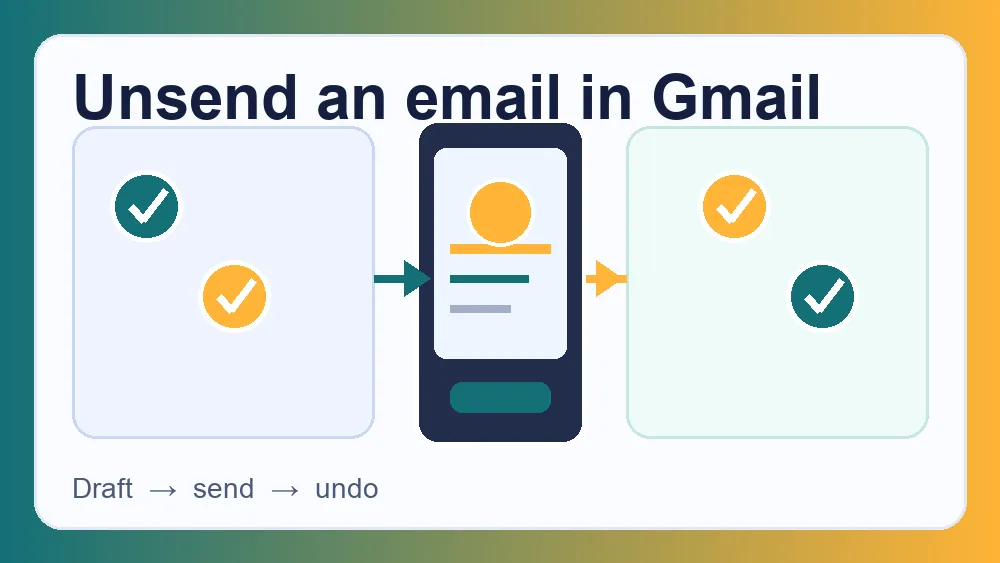
Right after you send an email, Gmail shows a small black pop-up at the bottom-left corner of the screen that says ‘Message sent’ with an Undo link next to it. Click Undo and Gmail pulls the message back, reopening it as a draft so you can fix whatever was wrong and send it again — or not send it at all. The catch is timing: the pop-up only stays for a few seconds by default, so you have to act quickly. This is genuinely recalling the message before it leaves, not deleting it from the recipient’s inbox.- Send your email as normal.
- Watch the bottom-left of the screen for the ‘Message sent — Undo’ pop-up.
- Click ‘Undo’ within the time window.
- The email reopens as a draft — fix it, or discard it.
- Send again when it’s right (or don’t).
Give Yourself More Time: Extend the Undo Window
The default recall window is short, but you can make it as long as 30 seconds — a small change that has saved countless embarrassing emails. On desktop, click the gear icon (Settings) > ‘See all settings’ > the General tab, find Undo Send, and set the cancellation period to 5, 10, 20, or 30 seconds. Choose 30 for maximum safety, then scroll down and Save Changes. From now on, every email gives you a full half-minute to catch a mistake before it truly sends. It’s the single best Gmail setting most people never touch.
How to Unsend an Email in the Gmail App
The mobile Gmail app has the same feature. After you tap Send, a pop-up appears at the bottom of the screen with an Undo option — tap it quickly and the email is recalled and reopened as a draft. It works the same on both iPhone and Android. The mobile window is brief, so keep an eye on the bottom of the screen right after sending. Unlike the desktop version, the mobile app doesn’t let you extend the timer as far, so tap fast if you spot a mistake.What Undo Send Can and Can’t Do
It’s important to understand what’s actually happening. Gmail’s Undo Send doesn’t reach into the recipient’s inbox and yank back an email they’ve already received — instead, it briefly holds your message before sending, and ‘Undo’ cancels that send. That’s why it only works within the few-second (or up to 30-second) window you’ve set. Once that window passes, the email is truly gone and cannot be recalled. So Undo Send is a safety net for the moment of regret, not a way to retrieve a message someone has already read.Extend the window now, before you need it
The 30-second Undo Send setting only helps if you turn it on before you send that regrettable email. It takes 20 seconds to change in Settings > General > Undo Send, and it’s the difference between a calm ‘phew’ and a mortifying follow-up apology. Do it now while you’re thinking about it.
Undo Send is not the same as recalling a read email
Some email systems (like Outlook on a company server) offer true ‘recall’ that can remove an unread email from an internal recipient’s inbox, but Gmail does not work that way, and recall never works for people on other email providers. Treat Undo Send as your only window — once it closes, assume the email has landed and can be read.
Frequently Asked Questions
How long do I have to unsend an email in Gmail?
By default, only a few seconds — but you can extend it to up to 30 seconds in Settings > General > Undo Send. Set it to 30 for the biggest safety margin. After the window you chose passes, the email is sent for real and can no longer be recalled, so the extended setting is well worth turning on in advance.
Can I unsend a Gmail email after an hour (or after it’s been read)?
No. Gmail’s Undo Send only works within the short window right after you hit Send — up to 30 seconds if you’ve set it. Once that passes, the email has left and cannot be unsent or recalled, whether or not it’s been read. There’s no way to retrieve an email the recipient has already received in Gmail.
Does unsending work on the Gmail mobile app?
Yes — after sending in the Gmail app on iPhone or Android, a pop-up with ‘Undo’ appears at the bottom of the screen; tap it quickly to recall the message. The mobile window is brief, so act fast. The feature works the same way as on desktop, just with a shorter timer that isn’t as adjustable.
Better Than Unsending: Avoid the Mistake Entirely
Undo Send is a great safety net, but a few habits stop the panic before it starts. The biggest one: add the recipient’s address last, after you’ve written and checked the email, so you physically can’t send it half-finished to the wrong person. Attach files before you write ‘see attached’, and let Gmail’s own reminder catch a forgotten attachment (it often warns you). For sensitive emails, write the draft, then step away for a minute and re-read before sending — most regretted emails are ones sent in haste or anger.Gmail also lets you schedule emails: instead of sending immediately, choose ‘Schedule send’ to have it go out later. This gives you an unlimited window to open the Scheduled folder and edit or cancel it — effectively a much longer ‘unsend’ for anything that isn’t urgent. Combined with the 30-second Undo Send window, these habits mean you’ll rarely, if ever, send something you regret.
Can I schedule an email in Gmail to send later?
Yes — instead of clicking Send, click the arrow next to it and choose ‘Schedule send’, then pick a date and time. The email waits in your Scheduled folder, where you can open, edit, or cancel it any time before it goes. It’s effectively an unlimited undo window for non-urgent emails, and a great habit for anything you might want to reconsider.
Where do unsent (recalled) Gmail emails go?
When you click ‘Undo’, the email doesn’t get sent — it reopens as a draft in your compose window (and is saved in Drafts), so you can fix and resend it or discard it. Nothing is delivered to the recipient. It’s genuinely cancelled before sending, which is why it only works within the short Undo window.
Is there a way to recall an email after the Undo window closes?
In standard Gmail, no — once the Undo Send window (up to 30 seconds) passes, the email is delivered and can’t be recalled, even if unread. The only real workaround is to use ‘Schedule send’ for non-urgent emails, which lets you edit or cancel from the Scheduled folder any time before it goes out. For instant sends, the Undo window is your one and only chance.
Key Takeaways
- Click ‘Undo’ in the pop-up right after sending to recall an email
- Extend the window to 30 seconds in Settings > General > Undo Send
- It works on desktop and the Gmail mobile app
- It only works within the short window — not after
- It can’t retrieve an email the recipient has already received