
- 01The Moment It Happened
- 02What Hackers Do in the First 10 Minutes
- 03Why Standard Recovery Fails
- 04What the Attacker Can't Take
- 05The First Hour: Step-by-Step
- 06The Backdoor Paths That Actually Work
- 07If You're a YouTube Creator
- 08The Indian Context: What's Actually Safe
- 09What to Set Up Before This Happens Again
- 10Download the Free Recovery Checklist
- 11Where Things Stand
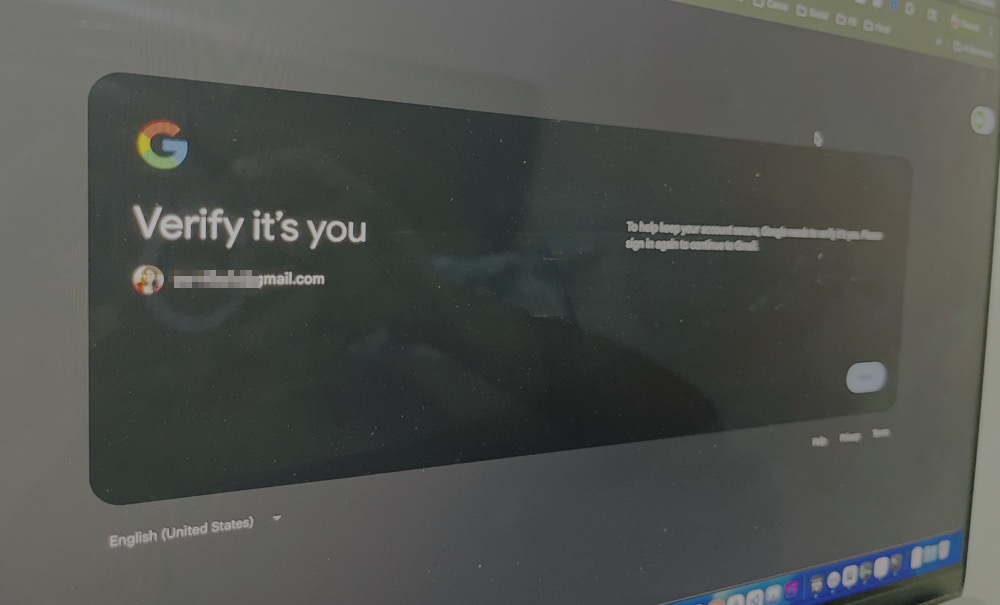
My wife’s Google account was hacked last week. Not just the password — the attacker changed her recovery email, recovery phone, and backup codes within the first ten minutes, using a systematic lockout technique that breaks every standard Google recovery flow. This is what we’ve learned, what worked, and what wasted our time.
Short Answer: When an attacker changes your Google password and recovery email simultaneously, standard recovery (Forgot Password, SMS, g.co/recover) is designed to fail. Your real levers are: still-active app sessions on trusted devices, Google Photos partner sharing, the @TeamYouTube support channel on X, and the YouTube-specific account recovery form. Act in the first 7 days — Google’s recovery window closes after that.
The Moment It Happened
It started with my wife’s Gmail app not getting new emails. The inbox loaded, old messages were there, but nothing new arrived. No error. Just silence.When she opened the browser, her password didn’t work. The screen said it had been changed — but she hadn’t changed it. Within minutes we realised someone was actively inside her account, locking her out in real time. By the time we tried the recovery email, it had been swapped. By the time we tried the recovery phone, that was gone too.
The IP location showed United States. We’re in Lucknow.
What Hackers Do in the First 10 Minutes
Once inside, the attacker doesn’t read emails. They run through a systematic lockout sequence security researchers call the “fortification phase”:- Change the password so you can’t log back in
- Change the recovery email so password reset emails go to them
- Change the recovery phone number so SMS codes go to them
- Regenerate backup codes, invalidating any you’ve saved
- Add a passkey or security key they control
- Set up Gmail filters to auto-delete incoming security alerts
- Sign out your trusted devices to revoke your sessions
By the time you notice the lockout, every standard recovery option routes back to them. The one thing they can’t touch is your account history with Google — that’s your only real leverage.
Why Standard Recovery Fails
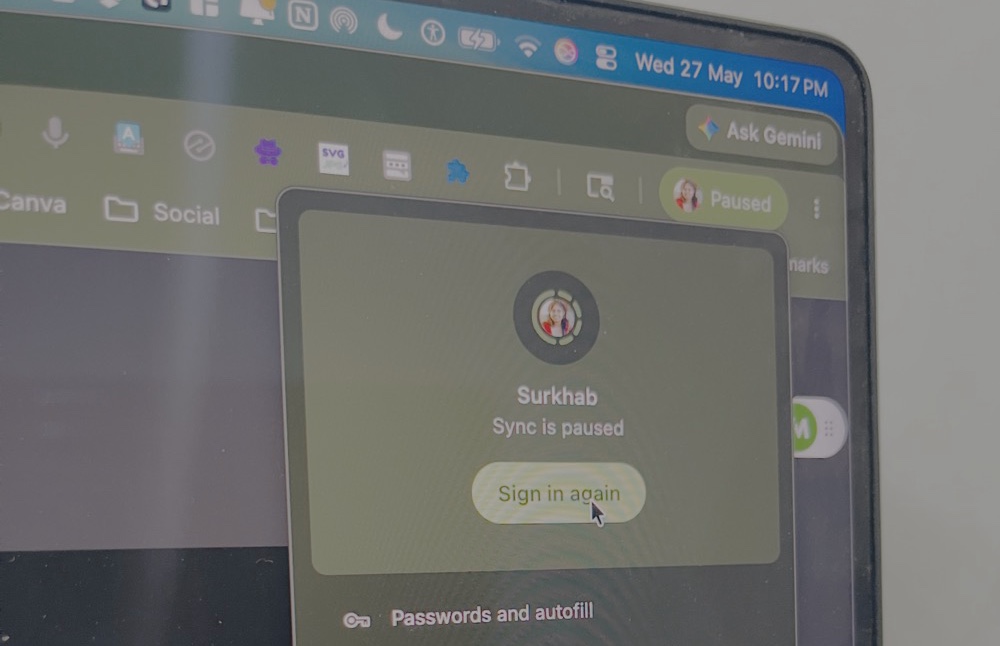
You’ll try the obvious paths first. Here’s why each one breaks under the full fortification pattern:
The “Forgot Password” link sends a reset code to the recovery email — which the attacker now controls. SMS recovery goes to the recovery phone — same problem. Old backup codes you saved are useless; the attacker regenerates them immediately. We found 8-digit codes from 2015 — none worked. Google’s recovery form at g.co/recover can lock you out for 24 hours if you fail too many attempts, and each failed attempt reduces your odds on the next try. Google One chat support will tell you their expertise is limited to subscription billing — even paying subscribers can’t get direct account recovery through chat.
Warning: Do not attempt g.co/recover more than once without waiting 24 hours. Each failed attempt actively reduces your chances on the next. One careful attempt is worth more than five desperate ones.
What the Attacker Can’t Take
Before doing anything, take stock of what’s still on your side. These are the identity signals Google’s systems can verify — and that the attacker cannot fabricate:- Your physical phone — Google weights device fingerprint and home network heavily in identity verification
- Your home Wi-Fi IP — recognised as a long-term familiar address
- Account history — every email sent, video watched, photo backed up. The attacker can’t fake years of it
- Other Google apps still authenticated — YouTube, Photos, Drive, Maps, Pay may each hold an independent session
- Google Photos partner sharing — if set up with a family member, this is a Google-verified relationship that Trust and Safety teams can confirm on their end
- Active subscriptions — Google One, YouTube Premium, Workspace create payment records tied to your verified identity
- A YouTube channel — even a small one is a powerful identity anchor because the attacker can’t fabricate years of upload history
- Time — Google’s recovery system is most generous within the first 7 days (168 hours) of the password change
The First Hour: Step-by-Step
Quick order:
Don’t log out anything → Document everything → Try in-app paths → Run g.co/recover once → Lock down linked accounts → Warn contacts
Step 1: Don’t make it worse (first 5 minutes)
Do not log out of any Google app that’s still working on your phone or laptop — that session is your only live thread. Do not restart or update your phone; system updates can wipe app sessions. Do not call anyone back claiming to be Google support — Google does not call individual consumer users. Anyone calling is the attacker or a scammer exploiting the panic.
Step 2: Document everything (next 10 minutes)
Screenshot every error message you’re seeing. Write down the exact time you noticed the compromise — the recovery form asks for it. Note the account creation year, oldest password you remember, last working password, and the recovery email and phone that were on the account. Even take photos of old invalidated backup codes — they’re evidence of long-term ownership. Check Google Account “Recent Activity” from any logged-in app and screenshot the unauthorised login if visible.
Step 3: Try in-app paths (next 15 minutes)
The web sign-in loop may be broken, but Google’s mobile apps sometimes hold independent sessions. Open Gmail, YouTube, Google Photos, Drive, and Maps in turn. In each, tap your profile picture and look for “Manage your Google Account.” If any app opens Security settings without asking for a password again, act immediately: sign out all other devices first, then change the password, then restore the recovery email and phone, then enable passkey 2FA.
Step 4: Run g.co/recover once, carefully (next 20 minutes)
Use the phone that’s been your trusted device for years. Connect to your home Wi-Fi, not mobile data or a VPN. At each screen, tap “Try another way” until you reach the question-based form. Fill in every field — blank answers fail, honest approximations (account created “around 2013”) succeed. Provide a backup email for Google to contact you. Submit once and wait. Do not retry for 24 hours if it fails.
Step 5: Lock down the blast radius (next hour)
The attacker can now use the inbox to reset passwords on every account linked to that email. Get there first. Call your bank and flag suspicious activity; disable email-based resets on banking apps if the option exists. Change WhatsApp’s two-step PIN directly from the phone. Update passwords on Amazon, Flipkart, Facebook, Instagram, and any domain registrar, web host, or payment gateway tied to your business. Then send one WhatsApp message to your contacts: “My Gmail is hacked. Don’t trust any emails from this address — especially money requests or links — until I confirm otherwise.”
The Backdoor Paths That Actually Work
These routes don’t appear in Google’s help docs but are the ones that actually move compromised-account cases forward.@TeamYouTube on X
@TeamYouTube responds to DMs about compromised accounts and can route directly to YouTube’s internal account specialists. This is one of the highest-yield support channels because it’s staffed by humans with escalation access. Tweet them one line describing the situation, mention that a YouTube channel is at risk, and wait for them to initiate a DM. When they do, send a single clear message: channel name and URL, the date and time of compromise, what the attacker changed, your identity signals (Google One subscriber, Photos partner sharing, account age, still-active session on trusted device), a backup contact email, and a request to escalate to Trust and Safety.
YouTube-specific channel hijack form
Go to support.google.com/youtube/contact/account_recovery — this is separate from the general Google account recovery form and goes to the YouTube team directly. They treat channel hijacking as a known criminal pattern, so creator signals like subscriber count, channel age, and content history carry real weight here.
Google Photos partner sharing as verification
If you have partner sharing turned on with a family member, this is a Google-side verifiable relationship. Trust and Safety teams can confirm it on their end without you proving anything. Lead with this in every support interaction.
AdSense publisher support
If you have an AdSense account linked to the compromised Gmail, support.google.com/adsense gives you a human-staffed contact form. Mention your Publisher ID and explain that the AdSense-linked account has been taken over.
Google One internal ticket
Google One chat cannot directly recover an account, but they can file an internal ticket. Ask them explicitly: “Please file an internal ticket and route it to Google Trust and Safety, noting my Google One member ID and the partner-sharing relationship to the compromised account.” You’ll get a case reference number you can quote across other support channels.
If You’re a YouTube Creator
Channel hijacking is a specific criminal industry targeting the 1K–100K subscriber range — valuable enough to monetise, small enough that the owner probably doesn’t have direct YouTube staff contacts. The post-hijack timeline is fast: lockout in the first six hours, channel rebranding to impersonate a major brand (Tesla, Apple, MicroStrategy) within 48 hours, crypto scam livestream within 72 hours, original videos deleted from day 3, channel listed on underground forums by week 1 if not recovered.While you wait for recovery, check your channel URL in a private browser window every few hours. Screenshot any changes — this is evidence for YouTube’s review process. Search your channel name on YouTube; if it stops appearing, the attacker has hidden it from search, which is also reportable.
The Indian Context: What’s Actually Safe
India’s mandatory phone-based authentication for banking means the attacker’s access to your email doesn’t automatically become access to your money. Bank apps require SMS OTP to your physical SIM. UPI apps (PhonePe, GPay, Paytm) require device, SIM, and UPI PIN. WhatsApp is tied to your phone number, not your email. Aadhaar-linked services use mobile OTP.Confirm no SIM swap has happened by calling your number and checking that SMS arrives normally. If your SIM shows no service, call your carrier (Jio, Airtel, or Vi) immediately — that becomes the higher priority. For most Indian users, the realistic damage is a YouTube channel, years of Drive documents, or email history — not direct financial loss. That’s still serious, but it changes the recovery order of priority.
What to Set Up Before This Happens Again
Prevention checklist:
- ✅ Add two recovery emails (including a partner’s account) and a recovery phone
- ✅ Switch from SMS 2FA to passkeys — passkeys can’t be phished or remotely reset
- ✅ Print backup codes and store them somewhere physical; also save in a password manager
- ✅ Set up Google Photos partner sharing with a trusted family member
- ✅ Subscribe to Google One on at least one family account — creates a verified support relationship and payment record
- ✅ Use a password manager (Bitwarden or 1Password) with a strong master password and unique passwords per account
- ✅ Enable login alerts so Google emails your secondary address whenever a new device signs in
- ✅ For creators: manage your YouTube channel through a brand account owned by a separate Google account used only for that purpose
Download the Free Recovery Checklist
I made a printable PDF of the recovery checklist from this post — everything above condensed to one sheet, formatted to follow step-by-step in a crisis. It covers the first 5 minutes (what not to do), the first hour (immediate actions), the first 24 hours (damage control), and the first week (follow-up and monitoring).Download the Free Checklist PDF
Where Things Stand
This post is being updated in real time as our recovery attempt continues. I’ll add the final outcome — whether the account came back, how long it took, and what the deciding factor was. If you’re going through this right now, leave a comment or find me via the contact page. Google’s own help docs are not useful in this scenario; people who’ve survived the same attack are.If you found this useful, share it. Every person who reads this before they get hit is one less account the attackers win.