

- 01What Really Happens When You Drag an App to the Trash on Mac
- 02What Happens If You Ignore This (And Most People Do)
- 03The Expensive (and Often Incomplete) Ways People Try to Fix This
- 04Introducing Clean Uninstaller for Mac
- 05What Clean Uninstaller Actually Does
- 06Built the Mac Way, Not Bolted On
- 07Why Pay Once Instead of Subscribing Forever
- 08Who Should Use Clean Uninstaller
- 09How to Get Started in Under a Minute
- 10Frequently Asked Questions
- 11Stop Letting Old Apps Waste Your Storage
If your Mac’s storage keeps creeping toward “Full” even though you swear you keep deleting apps you don’t use, you’re not imagining things. Dragging an app to the Trash on macOS feels like uninstalling it, but for the vast majority of apps, that’s only the first step. The app bundle leaves, but a trail of caches, preferences, support files, login items, and logs stays behind — quietly eating gigabytes and, in some cases, causing real problems down the line.
In this guide we’ll break down exactly what happens when you delete an app the “normal” way, why ignoring the leftovers can hurt your Mac over time, why the popular fixes for this problem are either too expensive or not thorough enough, and what an actual complete solution looks like.
What Really Happens When You Drag an App to the Trash on Mac

macOS apps aren’t single, self-contained files the way most people assume. An app like Photoshop, Slack, or even a small menu-bar utility is really just the visible tip of an iceberg. The .app file you see in Applications is a bundle, but the moment you launch it, it starts writing data elsewhere on your drive: user preferences in ~/Library/Preferences, cached data in ~/Library/Caches, support files in ~/Library/Application Support, saved states, container data, browser-style local storage for Electron-based apps, log files, crash reports, and sometimes background helper processes registered as launch agents or launch daemons.
When you drag that app to the Trash, macOS deletes the bundle. It does not walk through your entire Library folder hunting down every related file, because it has no reliable way to know which files belong to which app. There’s no built-in dependency graph. So all of that supporting data just sits there, orphaned, forever — or until someone (or something) goes looking for it.
For a single app, this might only be a few megabytes. But most Mac users install and remove dozens, sometimes hundreds, of apps over the years: trial versions of creative software, one-off utilities, old versions of chat apps, abandoned games, browser bundles, developer tools. Multiply a few hundred megabytes of leftovers by every app you’ve ever tried, and it’s easy to see how people end up with tens of gigabytes of dead weight they can’t even see in Finder.
What Happens If You Ignore This (And Most People Do)
Leftover app files aren’t just a cosmetic annoyance. Ignoring them, or “solving” the problem by deleting things manually without knowing what you’re doing, creates a handful of very real consequences.Your Free Storage Quietly Disappears
This is the most common complaint: “I have a 256GB or 512GB Mac and it’s somehow always full.” Apple’s own Storage pane in System Settings is notoriously vague, often lumping huge chunks of space into a generic “System Data” or “Other” category. A large percentage of that is leftover application data that has nothing left using it. Without a clear view of what’s actually taking up space, people end up buying more iCloud storage or a new Mac entirely, when the real fix is a thorough cleanup.
Your Mac Gets Slower Over Time
Orphaned login items and background helper processes don’t always know their parent app is gone. Some keep launching at startup, silently consuming CPU and memory cycles for an app that no longer exists. Bloated cache folders can also slow down Spotlight indexing and Time Machine backups, since macOS has to churn through more data every time it scans your disk.
Reinstalls and Updates Break in Strange Ways
Ever reinstalled an app to “fix” a bug, only to have the exact same bug reappear instantly? That’s usually because the broken preference file or corrupted cache never actually left your Mac. The fresh install picks right back up where the broken version left off, because the app dutifully reads its old configuration files the moment it launches. This is one of the most frustrating and least understood troubleshooting traps on macOS.
Old Data Becomes a Quiet Privacy Risk
Support files and containers can hold cached login tokens, saved form data, local databases, and other remnants of accounts you no longer use. If you sell, gift, or hand down an old Mac after only deleting the apps you remember, you may be leaving behind far more personal data than you realize, scattered across dozens of hidden folders.
The Expensive (and Often Incomplete) Ways People Try to Fix This
Most Mac users eventually notice the problem, and try one of a handful of common fixes. Unfortunately, most of these options are either costly, risky, or don’t actually solve the whole problem.Manually Hunting Through the Library Folder
Some more technical users try to fix this themselves by opening ~/Library in Finder and searching for folders that match an app’s name, or using Terminal commands to find and remove files. This works, in theory, but it’s slow, tedious, and genuinely risky. macOS hides the Library folder by default for good reason: it’s easy to delete the wrong file, break another app that shares a framework or dependency, or remove something a system process still needs. This “solution” costs you time and carries real risk, for zero dollars and a lot of stress.
Subscription Cleaning Suites
Apps like CleanMyMac and similar all-in-one “Mac cleaner” suites are the most popular paid fix, and they do a reasonable job of finding leftover files. The catch is the business model: most of these tools are locked behind annual subscriptions that often run $30–$45 per year, forever, just to keep using a feature you might need for ten minutes a month. Many also install background monitoring agents, menu bar processes, and marketing prompts for other products in their suite, which somewhat ironically adds more resource usage and startup clutter to your Mac — the exact problem you were trying to solve in the first place.
Free Uninstaller Apps That Don’t Finish the Job
There are free utilities that will remove an app and search for a handful of associated files. They’re a reasonable middle ground, but many are limited in scope, missing modern residue locations like sandboxed containers, app group data, or web storage from Electron-based apps. Some are ad-supported or try to upsell you into a paid tier the moment you want a genuinely thorough clean.
Wiping and Reinstalling macOS
At the extreme end, some people just erase their whole Mac and start fresh once storage or performance problems get bad enough. This “solves” the leftover files problem the way demolishing a house solves a cluttered garage. It works, but it costs you hours of downtime, forces you to reinstall and reconfigure every app you actually use, and is a wildly disproportionate response to a problem that a proper uninstaller solves in seconds.
Introducing Clean Uninstaller for Mac
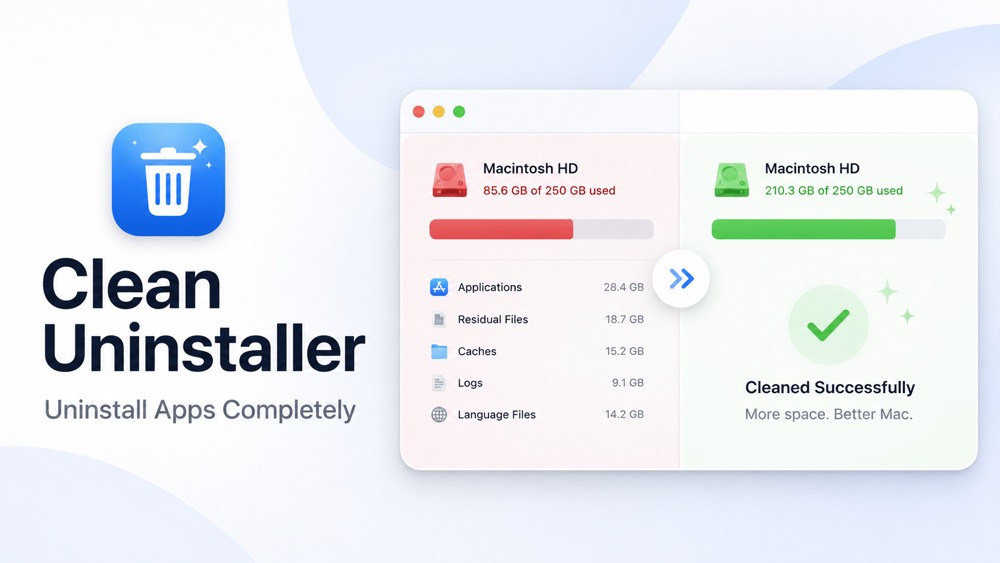
Clean Uninstaller was built around a simple idea: uninstalling an app should mean the app and everything it left behind are actually gone, not just hidden from the Applications folder. It’s a native macOS app with one job, done properly.
Instead of a bloated “cleaning suite” with a dozen half-finished features and a subscription to match, Clean Uninstaller focuses entirely on the two things that actually matter: getting rid of unwanted apps completely, and showing you exactly where your storage is going so you can reclaim it.
What Clean Uninstaller Actually Does
- Scans all your installed apps and shows their real disk size in a searchable, sortable list — so you can instantly see which apps are actually worth keeping.
- One-click Uninstall with a Deep Clean option that hunts down hidden residue: caches, preferences, containers, launch items, logs, crash reports, and web storage left behind by Electron and browser-based apps.
- Review every file before removal. Nothing is deleted blindly — you always see exactly what’s about to be removed before you confirm it.
- A dedicated Storage view that shows what’s actually eating your disk: caches, logs, downloads, and Trash, each removable individually, per item, whenever you want a quick cleanup that has nothing to do with uninstalling anything.
Built the Mac Way, Not Bolted On
Clean Uninstaller is 100% native SwiftUI. It feels like Apple made it, because it’s built the way Apple builds its own apps — not a cross-platform wrapper repurposed for macOS. That matters for a tool that’s going to be poking around your system folders: it should feel precise, fast, and native, not clunky.Safety is the default, not an afterthought. Everything Clean Uninstaller removes goes to the Trash first, so it’s recoverable until you empty it yourself; permanent deletion is opt-in, never automatic. System apps are protected outright, and residue matching is deliberately conservative, so unrelated files that merely share a similar name are never touched. The entire app has a tiny footprint of about 1.3 MB, so it doesn’t become the next piece of bloat sitting on your Mac.
Why Pay Once Instead of Subscribing Forever
This is where Clean Uninstaller breaks from the rest of the category. It’s a one-time purchase of $9. Not $9 a month, not $9 a year — $9, once, and it’s yours. Compare that to $30–$45 a year for subscription cleaning suites, which quietly adds up to hundreds of dollars over the years for a task you might perform a few times a month at most.You also get the full source code and a one-click build script included with your purchase. If you’re technically curious, want to verify exactly what the app does before trusting it with your file system, or just like owning what you pay for, that’s included — not sold separately as an “enterprise” tier.
Who Should Use Clean Uninstaller
Clean Uninstaller is built for anyone who installs and removes apps regularly and doesn’t want their Mac quietly filling up with digital debris: developers who test dozens of tools and SDKs, creatives who trial multiple apps before settling on one, everyday users who just want their storage numbers to make sense again, and privacy-conscious users who want old accounts and cached data properly wiped before selling or handing down a Mac. If you’ve ever opened About This Mac, stared at a mysterious “System Data” number, and felt a little bit betrayed, this is for you.How to Get Started in Under a Minute
Getting a clean, fully reclaimed Mac takes three steps. First, download Clean Uninstaller and open it, no account or sign-up required. Second, browse your installed apps sorted by real disk size, and pick the ones you no longer need. Third, run Deep Clean, review exactly what it found, and confirm — the app and every trace of it move to the Trash together, in one pass.Frequently Asked Questions
Does dragging an app to the Trash on Mac remove everything?No. It removes the application bundle itself, but preferences, caches, support files, logs, and other associated data typically remain in your Library folder indefinitely.
Is it safe to delete files from the Library folder manually?
It can be risky. Files in the Library folder aren’t always clearly named after the app that created them, and deleting the wrong file can affect other apps or system behavior. A dedicated uninstaller that matches residue conservatively is a much safer approach than manual deletion.
How much storage do leftover app files actually take up?
It varies enormously by app, but it’s common for Mac users who’ve installed and removed many apps over the years to be carrying tens of gigabytes of orphaned cache, log, and support files without realizing it.
Do I need a subscription to keep my Mac clean?
No. While many popular cleaning suites are subscription-based, a one-time purchase tool like Clean Uninstaller can perform the same core job — complete app removal and storage cleanup — without a recurring fee.
What macOS version does Clean Uninstaller require?
Clean Uninstaller requires macOS 14 Sonoma or later, and includes full source code along with a one-click build script.
Stop Letting Old Apps Waste Your Storage
Every gigabyte you’re losing to abandoned caches and orphaned support files is space you could be using for photos, projects, or just a Mac that isn’t perpetually “almost full.” You don’t need a $40-a-year subscription or a risky trip through Terminal to fix it — you need a tool that does the one job properly, once, for a one-time $9.Get Clean Uninstaller for Mac on Gumroad →