
- 01Quick Wins to Try First
- 02Trim Your Login Items
- 03Free Up Storage
- 04Find What's Slowing It Down With Activity Monitor
- 05Reduce Visual Effects and Clean Up the Browser
- 06When to Upgrade an Older Mac
- 07Frequently Asked Questions
- 08Clearing 'System Data' and Other Hidden Storage
- 09Key Takeaways
- 10The Bottom Line
Short Answer
To speed up a slow Mac: restart it, quit apps you’re not using, remove login items that launch at startup (System Settings > General > Login Items), free up storage (System Settings > General > Storage), and update macOS. Check Activity Monitor to find apps hogging CPU or memory, clear browser clutter, and reduce visual effects. Most Mac slowdowns come from too many startup and background apps and a nearly full drive. If an older Mac is still slow, adding storage headroom or (on upgradable models) more memory helps most.
Macs are known for staying fast for years, but any Mac can slow down over time — the spinning beach ball, sluggish app launches, and a fan that won’t quit. The causes are usually simple and fixable for free: too many startup and background apps, a nearly full drive, or a browser drowning in tabs. Here’s how to speed up a slow Mac, step by step, and when a small upgrade is worth it.
Quick Wins to Try First
Before changing settings, a few basics fix the most common slowdowns in two minutes:- Restart your Mac — a proper restart clears memory and background processes that build up when you only ever close the lid
- Quit apps you’re not using — a red dot on the app in the Dock means it’s still running; quit fully with Cmd+Q, not just closing the window
- Close excess browser tabs — dozens of tabs are a leading cause of a sluggish, hot Mac
- Update macOS — System Settings > General > Software Update; updates include performance fixes
Trim Your Login Items
If your Mac is slow from the moment it starts up, too many apps are launching automatically. Go to System Settings > General > Login Items & Extensions, and remove anything you don’t need running the instant you log in — cloud services, updaters, and ‘helper’ apps love to add themselves here. Also review ‘Allow in the Background’ extensions and turn off any you don’t use. Trimming startup items shortens login time and frees resources all day, and it’s one of the most effective free speed fixes on a Mac.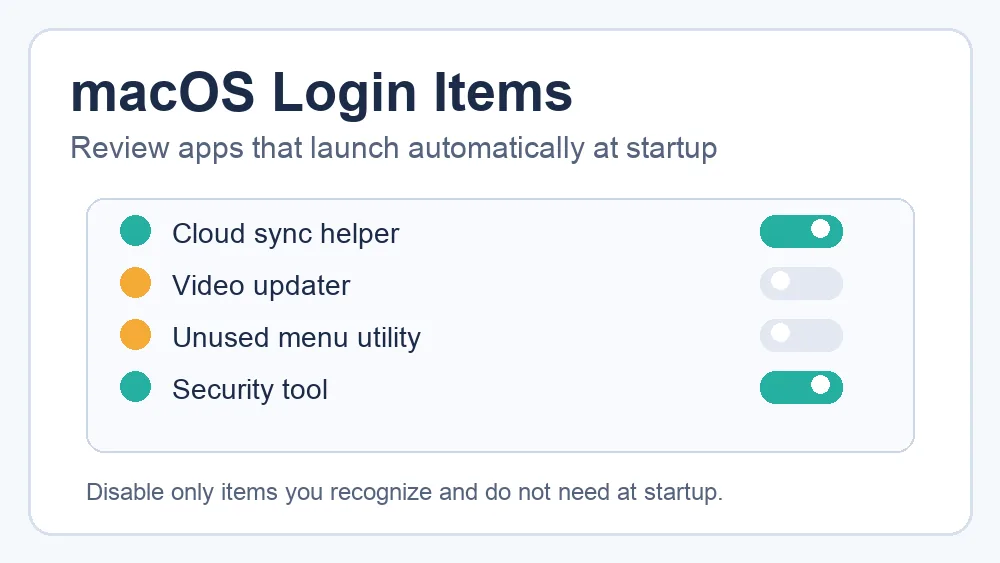
Free Up Storage
A nearly full drive slows a Mac noticeably, because macOS needs free space to work smoothly. Go to System Settings > General > Storage to see what’s using space and get recommendations. Use the built-in tools: empty the Trash, remove large unused apps, clear the Downloads folder, and turn on ‘Optimize Storage’ to offload files you rarely open to iCloud. Deleting old iOS backups, large videos, and duplicate photos frees the most. Aim to keep at least 10-15% of your drive free. With storage costs high right now — see why storage prices are surging — making the most of your Mac’s drive beats paying for more.Find What’s Slowing It Down With Activity Monitor
When your Mac feels slow, Activity Monitor tells you exactly why. Open it (in Applications > Utilities, or via Spotlight), and check the CPU and Memory tabs to see which apps are using the most resources. A runaway browser tab, a stuck app, or a background process is often the culprit — select it and quit it. High ‘Memory Pressure’ (shown in yellow or red) means you have too many apps open for your RAM, so close some. This turns ‘my Mac is slow’ into a specific, fixable problem.Reduce Visual Effects and Clean Up the Browser
A couple of extra tweaks help older Macs feel snappier. In System Settings > Accessibility > Display, turn on Reduce Motion and Reduce Transparency to cut animation and effects that tax older graphics. And since a ‘slow Mac’ is often really a slow browser, clear your browser’s cache, remove extensions you don’t use, and keep fewer tabs open — the same fixes that speed up Chrome apply here. Between lighter visuals and a leaner browser, an older Mac can feel considerably faster.Check for the resource hogs, don’t guess
Before assuming your Mac needs replacing, open Activity Monitor and watch the CPU and Memory tabs for a few minutes of normal use. Often a single misbehaving app or an overloaded browser is the entire problem, and quitting it restores full speed instantly. Data beats guesswork — it points you straight at the cause.
Skip ‘Mac cleaner’ apps
So-called Mac ‘cleaner’, ‘speed up’, and ‘optimizer’ apps are mostly unnecessary and some are borderline scams that nag you to pay or bundle unwanted software. macOS’s built-in Storage tools and Activity Monitor do everything you actually need, safely and for free. Avoid installing a third-party cleaner; it often adds background load rather than removing it.
When to Upgrade an Older Mac
If you’ve done everything above and an older Mac is still slow, hardware may be the limit. On the last Intel Macs and some older models, adding RAM or swapping to an SSD (where possible) can transform performance — though most modern Apple Silicon Macs aren’t user-upgradeable. Keeping plenty of free storage and closing unneeded apps matters even more on those. If your Mac is many years old and struggles with current software even after cleanup, it may simply be time for a newer model, but the free fixes above extend the life of most Macs by years.Frequently Asked Questions
Why is my Mac so slow all of a sudden?
Sudden slowness is usually a full drive, too many startup or background apps, a runaway process, or a pending macOS update. Restart, check Activity Monitor for an app hogging CPU or memory, free up storage, and update macOS. If it started right after an update, give it a while to finish background indexing, then re-check — performance often settles on its own.
How do I free up RAM on a Mac?
Quit apps you’re not using (Cmd+Q, not just closing the window), close excess browser tabs, and restart your Mac to clear memory. Check Activity Monitor’s Memory tab — if ‘Memory Pressure’ is yellow or red, you have too much open for your RAM. macOS manages memory automatically, so you rarely need a tool; closing apps and restarting is the real fix.
Do Mac cleaner apps actually work?
Mostly no. macOS already manages caches and memory well, and its built-in Storage tools and Activity Monitor handle what a cleaner claims to — safely and free. Many ‘cleaner’ apps run constantly, show alarming warnings, and pressure you to pay. Stick to the built-in tools and the steps above rather than installing a third-party optimizer.
Clearing ‘System Data’ and Other Hidden Storage
Many Mac users are baffled by a large ‘System Data’ (formerly ‘Other’) category in Storage — caches, logs, and temporary files that can swell to tens of gigabytes. Some is cleared automatically, but you can help it along: restart your Mac (which clears certain caches), delete old iOS device backups and large mail attachments, empty the Trash, and remove downloaded files and old Time Machine local snapshots. Third-party ‘cleaners’ claim to tackle this, but the safe approach is the built-in Storage recommendations plus a restart, which resolve most bloated System Data over time.Two other hidden space eaters worth checking: your Downloads folder (often full of forgotten installers) and duplicate or large photos and videos, which iCloud’s Optimize Storage can offload. Clearing these not only frees space but keeps your Mac running smoothly, since a drive with breathing room is a faster drive.
Why does my Mac say the storage is full when it isn’t?
Usually because of ‘System Data’ — caches, logs, snapshots, and temporary files that accumulate and can look alarming. Much of it clears on its own; a restart, emptying the Trash, deleting old backups, and giving macOS a day often shrinks it. Check System Settings > General > Storage for recommendations, and avoid third-party cleaners, which aren’t necessary to manage it.
How do I know if my Mac needs more RAM or an upgrade?
Open Activity Monitor and watch the Memory tab during normal use: if ‘Memory Pressure’ is regularly yellow or red even after closing apps, you’re short on RAM. Persistent slowness after cleanup, a full drive you can’t reduce, or struggling with current software all point to hardware limits. On modern Apple Silicon Macs RAM isn’t upgradeable, so that signals it may be time for a newer model.
Key Takeaways
- Restart, quit unused apps, and close browser tabs for quick wins
- Remove unnecessary Login Items to speed up startup
- Free up storage via System Settings > Storage; keep 10-15% free
- Use Activity Monitor to find and quit resource hogs
- Reduce visual effects and browser clutter; skip ‘cleaner’ apps