
- 01PDFgear vs Sejda at a glance
- 02First identify the kind of PDF you have
- 03PDFgear vs Sejda for editing existing text
- 04Fonts and why a small correction can look wrong
- 05Scanned PDFs: OCR is not a universal editing mode
- 06Offline desktop editing and cloud features
- 07PDFgear vs Sejda free limits and paid plans
- 08Forms, signatures and removing private information
- 09Check the finished export in another viewer
- 10A fair comparison with one sample document
- 11Which PDF workflow should you start with?
Start with PDFgear’s desktop app for regular local PDF corrections. Start with Sejda Web for a small authorised document when browser access is convenient, or Sejda Desktop when files should stay on the computer. Check the exported PDF for fonts, text wrapping and working links; OCR and conversion do not guarantee an editable document with identical layout.
PDFgear vs Sejda is a useful comparison when the job is small but the layout matters: correct a date, replace a sentence, fill a field and send the document back without disturbing the surrounding pages.
That is different from choosing a general PDF toolbox. The right method depends on whether the file contains real text or scanned images, whether you have the original source, and whether uploading the document is appropriate.
We checked official product documentation on October 15, 2026. This is a workflow comparison, not a claim that we edited a matched sample and measured layout fidelity. The sample correction checklist below is for your own document trial.
PDFgear vs Sejda at a glance
| Decision | PDFgear | Sejda |
|---|---|---|
| Typical starting point | PDFgear: installed editor for regular local corrections | Sejda: choose Web convenience or Desktop local processing |
| Scanned pages | OCR and export are separate from ordinary text editing | Searchable OCR output does not make image text directly editable |
| Cost | Desktop editing advertised as free | Free limits differ by tool; paid Web and Desktop access differ |
| Final check | Inspect fonts, layout, links and forms in an exported file | Apply the same checks; whiteout is not secure redaction |
Both provide PDF editing and related document tools. We would compare them on the exact file and output you need rather than a count of menu items. A font substitution on one important page can matter more than several unused conversion features.
If you need a broader set of options, our free PDF editor guide covers the surrounding category. Here we are concentrating on small corrections and a dependable finished file.
First identify the kind of PDF you have
Try selecting a sentence. If the text selects as words, the file may support direct text editing. If the whole page behaves like a photograph, it is probably a scan or an image-based page. Some documents mix both.
Search for a distinctive word too. A scanned page can have an OCR text layer that makes it searchable while the visible page remains an image. Searchability alone does not establish that the printed words can be edited like a paragraph in Word.
If you have the original Word, presentation or design file, make substantial changes there and export a fresh PDF. Direct PDF editing is most attractive for a small correction when the source is unavailable or opening it would be disproportionate work.
Keep the original PDF and save a working copy. Name the final export clearly so the old date or wording does not accidentally return in the version sent to the recipient.
PDFgear vs Sejda for editing existing text
PDFgear’s Mac product page documents direct text editing, image adjustments, page organisation and forms in its free desktop app. Direct editing can avoid a PDF-to-Word round trip for a short correction.
Sejda’s editor guide documents changing existing text, adding text, editing links and working with form fields. Its browser editor is convenient when you are allowed to upload the file and do not want an installed app for a small job.
For either tool, replace one short sentence before committing to a long editing session. Check line breaks, spacing, font appearance and neighbouring content. A PDF may store visible words as separate positioned elements rather than a flowing paragraph.
Make the replacement about the same length where possible, while keeping the meaning accurate. If the new text needs another line and the layout cannot accommodate it cleanly, return to the source or reconstruct the relevant section rather than shrinking it until it is difficult to read.
Review the whole page after changing a single number. Table alignment, superscripts, currency symbols and punctuation can reveal a font or positioning problem that is easy to miss when zoomed into the selected word.
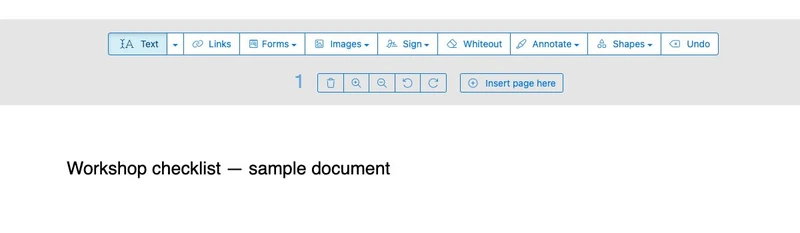
Adding new text in Sejda: a browser demonstration
We opened Sejda’s browser editor, selected its blank-document option and used the Text tool to add the sample heading shown below. This screenshot records that specific interaction. It does not establish how an existing PDF’s fonts or layout survive a replacement, and we have not verified the exported file from this demonstration.
Fonts and why a small correction can look wrong
A PDF can display a font correctly because the file includes only the characters originally used. Your replacement may require a character that is not in that embedded subset.
Sejda flags missing font characters and offers replacement. Desktop can use installed fonts; Web cannot use your local font collection.
Do not assume a visually similar font has the same character widths. A replacement can shift a line even when the letter shapes look close. Check headings, columns, table cells and the last line of a paragraph.
For Hindi or other complex scripts, test the exact text in your chosen tool and build. Sejda’s editor includes limitations for complex scripts. A general font list is not proof that shaping, positioning and export will work for your document.
When precise typography is essential, use the authoring source and the correct licensed font. An editor that opens the PDF successfully has not thereby established that it can reproduce the original design after arbitrary changes.
Scanned PDFs: OCR is not a universal editing mode
PDFgear’s Mac page describes full-document OCR and exporting recognised text to formats such as Word or TXT. That can help recover content from a scan, but you still need to check the recognition and resulting layout.
Sejda’s OCR tool produces a searchable PDF or text output. Its guide explains the text layer over the scanned page and warns that recognition is not guaranteed to be accurate.
A searchable scan is useful for finding or copying words. It does not automatically turn the photographed page into a fully editable set of paragraphs. Sejda’s ordinary editor also states that changing existing text inside scans is not supported.
Check names, dates, decimal points, columns and characters that resemble numbers. In a table, a recognised value in the wrong column can be harder to spot than an obvious spelling error.
If you need to rebuild a document, our PDF-to-Word guide covers the separate conversion route. Expect to inspect formatting after conversion rather than promising that every file will remain identical.
Offline desktop editing and cloud features
PDFgear’s desktop editing workflow provides a local option. Its product page distinguishes ordinary local document work from AI features and online services that require an internet connection.
Its privacy policy says using AI features can transmit PDF content, chat input and limited metadata to Microsoft Azure OpenAI Service after consent. Installing a desktop editor therefore does not mean every optional feature processes documents locally.
Sejda Web uploads files for processing and advertises deletion after two hours. That is a retention statement, not a local-processing mode. Follow the document owner’s policy before using any online editor for private material.
Sejda Desktop processes document operations locally and is available for Windows, macOS and Linux. Check desktop and web feature availability separately, as well as the plan that grants the access you need.
Use a fictional or public document for the initial trial. You can compare layout and export behaviour without turning an unrelated confidential file into test material.
PDFgear vs Sejda free limits and paid plans
PDFgear advertises its desktop editor as free. We would begin by checking whether that build completes the actual job without an account, watermark or feature prompt rather than assuming a future version will keep the same offer indefinitely.
Sejda’s web editor lists a free allowance of documents up to 200 pages or 50 MB and three tasks per hour. Tool-specific limits differ: its OCR page lists ten pages per free task and up to one hundred on the web Pro service.
Sejda’s pricing page lists a $5 Web Week Pass for seven days, $7.50 monthly for Web, and $63 yearly for Desktop plus Web, per user. These US dollar figures were checked on October 15, 2026; confirm tax, currency and checkout totals.
The week pass is a one-time purchase and the Web monthly plan does not include Desktop. A short web-only purchase is therefore not a way to unlock paid offline desktop use. Free Desktop access also has its own usage restrictions.
Estimate a complete job before paying. Editing, OCR, merging and another correction may be separate processing tasks. A free hourly allowance can be sufficient for one file and frustrating for a batch of small repeated jobs.
Forms, signatures and removing private information
Filling an existing form is different from adding a text box over a flat page. Use the form field when it exists, then save, close and reopen the result to check that the value remains visible.
A drawn signature image and a certificate-based digital signature are different outputs. Choose the method the recipient actually requires. Editing an already digitally signed document can affect signature validation, so inspect the signature state and the agreed workflow before changing it.
Do not confuse whiteout with secure redaction. Sejda explicitly warns that whiteout hides content without completely removing underlying text or images. Covering an address with a rectangle is not sufficient evidence that the information has been removed.
Where permanent removal is required, use an appropriate documented redaction process and verify the resulting file. Search and copy-paste checks can identify some problems, but do not constitute a complete forensic examination of a PDF.
Keep only the necessary version in the delivery folder. A corrected final file can still be accompanied accidentally by the unredacted original if both have vague names.
Check the finished export in another viewer
Save the edited file, close the editor, and reopen the export in a separate viewer. This catches differences between an editing preview and what a recipient will actually open.
Check every changed page at a normal reading size and again around the edit. Confirm fonts, wrapping, tables, image placement, page dimensions and the count and order of pages.
Click important links and try the form fields. Select and copy a changed sentence to check what text remains beneath the appearance. If the recipient needs searchable text, confirm search still works.
For print delivery, inspect page size and margins before sending it to a printer. For digital delivery, avoid flattening or rebuilding the whole document merely to conceal a layout issue if that would remove required links, forms or accessibility information.
Our guide to creating PDFs from Word, Excel and other sources is useful when making a clean new export is the simpler option.
A fair comparison with one sample document
- Choose an authorised sample with a paragraph, table, link and optional scanned page.
- Save an original and list the exact corrections needed.
- Use the relevant PDFgear desktop build and your chosen Sejda route; record platform and version.
- Change a date, replace a short sentence, fill a field and save the output.
- Check scans separately with OCR rather than assuming they behave like digital text.
- Open the exports in another viewer and compare layout, text, links, fields, time taken and any usage limits reached.
Keep results specific to that file. A successful one-page correction does not establish that a long report with unusual fonts and forms will behave identically.
Which PDF workflow should you start with?
Try PDFgear desktop first when you make regular local corrections and its free editing tools handle the file. Confirm the exact platform’s features and keep optional cloud AI use separate from ordinary editing.
Try Sejda Web when you have a small upload-approved document and browser convenience matters. Use Sejda Desktop when local processing is the requirement, and choose a plan that includes it if the free limits are insufficient.
For substantial rewriting or precise design changes, use the source document whenever possible. The right editor is the one that produces a checked final PDF with the required layout and functionality intact.