
- 01What "Hiding" the Notch Actually Does
- 02How to Hide the Notch on Stock Android / Pixel
- 03How to Hide the Notch on Samsung (One UI)
- 04How to Hide the Notch on Xiaomi (MIUI/HyperOS)
- 05How to Hide the Notch on OnePlus (OxygenOS)
- 06How to Hide the Notch on Realme / ColorOS
- 07App-Level: Force Full Screen for Specific Apps
- 08FAQ
Notches, punch-holes, and pill-shaped cutouts on phone screens are divisive — some people don’t notice them, others find them constantly distracting. While you can’t physically remove a notch, you can hide it completely using software. Here’s how on every major Android skin.
Short Answer: Most Android phones let you hide the notch by going to Settings → Display → Display cutout → Hide. This fills the area around the notch with black, making it invisible against a dark status bar. On Samsung, this setting is called ‘Full screen apps’ control.
What “Hiding” the Notch Actually Does
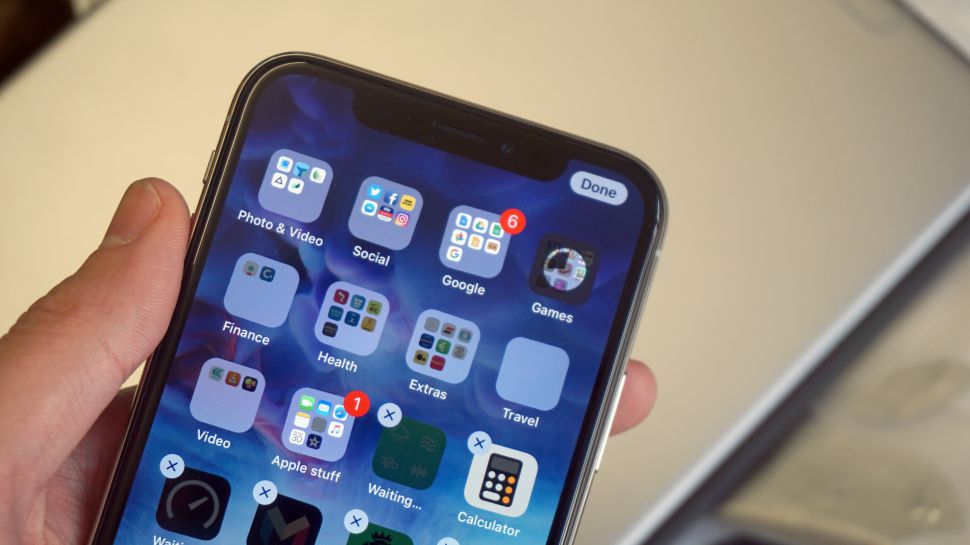
Hiding the notch turns the status bar black and forces all content below the notch. The camera is still there — it just becomes invisible against the black bar. The trade-off is a slightly reduced screen area.
How to Hide the Notch on Stock Android / Pixel
Pixels and stock Android phones don’t have notches (they use a punch-hole or no cutout), but if you have a notch phone running near-stock Android:
- Go to Settings → Display → Display cutout
- Select “Hide” or “Black bar”
- The notch area turns black — matching the status bar
📸 SCREENSHOT NEEDED: Android Display settings showing Display cutout options with ‘Hide’ selected
How to Hide the Notch on Samsung (One UI)
- Settings → Display → Full screen apps
- This controls which apps extend behind the punch-hole camera area
- To completely blackout the area around the camera, use a black wallpaper at the top of the screen combined with a dark status bar
Note: Samsung phones use a punch-hole design (not a notch). A true hide setting isn’t available on One UI — but the punch-hole is small enough that most users stop noticing it quickly.
How to Hide the Notch on Xiaomi (MIUI/HyperOS)
- Settings → Display → Notch & status bar
- Enable “Hide notch”
- The notch becomes invisible against a black status bar
📸 SCREENSHOT NEEDED: Xiaomi HyperOS settings showing ‘Hide notch’ toggle in Display settings
How to Hide the Notch on OnePlus (OxygenOS)
- Settings → Display → Display cutout
- Select your preferred mode — most users want “Smart mode” or “Hide”
How to Hide the Notch on Realme / ColorOS
- Settings → Display → Notch display settings
- Choose “Hide notch”
App-Level: Force Full Screen for Specific Apps
Some apps ignore notch settings and leave a gap. Fix this per app:
- Settings → Apps → [App name] → Display → Allow app to use full screen
Pro tip:
Pair notch hiding with a dark wallpaper and dark mode system-wide. The result looks intentional and clean — the phone appears to have a narrow black bar at the top rather than an awkward notch.
Warning: Hiding the notch pushes the status bar icons (time, battery, signal) to the sides, which can make them smaller or harder to see on some phones. Check that you can still read the status bar comfortably after enabling.
Quick checklist:
- ✅ Try Settings → Display → Display cutout → Hide first
- ✅ Pair with a dark wallpaper for the cleanest result
- ✅ Enable Dark mode system-wide to complement the hidden notch look
- ✅ If a specific app still shows the notch, force full screen in per-app display settings
- ✅ Third-party apps like ‘Notchless’ offer additional customization if built-in options are limited
FAQ
Does hiding the notch affect the camera?
No — the selfie camera still works perfectly. Hiding the notch is purely cosmetic. The camera is still there and functions normally.
Can I hide a punch-hole camera?
Not with a native setting on most phones. Some third-party apps create a black circle overlay to “hide” the punch-hole, but this reduces actual screen real estate. Most users find punch-holes less distracting than notches and stop noticing them within days.
Does this work on older Android phones?
The notch hide setting was added in Android 9 (Pie). Phones running Android 8 or earlier may not have this option, but you can use third-party apps from the Play Store to achieve the same effect.
Best Android Themes ↗Android Display Settings Guide
Hiding the notch takes 30 seconds and makes a real visual difference — especially paired with dark mode and a dark wallpaper. It’s one of the small tweaks that makes using your phone feel more polished.