
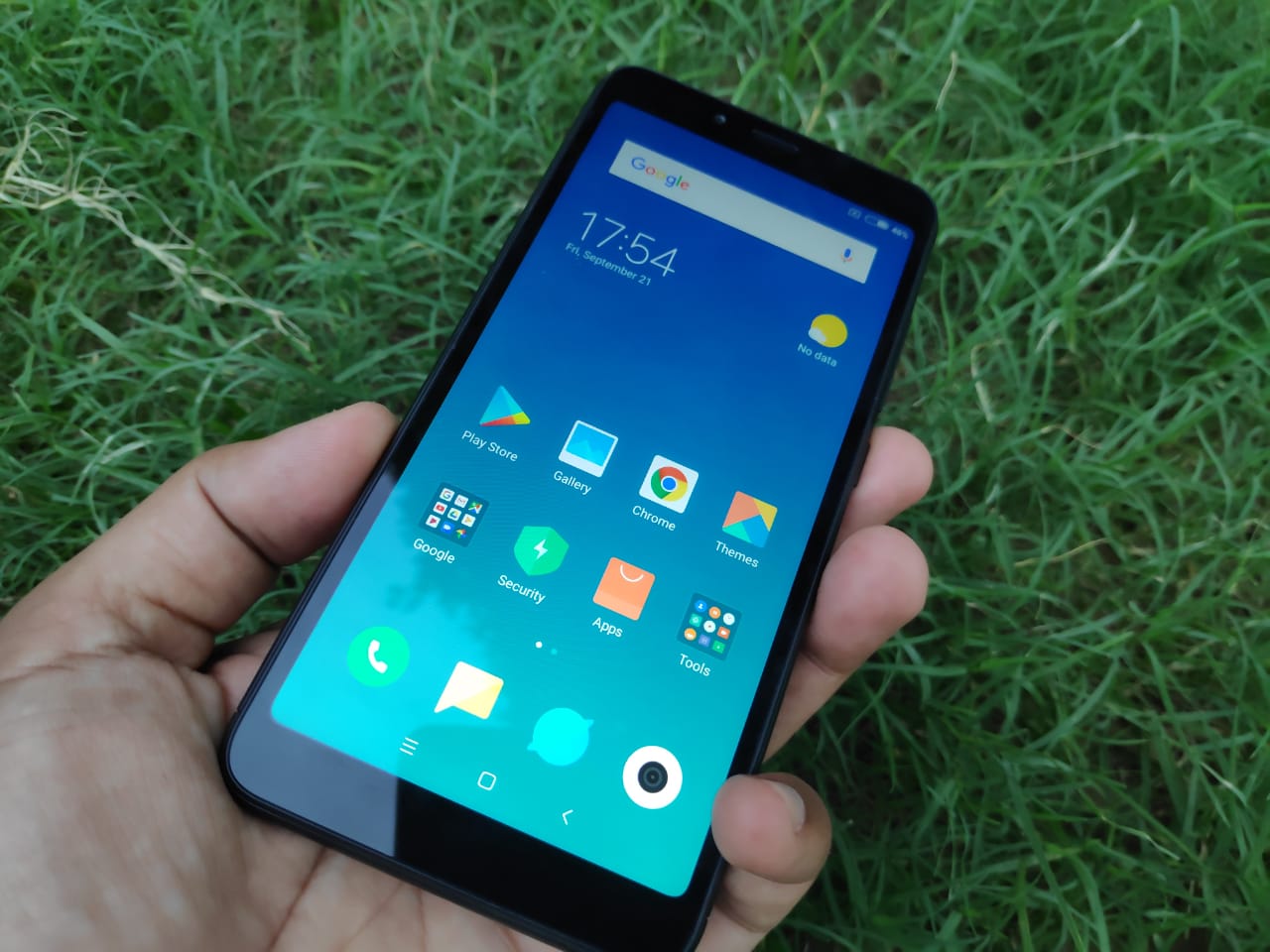
Xiaomi phones are great value — but out of the box they come loaded with promotional notifications, ads in the default apps, and system-level recommendations that feel more like spam than features. The good news: almost all of it can be turned off. Here’s a complete guide to cleaning up your Xiaomi phone.
Short Answer: Most Xiaomi ads and spam notifications can be disabled through Settings → Notifications → System notifications, and by turning off ‘Recommendations’ in individual apps. The Settings → Special features → System ads toggle removes the majority in one step on MIUI 12+.
1. Turn Off System Ads (The Main Switch)
On MIUI 12+ and HyperOS, there’s a central control for system-level advertising. Go to:
Settings → Additional settings → Authorization and revocation
Or on some models: Settings → Privacy → Ad services → Toggle off “Personalized ad recommendations.”
This doesn’t remove all ads but reduces the most aggressive recommendation-style notifications.
📸 SCREENSHOT NEEDED: Xiaomi Settings showing the Ad Services or Authorization page with the personalized recommendations toggle being turned off
2. Disable Notifications from System Apps
Go to Settings → Notifications → App notifications. Look for apps you didn’t install yourself — GetApps, Mi Browser, Themes, Mi Video, Mi Music, and similar pre-installed Xiaomi apps. Tap each one and toggle off “Allow notifications” or set them to “Silent.”
Alternatively, go to Settings → Apps → Manage apps, open each Xiaomi system app, and disable notifications from there.
3. Clean Up the Lock Screen
Xiaomi often shows promotional content on the lock screen. Disable it at:
Settings → Lock screen → Show lock screen notifications → Disable or restrict to “Important only”
Also: Settings → Lock screen → Lock screen magazine → Toggle off (this removes rotating ad images from your lock screen wallpaper).
📸 SCREENSHOT NEEDED: Xiaomi Settings → Lock screen showing the Lock screen magazine toggle and notification settings
4. Disable Ads in Mi Browser
Mi Browser (the default Xiaomi browser) shows ads on its homepage and in search. Either switch to Chrome or Firefox entirely, or in Mi Browser go to Settings → Privacy & security → Disable “Receive recommendations” and “Personalized ads.”
5. Turn Off Recommendations in GetApps
GetApps (Xiaomi’s app store) sends promotional notifications for deals and new apps. Open GetApps → Profile icon → Settings → Notifications → Disable “Promotions” and “Recommendations.”
6. Disable MSA (Mi Service Agreement Background Process)
MSA is the background service responsible for delivering many of Xiaomi’s ad notifications. To disable it:
- Go to Settings → Apps → Manage apps
- Search for “MSA” or “Mi Service Agreement”
- Open it → tap “Force stop” → Disable autostart (under Settings → Apps → App management → Autostart)
For Heavy Cleanup:
If you want to go further, the ADB debloater method lets you uninstall pre-installed Xiaomi apps entirely via a PC — without rooting. Search for ‘Universal Android Debloater’ on GitHub. It’s more advanced but removes bloatware permanently.
Warning: Disabling MSA may affect some Xiaomi services like Mi Cloud sync and Mi Account login. Test your important features after disabling to confirm nothing critical is affected.
Quick checklist:
- ✅ Settings → Privacy → Ad services → Disable personalized recommendations
- ✅ Settings → Notifications → Disable notifications for Xiaomi system apps
- ✅ Settings → Lock screen → Disable lock screen magazine
- ✅ Disable or replace Mi Browser with Chrome or Firefox
- ✅ Turn off promotional notifications in GetApps settings
- ✅ Autostart control: block Xiaomi apps from launching in background
Frequently Asked Questions
Will disabling Xiaomi ads affect the phone’s performance?
No — in fact, disabling background ad services like MSA typically improves battery life and reduces background data usage slightly.
Do these steps work on HyperOS (the new Xiaomi UI)?
Yes — HyperOS replaced MIUI in 2024 but the settings paths are nearly identical. The Ad services toggle and notification controls are in the same locations.
Can I remove pre-installed Xiaomi apps entirely?
Some can be uninstalled via Settings → Apps (Mi Music, Mi Video, etc.). Others are system apps that can only be disabled. Full removal requires ADB (Android Debug Bridge) on a PC — no root needed.
Why does Xiaomi include ads by default?
Xiaomi’s business model has historically subsidized hardware costs with advertising and software revenue. As the company has grown, they’ve added more controls to disable these — but they remain on by default.
More Android Tips ↗Back to Techtippr
The lock screen magazine and system app notifications are the most visible annoyances — disable those first and your Xiaomi phone will feel dramatically cleaner. The full cleanup (MSA, GetApps, Mi Browser) takes about 10 minutes but makes the phone feel much closer to a stock Android experience.