

- 01Why Bot Traffic Gets Your Ezoic Application Rejected
- 02Block a Specific Country (Cloudflare Free)
- 03Block Bots from All Countries (Cloudflare Free)
- 04Cloudflare Expression Syntax Cheat Sheet
- 05Block via WordPress Plugin (No Cloudflare Needed)
- 06Block via .htaccess (Apache Hosts)
- 07Block AI Crawlers via robots.txt
- 08Full Coverage at Zero Cost — Stack These Layers
- 09After You Apply the Rules — What to Do Next
How to Block Invalid Traffic on Your WordPress Blog Using Cloudflare (Free)
If Ezoic rejected your site for invalid traffic — or your Google Analytics is flooded with visits from one country hitting 404 pages — here’s exactly how to fix it, for free, using Cloudflare’s WAF rules.
You worked hard to get your WordPress blog to a point where you could monetize it. You applied to Ezoic, felt good about it — and then got the rejection email. Invalid traffic. What does that even mean, and why is your analytics full of visits from Singapore all landing on pages that don’t exist?
The short answer: bots. Automated scrapers, AI training crawlers, and SEO audit tools routinely sweep millions of websites. They hit URLs that don’t exist, leave no trace of engagement, and disappear. But they do leave a mess in your traffic data — and Ezoic’s quality algorithm sees it.
The good news? You can fix this completely for free. This guide walks through four methods, from the most powerful (Cloudflare WAF rules) to the simplest fallback (a WordPress plugin), so you can choose what works for your setup.
The Problem
Why Bot Traffic Gets Your Ezoic Application Rejected
Ezoic uses a traffic quality score to assess whether your site is eligible for monetization. When bots visit your site, they trigger ad impressions without generating any real revenue. Ezoic flags this as Invalid Traffic (IVT) and will reject or suspend your account.
The bot pattern that triggers this most reliably looks like this — and it’s very recognisable in Google Analytics:
- Large volume of visitors from one specific country (Singapore is common)
- All arriving as Direct traffic — no referrer, no source
- Landing on 404 pages — URLs that don’t exist on your site
- Zero engagement — instant bounce, no scrolling, no clicks
Why Singapore specifically? Several large-scale scanning networks, AI training crawlers, and SEO audit bots route their traffic through Singapore-based data centres. But remember — it’s the behaviour, not the geography, that’s the real problem. The fix needs to target both.

Cloudflare’s WAF rules run at the edge — blocking bots before they ever reach your WordPress server.
Option A
Block a Specific Country (Cloudflare Free)
Country + Direct Traffic Rule
Block bots from a specific country arriving with no referrer
If one country is the clear source of your bot traffic, this is the fastest fix. Go to your Cloudflare Dashboard → Security → WAF → Security Rules, click + Create rule, give it a name like SG Traffic — No Referrer, then click Edit expression and paste:
ip.geoip.country eq "SG" and http.referer eq ""
Set the Action to Block and save. This only blocks Singapore visitors arriving with no referrer — i.e. direct bot traffic. Real users coming from Google or social media will still get through.
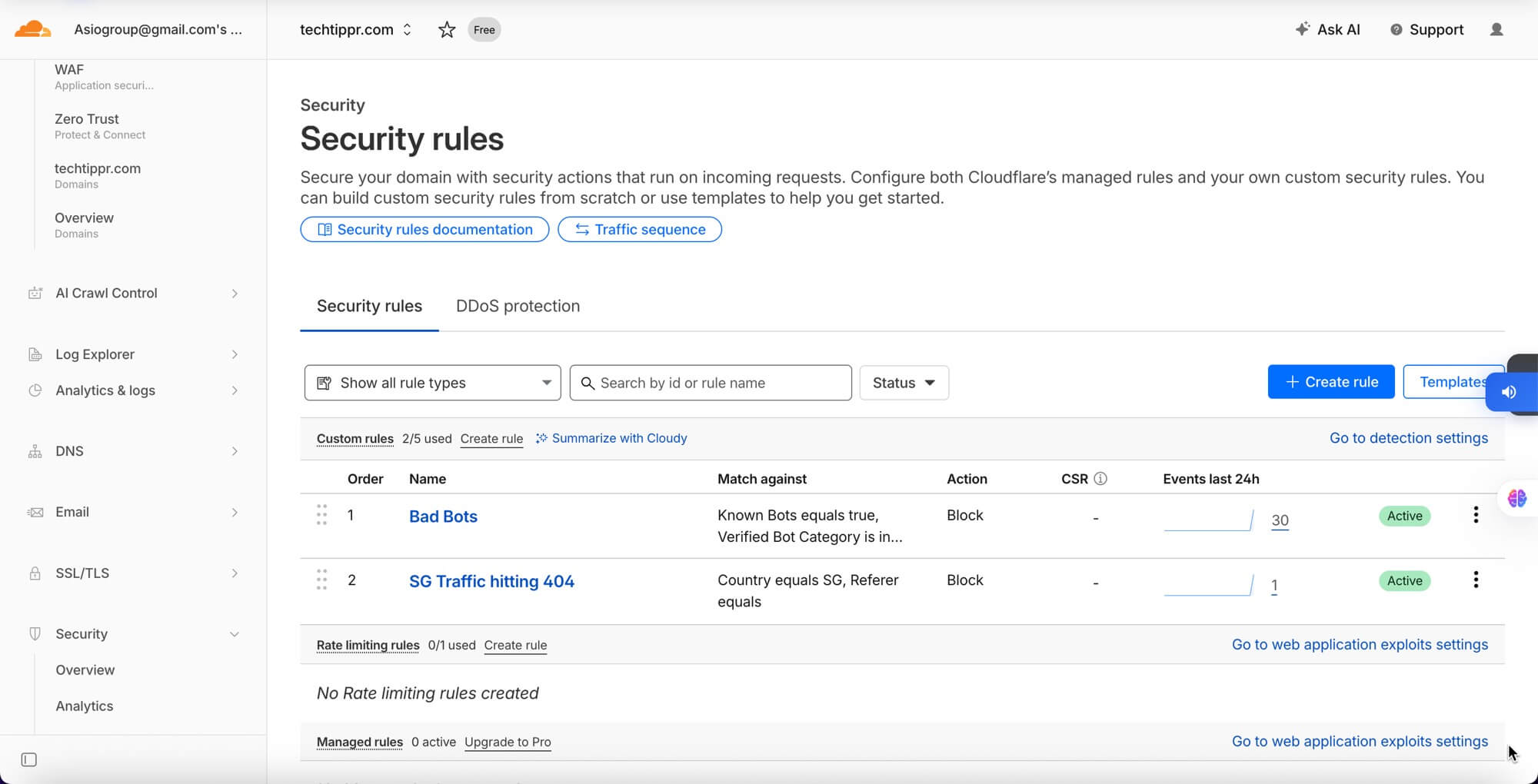
Both rules active on techtippr.com — the Bad Bots rule blocked 30 events in 24 hours.
If you want to go more aggressive and block all traffic from that country (bots and real users alike), use:
ip.geoip.country eq "SG"
Only do this if your analytics confirm there are zero legitimate visitors from that country.
⚡ Blocks at the edge — before WP loads
🎯 Real users from Google still get through
Best for: Sites seeing the classic one-country + 404 bot pattern. Quickest way to clean up traffic data before reapplying to Ezoic.
Cloudflare evaluates rules on the request, before any response is sent. This means
http.response.code eq 404 will throw a parse error — you cannot filter by response code in WAF rules. Use request-side signals like country and referrer instead.Related Content
UPI Scams in India: How They Work, How to Stay Safe & What to Do If You’re a Victim
Option B
Block Bots from All Countries (Cloudflare Free)
Global Bot Block Rule
Block all detected bots worldwide — keep Google & Bing indexing
Blocking one country is a bandage. The smarter long-term fix is to block bot behaviour regardless of where it originates. This is the ideal rule for bloggers:
cf.client.bot and not cf.verified_bot_category in {"Search Engine Crawlers"}This blocks scrapers, AI training bots, and spam crawlers while keeping Google and Bing able to index your site. It’s the “Bad Bots” rule you can see in the screenshot above — and it’s the single most impactful rule you can add.
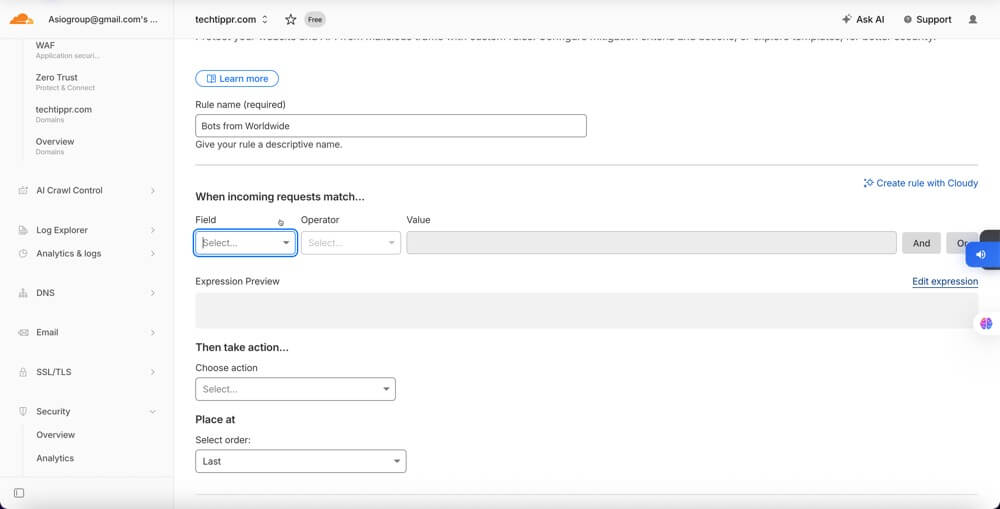
Name the rule “Bots from Worldwide” and use Edit expression — much faster than using the dropdowns.
For catching suspicious direct traffic from known bad actors anywhere in the world, add a second rule using Cloudflare’s threat scoring:
http.referer eq "" and cf.threat_score gt 10
Cloudflare assigns threat scores (0–100) to IPs based on their history. Above 10 is suspicious. This catches direct traffic from bad actors that Cloudflare’s bot detection may have missed.
✅ Search engines still crawl normally
🌍 Protects against bots from any country
Best for: Anyone serious about long-term traffic quality. Pair this with the country rule for maximum coverage.
Never write
cf.client.bot eq true — Cloudflare will throw a parse error. For boolean fields, just use the field name alone: cf.client.bot. Same applies to any boolean in Cloudflare expression syntax.
Quick Reference
Cloudflare Expression Syntax Cheat Sheet
| Field | What It Checks | Correct Syntax |
|---|---|---|
cf.client.bot | Known bot detected | cf.client.bot — no eq true |
ip.geoip.country | Visitor’s country (ISO code) | ip.geoip.country eq "SG" |
http.referer | Where visitor came from | http.referer eq "" |
cf.threat_score | IP reputation score (0–100) | cf.threat_score gt 10 |
cf.verified_bot_category | Bot classification type | cf.verified_bot_category in {"Search Engine Crawlers"} |
http.response.code | ❌ Not available in WAF | Causes parse error — do not use |
The Cloudflare Free plan gives you 5 custom WAF rules. Use one for the country + no-referrer block, one for the global bot block, and keep the remaining three in reserve for future threats.
Option C
Block via WordPress Plugin (No Cloudflare Needed)
WordPress Plugin Options
Country blocking & bot detection without touching Cloudflare
If you’re not on Cloudflare, or prefer a plugin-based approach, these three free options cover the bases:
IP2Location Country Blocker (recommended) — Install from the WordPress plugin directory. Go to Settings → IP2Location Country Blocker, add your target country, and choose to block with a 403 or redirect. Uses a local GeoIP database, so there are no external API calls on every page load.
WP Cerber Security — Full security plugin with country blocking, bot detection, and protection against repeated 404 hits. Its Traffic Inspector can automatically ban IPs hitting too many missing pages. Particularly useful if your bot problem shows up as repeated 404 hammering.
Wordfence Security — Country blocking is available in the free version under Wordfence → Firewall → Blocking. Also includes rate limiting on 404 errors — useful for exactly this pattern.
🔌 Install directly from WP dashboard
⚠️ Blocks after WP loads — slightly less efficient
Best for: Bloggers not on Cloudflare, or those who want an extra layer on top of Cloudflare rules.
Related Content
What Does Verify with Apple Keychain Mean and How to Use It
Option D
Block via .htaccess (Apache Hosts)
.htaccess Server-Level Block
Hard-block scrapers and AI crawlers at the Apache server level
If your WordPress host runs Apache, you can block at the server level with no plugin or Cloudflare required. Add these rules to the top of your .htaccess file in your WordPress root directory.
Block by country (requires mod_geoip):
<IfModule mod_geoip.c>
    GeoIPEnable On
    SetEnvIf GEOIP_COUNTRY_CODE SG BlockCountry
    Deny from env=BlockCountry
</IfModule>
Hard-block AI scrapers by User Agent:
RewriteEngine On
RewriteCond %{HTTP_USER_AGENT} (GPTBot|ClaudeBot|ByteSpider|CCBot|Amazonbot|PetalBot|DataForSeoBot) [NC]
RewriteRule .* - [F,L]
Many AI crawlers ignore robots.txt, but a hard 403 at the server level will stop them. This is one of the most reliable ways to keep AI scrapers off your content entirely.
⚠️ Apache only — not Nginx/managed hosts
🚫 Hard 403 — even bots that ignore robots.txt
Best for: Shared Apache hosting where Cloudflare isn’t available. Check with your host first — mod_geoip is not available on most managed WordPress hosts like SiteGround, Kinsta, or WP Engine (which run Nginx).
Bonus Layer
Block AI Crawlers via robots.txt
Add these entries to your robots.txt as a free baseline layer. Not all bots respect it — but the major AI training crawlers do, and it takes 2 minutes to set up.
Disallow: /
User-agent: ClaudeBot
Disallow: /
User-agent: ByteSpider
Disallow: /
User-agent: CCBot
Disallow: /
User-agent: Amazonbot
Disallow: /
User-agent: PetalBot
Disallow: /
User-agent: DataForSeoBot
Disallow: /
User-agent: Diffbot
Disallow: /
robots.txt is a convention, not enforcement. Malicious bots ignore it entirely. Always pair it with a Cloudflare rule or .htaccess block for anything you actually need to stop. Think of robots.txt as the polite “please don’t” layer — Cloudflare is the actual lock on the door.Related Content
How to Run Ollama as a Local AI Server on Mac Mini (Complete Setup with Tailscale + BrowserOS)
The Recommended Setup
Full Coverage at Zero Cost — Stack These Layers
Cloudflare Free (global bot block + country direct-traffic rule) + robots.txt AI crawler entries + IP2Location plugin as fallback = full coverage at zero cost. Here’s how to prioritise:
| Layer | What It Blocks | Cost | Priority |
|---|---|---|---|
cf.client.bot global rule | All detected bots, search engines excluded | Free | 🔴 Do first |
| Country + no-referrer rule | Direct traffic from problem country | Free | 🔴 Do second |
| robots.txt entries | Polite block for AI training crawlers | Free | 🟡 Do third |
| .htaccess user-agent block | Hard block for scrapers ignoring robots.txt | Free | 🟡 Apache only |
| IP2Location plugin | Country block fallback without Cloudflare | Free | 🟢 Backup layer |
Final Notes
After You Apply the Rules — What to Do Next
Once your rules are live, head to Cloudflare → Security → Events and watch in real time how many requests are being blocked. It’s oddly satisfying — and it tells you immediately whether your rule is firing as expected.
The most important thing now is patience. Don’t rush back to Ezoic the same day you set up the rules. Your traffic metrics need time to recover and show a sustained pattern of legitimate visitors. The general recommendation is to wait 2–4 weeks after applying fixes before reapplying — give your quality score time to rebuild.
- Direct traffic + one country + 404 pages = bot/scanner pattern, not real users
- Cloudflare Free WAF rules block traffic at the edge — before it hits WordPress
- Never use
http.response.codein Cloudflare rules — it causes a parse error - Never write
cf.client.bot eq true— booleans don’t useeqin Cloudflare syntax - Block behaviour (direct + no referrer + threat score), not just geography
- Add
robots.txtentries for AI crawlers as a free baseline layer - Wait 2–4 weeks after applying fixes before reapplying to Ezoic
More WordPress & Security Tips on Techtippr
Techtippr covers practical tech guides for bloggers, small business owners, and creators — no fluff, no paid placements. If this helped, there’s a lot more where it came from.