
- 01🔐 What is Apple Keychain? (The Digital Vault)
- 02❓ What Does "Verify with Apple Keychain" Actually Mean?
- 03⚙️ How the Verification Works Behind the Scenes (The Magic Flow)
- 04🚀 How to Verify on Different Devices
- 05🚨 Common Issues & Quick Fixes
- 06🌟 Why Is This System Better? (Security Benefits)
- 07🧱 A Simple Way to Understand It (The Analogy)
- 08✨ Final Thoughts: Less Remembering, More Security
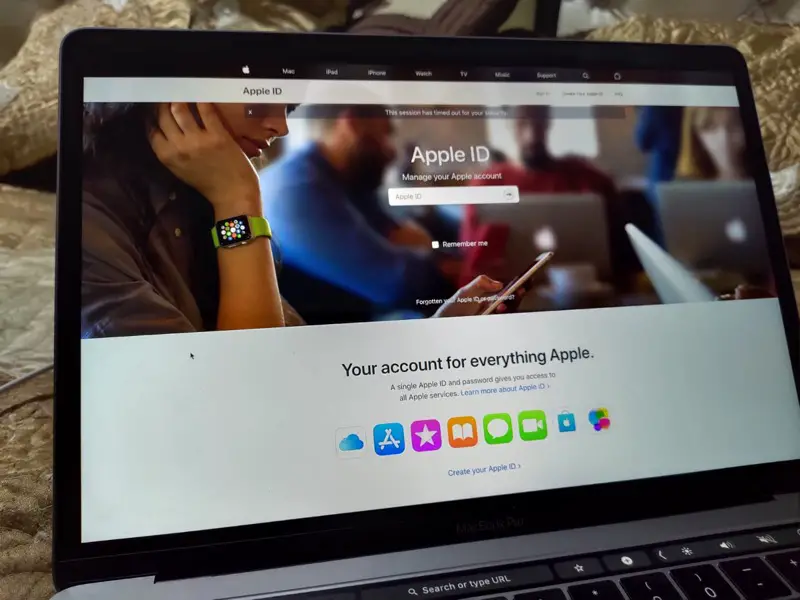
If you’ve ever tried logging into an Apple service and seen this message, you’ve paused and thought: “Wait… what exactly am I supposed to do here?” You’re not alone. Let’s break it down simply—so you understand what’s happening, why it’s secure, and how to handle it on any device.
🔐 What is Apple Keychain? (The Digital Vault)
At its core, **iCloud Keychain** is Apple’s built-in, highly secure password manager. Think of it as your digital vault, synced across all your Apple devices.What it securely stores:
- 🌐 Website logins and usernames
- 🔑 App passwords
- 📶 Wi-Fi passwords
- 💳 Credit card details
💡 **The important part:** It doesn’t just *store* passwords—it actually helps verify *your identity* to prove you are who you say you are.
❓ What Does “Verify with Apple Keychain” Actually Mean?
When Apple asks you to verify using Keychain, it’s essentially saying: “Prove that you are the verified owner of this device and account.”Instead of asking for passwords repeatedly, Apple leverages two things working together:
- Your **Trusted Device** (The one you are physically holding/using).
- Your **Biometric Authentication** (Face ID, Touch ID, or Passcode).
⚙️ How the Verification Works Behind the Scenes (The Magic Flow)
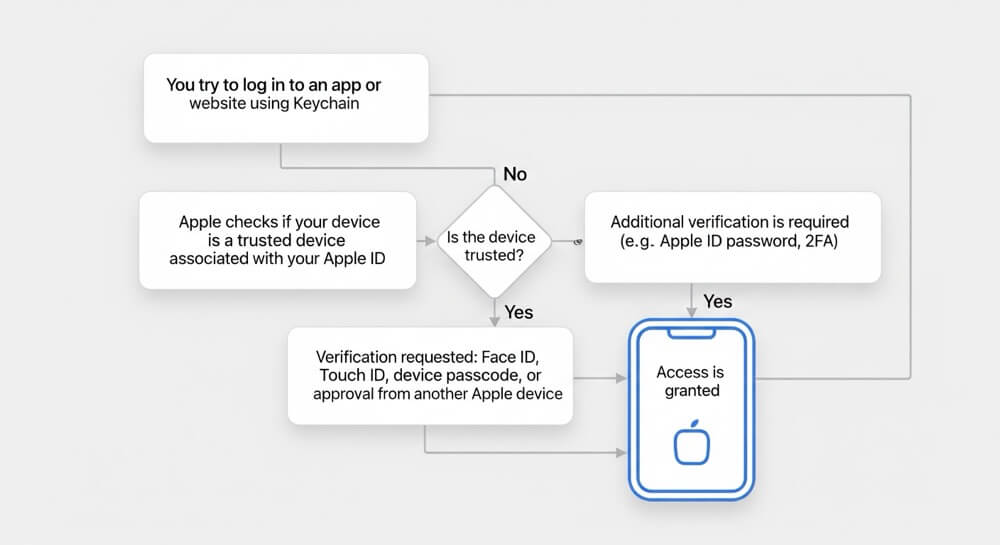
When you see that prompt, this multi-step security dance happens instantly:STEP 1: Attempt Access
You try to log in or access sensitive data.
STEP 2: Trust Check
Apple confirms if the device connecting is recognized and trusted.
STEP 3: Authentication
It prompts for Face ID, Touch ID, or Passcode.
✅ STEP 4: Access Granted
Verification succeeds. Your data is protected with end-to-end encryption.
🚀 How to Verify on Different Devices
📱 On iPhone and iPad (The Easiest Way)
This is the simplest case. When prompted, just use your **Face ID** or **Touch ID**, or enter your device passcode. That’s it!
🍎 On a Mac
The process is nearly identical: Enter your Mac login password or use Touch ID (if available). Authentication is instant.
💻 On a New Device or Web Browser (The “Approval” Step)
This is where most people get stuck. If you are logging in on a device that isn’t the primary one, watch for one of two things:
🚨 Common Issues & Quick Fixes
Is Verification Failing? Check these common culprits:
- ❌ **iCloud Keychain is OFF:** It needs to be enabled in Settings.
- 👤 **Wrong Apple ID:** Are you signed in with the correct Apple ID?
- 🤖 **No Trusted Device:** Is the device you are using properly paired?
- 🔑 **Forgotten Passcode:** If you forgot your device passcode, recovery options are needed.
✅ Quick Fix Guide: Go to Settings → Apple ID → iCloud → Passwords & Keychain and ensure the switch is **ON**.
🌟 Why Is This System Better? (Security Benefits)
Apple designed this system to achieve three major goals:🛑 Eliminates Memory Loss
No more memorizing 20 different complex passwords!
🛡️ Prevents Guessing
Even if a hacker gets a password, they can’t get in without *your physical device*.
🔗 Ties to You
Security is tied to your hardware, making unauthorized access nearly impossible.
🧱 A Simple Way to Understand It (The Analogy)
Think of it like this:
Your Apple Keychain 🗄️ = A secure digital locker
Your device (Face ID / passcode) 🗝️ = The unique physical key
No key → No access.
✨ Final Thoughts: Less Remembering, More Security
“Verify with Apple Keychain” might sound technical, but in reality, it’s one of the most seamless and secure login systems available today. Understanding this process means realizing you aren’t being asked to do *more*—you are actually being asked to do *less*, but in a fundamentally more secure way.By relying on this system, you save time, reduce mental clutter, and massively upgrade your digital security posture!