

- 01Why you need a prompt library
- 02The mistake most people make with prompts
- 03The simple system to organize ChatGPT prompts
- 041. Create collections for different types of work
- 052. Use tags to find prompts quickly
- 063. Add the AI tool name
- 074. Turn prompts into reusable templates
- 085. Favorite the prompts you use every day
- 096. Keep a backup of your prompt library
- 10Manual method: organize prompts in Notes, Notion, or Google Docs
- 11Where Prompt Manager fits in
- 12Example prompt library setup for creators
- 13Example prompt library setup for developers
- 14Example prompt library setup for bloggers
- 15Prompt Manager vs Notion vs Notes app
- 16Starter prompts to save in your library
- 17My daily prompt workflow
- 18Common prompt organization mistakes
- 19Checklist — organize your ChatGPT prompts
- 20FAQ
- 21Final thoughts
If you use ChatGPT, Claude, Gemini, or Codex regularly, your best prompts probably live everywhere except where you need them.
Some are buried inside old ChatGPT chats. Some are saved in Notes. A few are in Google Docs. A few are screenshots. Some are in Notion. And the really good ones? You vaguely remember using them, but you cannot find them when you need them again.
That is the real prompt problem.
It is not that people need more prompts. There are already thousands of prompt lists online. The real problem is that most people do not have a simple system to save, organize, find, and reuse their best AI prompts.
Short Answer: The best way to organize ChatGPT prompts is to create a reusable prompt library with collections, tags, AI tool labels, favorites, and variables like [TOPIC], [AUDIENCE], and [GOAL]. You can do this manually in Notion or Google Docs, but a dedicated prompt manager is faster if you use AI every day.
Why you need a prompt library
When you start using AI, saving prompts does not feel important. You write something, get the answer, and move on.But after a few weeks, the same thing starts happening again and again:
- You rewrite the same instruction from memory.
- You search old chats for a prompt you used last week.
- You save prompts in random places and forget where they are.
- You collect prompt lists but never actually reuse them.
- You lose the exact wording that gave you the best output.
This becomes even more painful if you use multiple AI tools.
For example, you may use ChatGPT for quick answers and image generation, Claude for long-form writing, Gemini for Google-related workflows, and Codex or other coding tools for development. I compared some of these differences in my Claude vs ChatGPT guide.
Once your work spreads across multiple AI tools, a single prompt system becomes even more useful.
The mistake most people make with prompts
Most people treat prompts like disposable text.They copy a prompt from Twitter, use it once, and forget it. Or they save it in a notes app with a vague title like “good blog prompt” or “AI prompt 2.”
That works when you have 5 prompts. It breaks when you have 50.
Important: A prompt is not just text. A good prompt is a reusable workflow. If it helped you write faster, code better, research deeper, or create better content once, it can probably help you again.
This is why you need to stop thinking in terms of “prompt collection” and start thinking in terms of a prompt operating system.
The simple system to organize ChatGPT prompts
You do not need a complicated setup. A useful prompt library only needs six things:- Collections — broad folders for different types of work
- Tags — smaller labels for specific use cases
- AI tool labels — ChatGPT, Claude, Gemini, Codex, Midjourney, etc.
- Variables — placeholders like [TOPIC], [APP_NAME], [AUDIENCE]
- Favorites — your most-used prompts
- Backup/export — so your prompt library is not locked or lost
Let’s break this down.
1. Create collections for different types of work
Collections are the main folders of your prompt library.Do not create too many. Start with broad categories that match how you actually work.
Here is a simple collection structure:
- Content — blog posts, social media, scripts, newsletters
- Design — UI prompts, image prompts, brand styles, thumbnails
- Programming — code review, debugging, app planning, refactoring
- Productivity — routines, planning, focus, summaries
- Education — explainers, learning prompts, study guides
- Business — landing pages, offers, ads, strategy
- Trading or Finance — dashboards, analysis, watchlists, backtesting
This is similar to how my Prompt Manager workspace is structured. You can keep prompts under collections like Content, Design, Education, Productivity, Programming, and Trading.
Simple rule: If you cannot decide where a prompt belongs in 3 seconds, your collection system is too complicated.
Related: How to Use AI to Write Blog Posts 5x Faster
2. Use tags to find prompts quickly
Collections are broad. Tags are specific.For example, a prompt can be inside the Content collection and still have tags like:
- #seo
- #blog-outline
- #social-media
- #newsletter
- #affiliate
- #rewrite
A coding prompt can have tags like:
- #code
- #review
- #debugging
- #performance
- #best-practices
A productivity prompt can have tags like:
- #focus
- #routine
- #planning
- #summary
Tags make your prompt library searchable without forcing you to create dozens of folders.
3. Add the AI tool name
Not every prompt works equally well in every AI tool.Some prompts are better for ChatGPT. Some are better for Claude. Some are for Gemini. Some are for Codex. Some are for image AI tools.
So it helps to label each prompt with the tool it is meant for.
Example:
- ChatGPT: quick answers, image prompts, brainstorming, research with browsing
- Claude: long-form writing, rewriting, document analysis
- Gemini: Google ecosystem workflows, multimodal tasks
- Codex: app building, debugging, codebase tasks
- Midjourney / Image AI: image generation and visual prompts
This is useful because your future self does not have to remember where a prompt works best.
4. Turn prompts into reusable templates
This is where your prompt library becomes powerful.A normal prompt is useful once. A reusable prompt template is useful again and again.
Instead of saving this:
Write a LinkedIn post about my Prompt Manager tool.Save this:
Write a LinkedIn post about [PRODUCT].

Target audience: [AUDIENCE]
Tone: [TONE]
Goal: [GOAL]
Length: under [WORD COUNT] words

Make the post practical, specific, and easy to understand.
End with a soft call-to-action.
Now the same prompt can be used for any product, any audience, and any campaign.
Useful variables to use in prompts
- [TOPIC] — the subject you want to write about
- [AUDIENCE] — who the output is for
- [PRODUCT] — the product, tool, or app
- [GOAL] — the result you want
- [STYLE] — writing or design style
- [FORMAT] — article, table, checklist, email, script, code
- [CONSTRAINTS] — word count, tone, platform, reading level
Prompt template rule: If you might use the same prompt more than twice, turn the changing parts into variables.
5. Favorite the prompts you use every day
Not all prompts are equal.Some prompts are occasional. Some are daily tools.
Your daily prompts should be marked as favorites so you can access them quickly.
Examples:
- Blog post outline prompt
- Code review prompt
- Rewrite in my style prompt
- Summarize this article prompt
- Generate social media posts prompt
- Explain this simply prompt
- Build a landing page structure prompt
The goal is to reduce friction.
If you use a prompt every day, it should not be hidden three folders deep.
6. Keep a backup of your prompt library
This part is easy to ignore until something goes wrong.If your prompts are stored in a browser, app, notes system, or local workspace, make sure you can export them.
A simple JSON export is enough. The point is that your prompt library should be portable.
Backup tip: Export your prompt library once every few weeks, especially if you are building a serious workflow around AI.
Manual method: organize prompts in Notes, Notion, or Google Docs
You can absolutely organize prompts manually.Here is a simple structure you can copy into Notion, Google Docs, or any notes app:
Prompt Title:
Collection:
Tags:
AI Tool:
Prompt:
Variables:
Notes:
Last Updated:
This works fine if you only have a small number of prompts.
But once you have dozens of reusable prompts, a normal notes app starts feeling messy. You have to scroll too much, search too much, and manually copy everything.
That is why a dedicated prompt manager makes sense for daily AI users.
Where Prompt Manager fits in
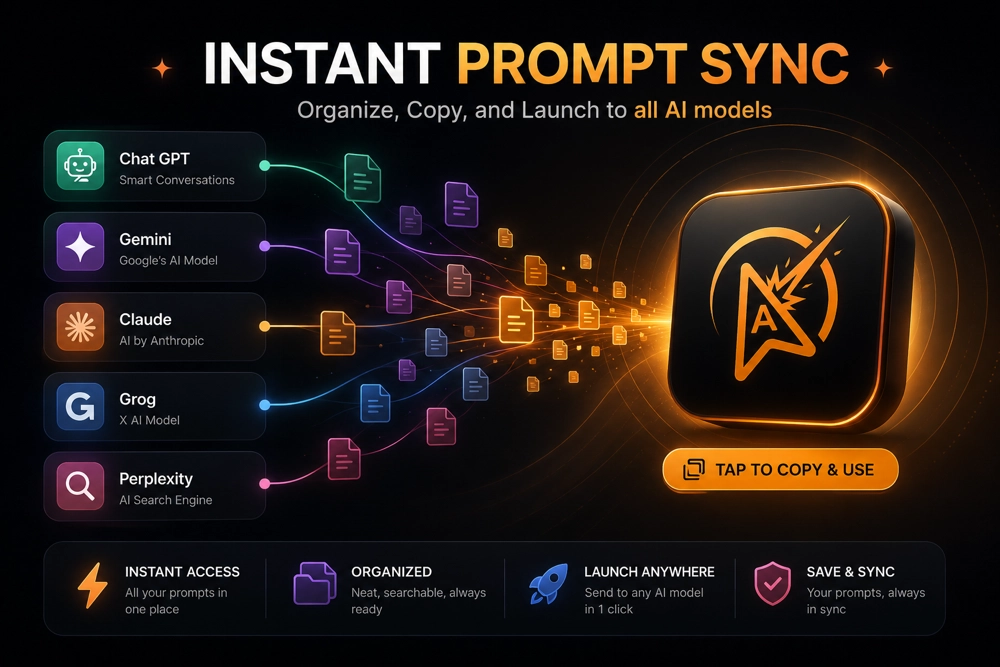
I built Prompt Manager for exactly this problem.
It is a simple workspace for people who use ChatGPT, Claude, Gemini, Codex, and other AI tools regularly.
Instead of throwing prompts into random notes, you can save them properly with:
- Collections
- Tags
- AI tool labels
- Favorites
- Reusable variables
- Quick copy button
- Advanced filters
- Sample prompt packs
- Import/export JSON backup
- Light, dark, and system appearance
It is not trying to be a huge enterprise prompt engineering platform. It is a personal prompt workspace for people who want to stop rewriting the same AI instructions again and again.
Get Prompt Manager →View Techtippr Products
Example prompt library setup for creators
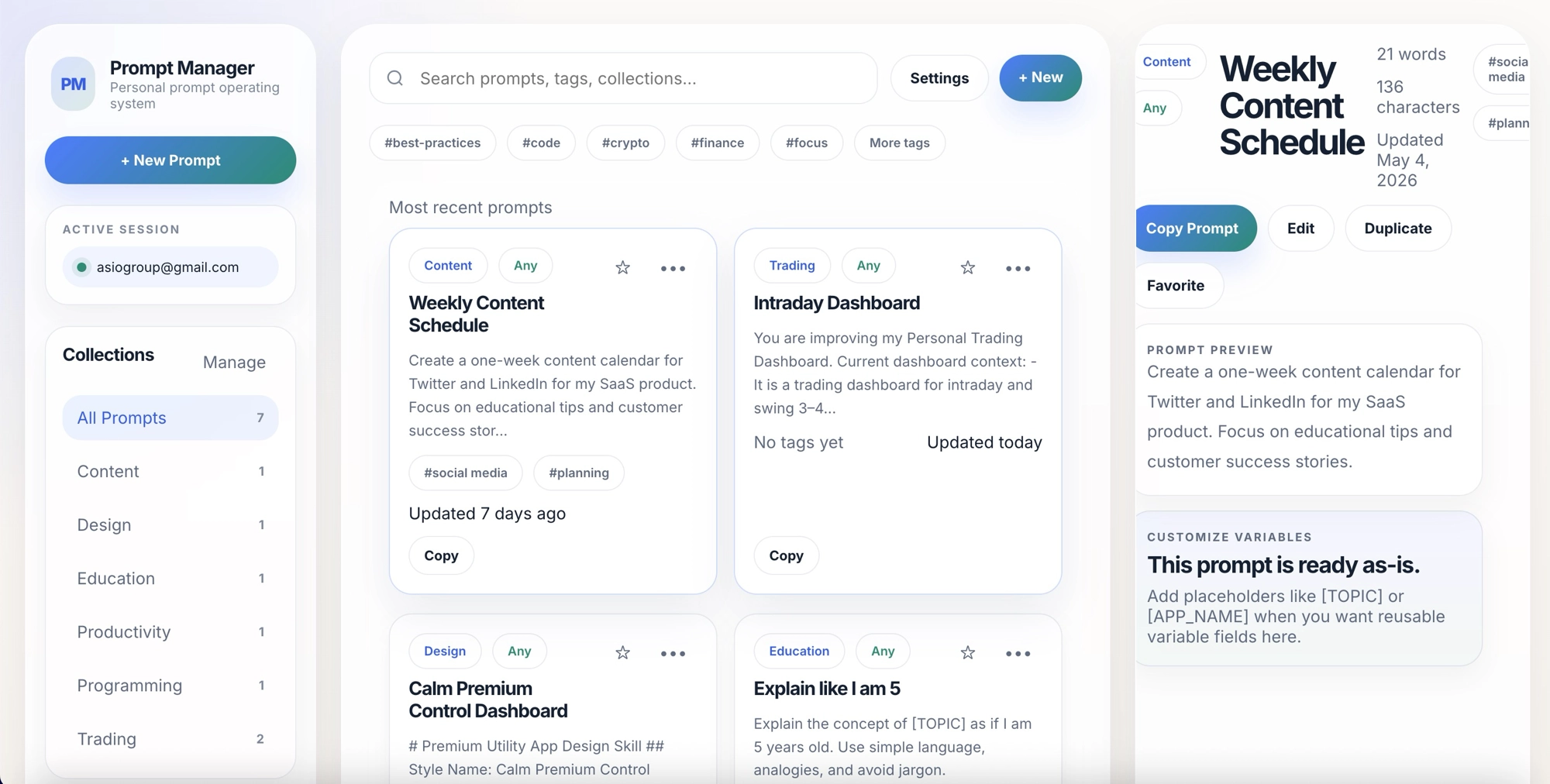
If you are a blogger, YouTuber, newsletter writer, or social media creator, your prompt library could look like this:
Collection: Content
- Blog post outline prompt
- SEO title and meta description prompt
- FAQ generator prompt
- Social media repurposing prompt
- YouTube script prompt
- Newsletter intro prompt
Collection: Design
- YouTube thumbnail prompt
- Instagram carousel prompt
- Featured image prompt
- Landing page UI prompt
- Brand style prompt
Collection: Productivity
- Daily planning prompt
- Deep work session prompt
- Weekly review prompt
- Meeting summary prompt
Related: Best AI Productivity Tools in 2026
Example prompt library setup for developers
If you use AI for coding, your prompt library should be different.Useful collections and prompts:
- Code Review: review code for bugs, performance, security, and readability
- Debugging: explain error logs and suggest fixes
- Feature Planning: turn an idea into a technical spec
- Refactoring: improve messy code without changing behavior
- Testing: generate unit tests and edge cases
- Documentation: explain how a function, file, or app works
A reusable code review prompt could look like this:
Review the following code.

Focus on:
- bugs
- security issues
- performance problems
- readability
- edge cases
- cleaner structure

Explain the issues clearly.
Then suggest an improved version.

Code:
[PASTE CODE]
Related: How to Automate Your Daily Tasks Using AI
Example prompt library setup for bloggers
If your main use case is blogging, save prompts for every repeatable part of the editorial workflow.- Keyword research prompt
- Search intent analysis prompt
- Outline generator prompt
- Introduction writer prompt
- Short answer / featured snippet prompt
- Comparison table prompt
- FAQ generator prompt
- Internal linking prompt
- Meta description prompt
- Social post repurposing prompt
This is especially useful if you already use AI to speed up blog production.
Related: How to Use AI to Write Blog Posts 5x Faster
Prompt Manager vs Notion vs Notes app
| Method | Best for | Problem |
|---|---|---|
| Notes app | Quickly saving a few prompts | Gets messy when the list grows |
| Google Docs | Long prompt documents | Hard to filter by tag, tool, or use case |
| Notion | Custom databases and dashboards | Requires setup and maintenance |
| Prompt Manager | Saving, tagging, filtering, and reusing prompts | Best if you want a dedicated prompt workspace |
My recommendation: Use Notes if you have fewer than 10 prompts. Use Notion if you enjoy building databases. Use Prompt Manager if you want a focused prompt library that is quick to search, filter, copy, and reuse.
Starter prompts to save in your library
Here are a few prompts worth saving immediately.Blog outline prompt
Create a detailed blog post outline for [TOPIC].

Target audience: [AUDIENCE]
Search intent: [SEARCH INTENT]
Goal: [GOAL]

Include:
- H1
- H2s and H3s
- short answer section
- examples
- FAQs
- internal linking suggestions
- final CTA
Social media repurposing prompt
Repurpose this content into:

1. A LinkedIn post
2. A Twitter/X thread
3. An Instagram caption
4. A short video script
5. A newsletter intro

Tone: [TONE]
Audience: [AUDIENCE]

Original content:
[PASTE CONTENT]
Explain simply prompt
Explain [TOPIC] in simple language.

Assume I am a beginner.
Use analogies and examples.
Avoid jargon unless you explain it.
End with a quick summary.
Product positioning prompt
Act as a product marketer.

Help me position [PRODUCT] for [AUDIENCE].

Explain:
- the main pain point
- the core promise
- the best headline
- 5 benefit bullets
- possible objections
- landing page structure
- CTA ideas
My daily prompt workflow
The best workflow is simple:
Prompt workflow:
Use prompt → get useful result → save prompt → replace one-time details with variables → add collection and tags → favorite if used often → improve over time
This turns your prompt library into a living system.
The more you use AI, the more valuable your saved prompts become.
Common prompt organization mistakes
Saving every prompt you see
Do not save every random prompt from social media. Save prompts that match your actual work.
Creating too many folders
If your system is too complex, you will stop using it. Keep collections simple and use tags for detail.
Not using variables
Variables turn one-time prompts into reusable templates. This is the biggest upgrade you can make.
Never cleaning your prompt library
Delete weak prompts. Improve good prompts. Favorite the ones you use most.
Mixing everything together
A coding prompt, a YouTube prompt, a trading prompt, and a recipe prompt should not all sit in one endless note.
Checklist — organize your ChatGPT prompts
- ✅ Create 5–7 broad collections
- ✅ Add tags for specific use cases
- ✅ Label prompts by AI tool
- ✅ Use variables like [TOPIC] and [AUDIENCE]
- ✅ Favorite your daily-use prompts
- ✅ Keep notes for important prompts
- ✅ Export your prompt library regularly
- ✅ Review and clean weak prompts monthly
FAQ
What is the best way to organize ChatGPT prompts?
The best way is to save prompts in a structured prompt library with collections, tags, AI tool labels, variables, notes, and favorites. This makes your prompts easier to find and reuse than saving them randomly in old chats or notes.
Can I organize prompts inside ChatGPT itself?
You can use ChatGPT Projects to group related chats, files, and instructions together. That is useful for ongoing work. But if you use multiple AI tools like ChatGPT, Claude, Gemini, Codex, or image AI tools, a separate prompt library can be more flexible.
Should I use Notion as a prompt library?
Notion works well if you like building custom databases. But if you want a focused tool only for prompts, a dedicated Prompt Manager is faster and simpler.
How many prompt collections should I create?
Start with 5–7 collections. For most users, Content, Design, Programming, Productivity, Education, Business, and Research are enough.
What are reusable prompt variables?
Reusable variables are placeholders like [TOPIC], [AUDIENCE], [PRODUCT], [GOAL], and [STYLE]. They help you turn a single prompt into a reusable template.
Is Prompt Manager only for ChatGPT prompts?
No. You can use it for ChatGPT, Claude, Gemini, Codex, Midjourney, image AI tools, and any other AI workflow where you reuse prompts.
Final thoughts
The smartest AI users are not the ones who collect the most prompts.They are the ones who build repeatable workflows.
A prompt library helps you stop starting from zero. It gives you a place to save your best instructions, improve them over time, and reuse them whenever you need them.
Start small. Save your 10 best prompts. Add collections and tags. Turn them into templates with variables. Favorite the ones you use daily.
And if you want a simple dedicated workspace for this, try Prompt Manager.
Related: How to Use AI to Write Blog Posts 5x Faster | Claude vs ChatGPT | Best AI Productivity Tools | How to Automate Daily Tasks Using AI
Get Prompt Manager →View More Techtippr Products
Recommended for you
Video Editing Services
Human-led video editing from ₹399 per finished minute for YouTube, Shorts, talking-head videos, brand films and documentaries.
Our Product