
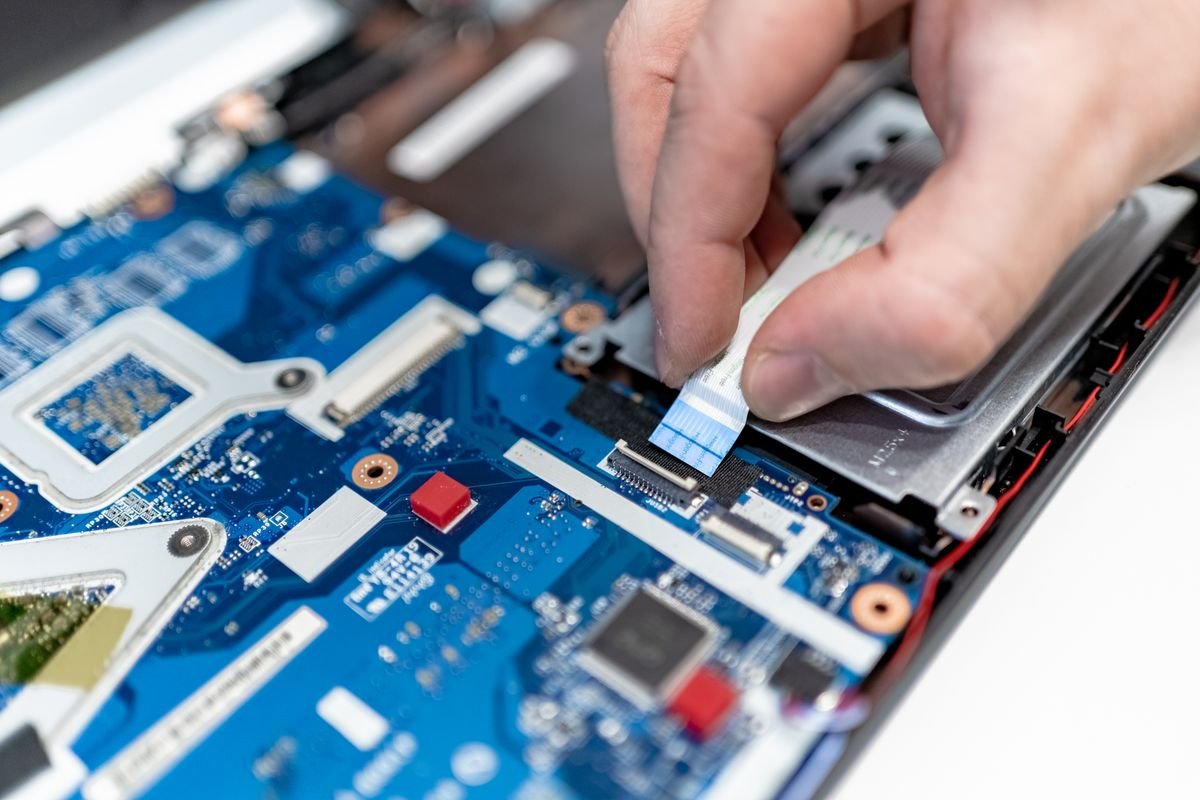
Laptops overheat when airflow is blocked by dust, they sit on soft surfaces, too many apps run at once, or the internal thermal paste has degraded. To fix it: clean the vents, use it on a hard flat surface, close heavy background apps, update your system, and consider a cooling pad. If it still overheats, the fans or thermal paste may need servicing.
An overheating laptop isn’t just uncomfortable — sustained heat throttles performance, drains battery health, and over time can damage components. The causes are almost always about airflow and workload, and most are fixable at home in minutes. Here’s how to diagnose and cool things down.
Why Laptops Overheat
Laptops pack powerful components into a thin case with limited room for cooling. Heat builds when the fans can’t move air fast enough — because vents are clogged with dust, the laptop sits on a bed or lap that blocks intake, or the workload (gaming, video editing, dozens of browser tabs) generates more heat than the cooling can handle. Older laptops also suffer as the thermal paste between chip and heatsink dries out.
The Fixes, Easiest First
- Use it on a hard, flat surface: beds, couches, and laps block the intake vents underneath — a desk or lap desk lets air flow
- Clean the vents: blow out dust from the vents and fans with a can of compressed air — the most effective fix for most older laptops
- Close heavy apps and browser tabs: check Task Manager (Windows) or Activity Monitor (Mac) for what’s spiking the CPU
- Update your OS and drivers: updates often fix runaway background processes that cause heat
- Check the fans are spinning: listen and feel for airflow at the vents — a silent, hot laptop may have a failed fan
Clean the Vents and Fans Properly
Dust buildup is the number-one cause of overheating in laptops more than a year old. Power off and unplug the laptop, then use short bursts of compressed air to blow dust out of the exhaust and intake vents. Hold the fans still with a toothpick if you’re spraying directly at them (spinning them with air can damage them). For heavily clogged machines, opening the back panel for a deeper clean makes a dramatic difference — but only if you’re comfortable doing so.
Software Steps to Reduce Heat
Overheating is often driven by software working the CPU too hard. Open Task Manager (Ctrl+Shift+Esc on Windows) or Activity Monitor (Mac) and sort by CPU to find what’s running hot — a stuck browser tab, a background updater, or malware. End or uninstall the culprit. Lowering your screen brightness, enabling battery-saver/low-power mode, and reducing graphics settings in games all cut heat output too. A generally sluggish, hot machine may also just be overloaded — our guide to boosting your laptop’s performance helps.
When to Consider a Cooling Pad or Service
If your laptop runs hot under normal load even after cleaning, a cooling pad (a fan platform the laptop sits on) can lower temperatures by several degrees for gaming and heavy work. And if the machine is a few years old and still overheats after all of the above, the thermal paste has likely dried out — repasting (DIY if you’re confident, or via a repair shop) can restore it to near-new temperatures. Persistent overheating that causes shutdowns shouldn’t be ignored, as it stresses the hardware.
Frequently Asked Questions
Is it bad if my laptop gets hot?
Warm is normal under load; too hot to touch comfortably, constant loud fans, or sudden shutdowns are not. Sustained high temperatures throttle performance and shorten component and battery lifespan. Occasional heat during gaming or video export is fine; chronic overheating during light tasks signals a problem worth fixing.
Can overheating damage my laptop?
Yes, over time. Modern laptops throttle or shut down to protect themselves, which prevents catastrophic failure but hurts performance and battery health. Repeated thermal stress can degrade components and the battery faster. Fixing airflow and keeping temperatures reasonable meaningfully extends a laptop’s usable life.
Do cooling pads actually work?
For many laptops, yes — they improve airflow to the intake vents and can lower temperatures by a few degrees, which is enough to reduce throttling during gaming or heavy work. They help most on laptops with intake vents on the bottom. They’re not a cure for a dust-clogged or paste-degraded machine, though — clean first.
Even without a cooling pad, propping up the rear of the laptop (with a small stand or a couple of book spines) improves airflow to the underside vents and noticeably lowers temperatures. It’s the cheapest cooling upgrade there is.
If your laptop suddenly powers off during demanding tasks, that’s a thermal safety shutdown — a warning, not a glitch. Continuing to push it stresses the hardware. Clean the vents and reduce load promptly; if shutdowns persist, get the fans and thermal paste checked before damage accumulates.
Best Practices to Keep Your Laptop Cool Long-Term
Prevention beats repeated cleaning. Use your laptop on hard, flat surfaces so the intake vents underneath stay clear — a lap desk works if you like using it on the couch or in bed. Clean the vents with compressed air every few months, more often if you have pets, since fur clogs fans fast. And keep your software tidy: fewer background apps and browser tabs mean less CPU load and less heat generated in the first place.
Environment matters too. Avoid using the laptop in direct sunlight or hot rooms, give it space rather than boxing it into a tight shelf, and consider a laptop stand that elevates the rear for better airflow. If you regularly do demanding work like gaming or video editing, a cooling pad is a worthwhile investment. These habits keep temperatures in a safe range and meaningfully extend the life of both the components and the battery.
How to Check Your Laptop’s Temperature
If you’re not sure whether your laptop is genuinely overheating or just feels warm, free monitoring tools give you real numbers. On Windows, apps like HWMonitor or Core Temp show CPU and GPU temperatures live; on Mac, apps like Stats (free, open-source) sit in the menu bar and display temperatures and fan speeds. As a rough guide, CPU temperatures under heavy load are normal up to around 80-90°C, but sustained readings near the top of that range, or thermal shutdowns, signal a cooling problem.
Watching the numbers while you work tells you exactly which tasks push the machine hardest and whether your cleaning and cooling efforts are helping. If temperatures stay high even at idle after cleaning, that points to degraded thermal paste or a failing fan — the cue to consider servicing. Data turns guesswork into a clear diagnosis.
Is it bad to use my laptop while it charges?
No — using a laptop while charging is fine and normal; modern batteries and charging circuits are designed for it. It can run a little warmer since both the battery and components generate heat, so ensure good ventilation during heavy use. The old advice to avoid it stems from outdated battery technology; today’s laptops handle it without issue.
Key Takeaways
An overheating laptop is almost always about airflow and workload. Use it on hard surfaces, clean the vents regularly, close heavy apps, and keep it cool and elevated. Monitor temperatures if unsure, add a cooling pad for demanding work, and consider repasting or servicing an older machine that still runs hot after cleaning.
- Use on hard, flat surfaces — never soft ones that block vents
- Clean vents and fans with compressed air every few months
- Close CPU-hogging apps and browser tabs
- Elevate the rear and consider a cooling pad for heavy work
- Repaste or service an older laptop that overheats after cleaning
What temperature is too hot for a laptop?
Under heavy load, CPU temperatures up to around 80-90°C are normal for many laptops; sustained readings above that, or thermal shutdowns, indicate a cooling problem. At idle, temperatures should sit much lower. Use a free monitoring tool to see real numbers — consistent high temps during light tasks are the clear warning sign.
Does closing the laptop lid cause overheating?
It can if the laptop keeps working with the lid shut — running downloads, updates, or staying awake — because closing it reduces airflow. If you use it in clamshell mode with an external monitor, ensure good ventilation and consider a stand. For normal use, closing the lid puts it to sleep, which is fine.