
- 01What Is Creator Bucket?
- 02Why I Wanted More Than a Gallery Album
- 03How to Organize Phone Footage with Creator Bucket
- 04Copy or Move: How to Keep the Camera Roll Clean
- 05My Galaxy Fold to SSD to Computer Workflow
- 06What Happens When a Project Is Finished?
- 07How to Download Creator Bucket for Android
- 08Frequently Asked Questions
- 09The Bottom Line
Short Answer
Creator Bucket is an Android app I made to organize video clips by project before editing. Record with your normal camera, share a clip into a named bucket, and see that project’s footage, clip count, and total duration in one place. You can copy clips into the app or enable Move after copy for local videos when you want the originals removed from your gallery after Android confirms the move. When a project is ready, send its footage to an editor or copy it to an external SSD.
My phone is both my camera and my personal phone. I shoot Reels, short videos, and B-roll on it, but I also take everyday photos and videos. A project can stretch across several days, so its clips end up scattered among footage for other projects and everything else in my camera roll.
The real problem usually appears when I sit down to edit. I remember the main shot, find most of the B-roll, and transfer the files to my computer. Then I realize I missed one useful clip. Back I go, scrolling through personal photos and unrelated videos to find it. That repeated search is why I built Creator Bucket after switching to Android.
If you are a YouTuber, Reels creator, or mobile filmmaker wondering how to organize video clips by project on Android, this is the workflow I use. It keeps shooting simple: I still record with the phone’s regular camera. Creator Bucket handles the sorting afterward.
What Is Creator Bucket?
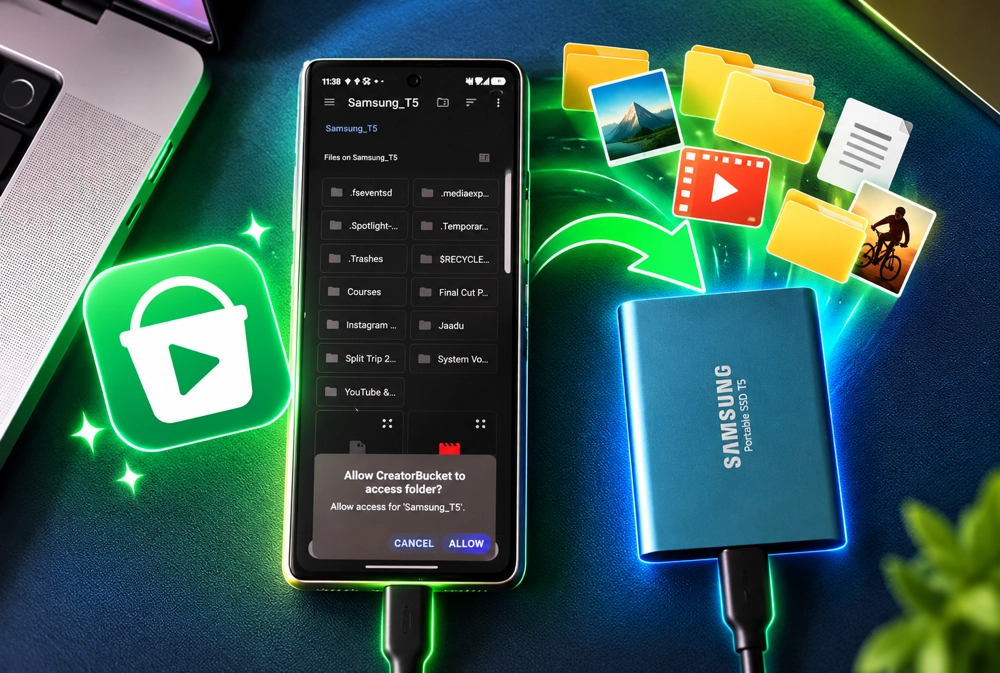
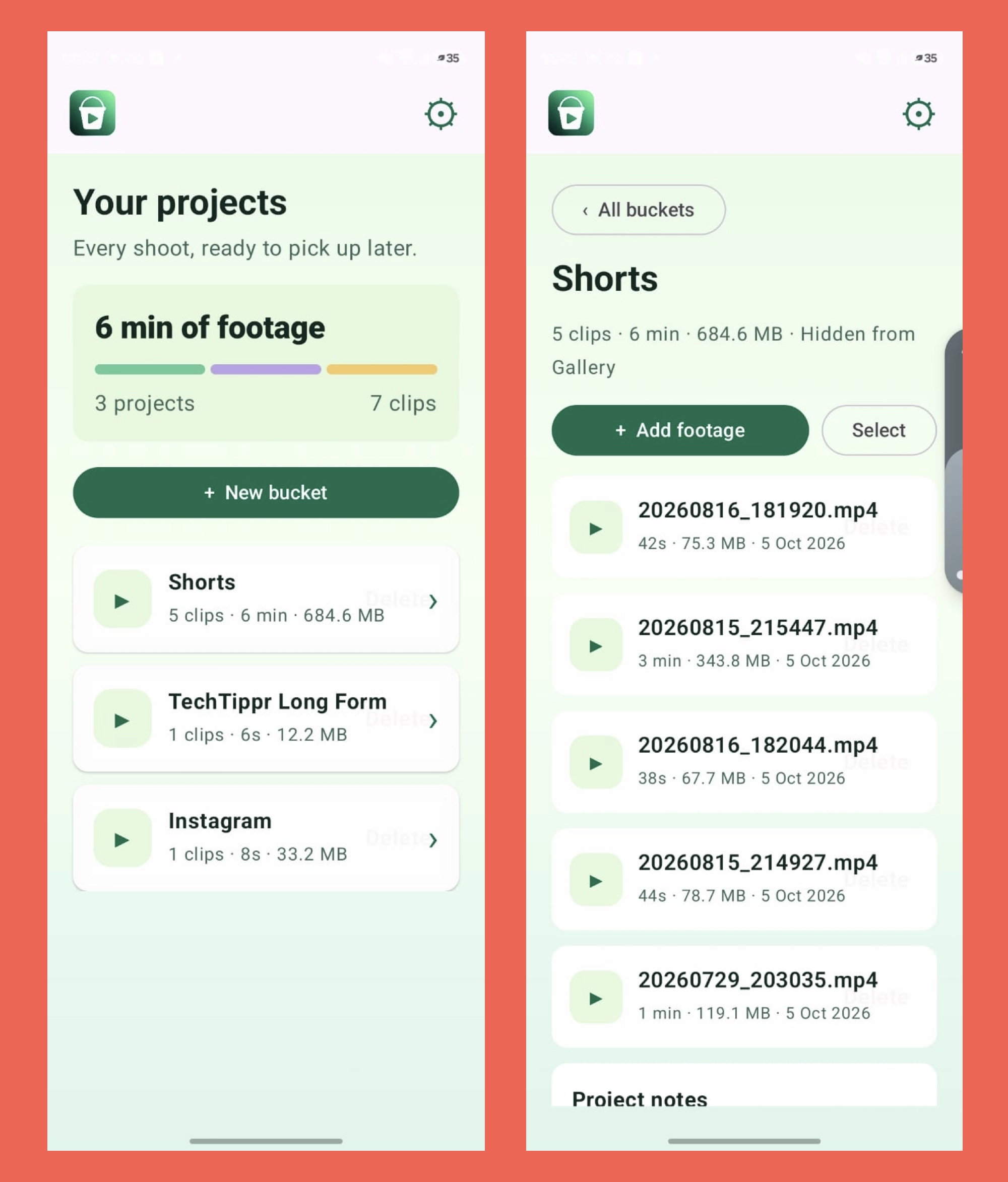
Creator Bucket is a project-based organizer for video footage on Android. A bucket is a named collection for one project, such as a product review, travel Reel, tutorial, or client video. Add clips to that bucket as you shoot them over time. Inside the app, you can preview footage, keep a note or shot list, and check how many clips and minutes of footage the project contains.The current build is focused on videos. It accepts one or several video clips from the Android Share sheet and keeps working copies in the app’s private storage, outside normal Gallery indexing. That makes the project copies easy to find in Creator Bucket without adding another set of thumbnails to your camera roll. Photos are not supported in this first build.
Creator Bucket is not a camera app and it does not edit your video for you. Its job is the awkward step in between recording and editing: collecting the right clips, keeping the project context, and handing all of that footage to the editor or storage device you use next.
Why I Wanted More Than a Gallery Album
You can organize videos manually. Create a folder in your phone’s file manager, find each new recording, and move it there. You can also make albums in a gallery app. Those approaches work, but they ask you to remember the sorting step each time you record and then navigate between your gallery, files, and editor.An album is not necessarily the same as moving the underlying files. For example, Google says items added to a Google Photos album remain in the Photos library. That is fine if you just want a collection, but it does not solve my particular problem of separating project footage from the main camera view.
I wanted a quicker habit: shoot a clip, tap Share, choose the project, and return to what I was doing. If I forget to sort something at the moment of recording, I can open a bucket and add the missing local videos later. The point is to make project organization part of the capture workflow instead of a long cleanup session before every edit.
How to Organize Phone Footage with Creator Bucket
1. Record with your usual camera app
There is no special recording mode to learn. I use my Samsung Galaxy Fold to capture a Reel, a talking-head segment, or a few B-roll shots in the regular camera app. The videos appear in the gallery as they normally would. This is helpful when a project takes several sessions: today’s clips do not need to be recorded in the same app or on the same day as last week’s clips.
2. Share a clip into a project bucket
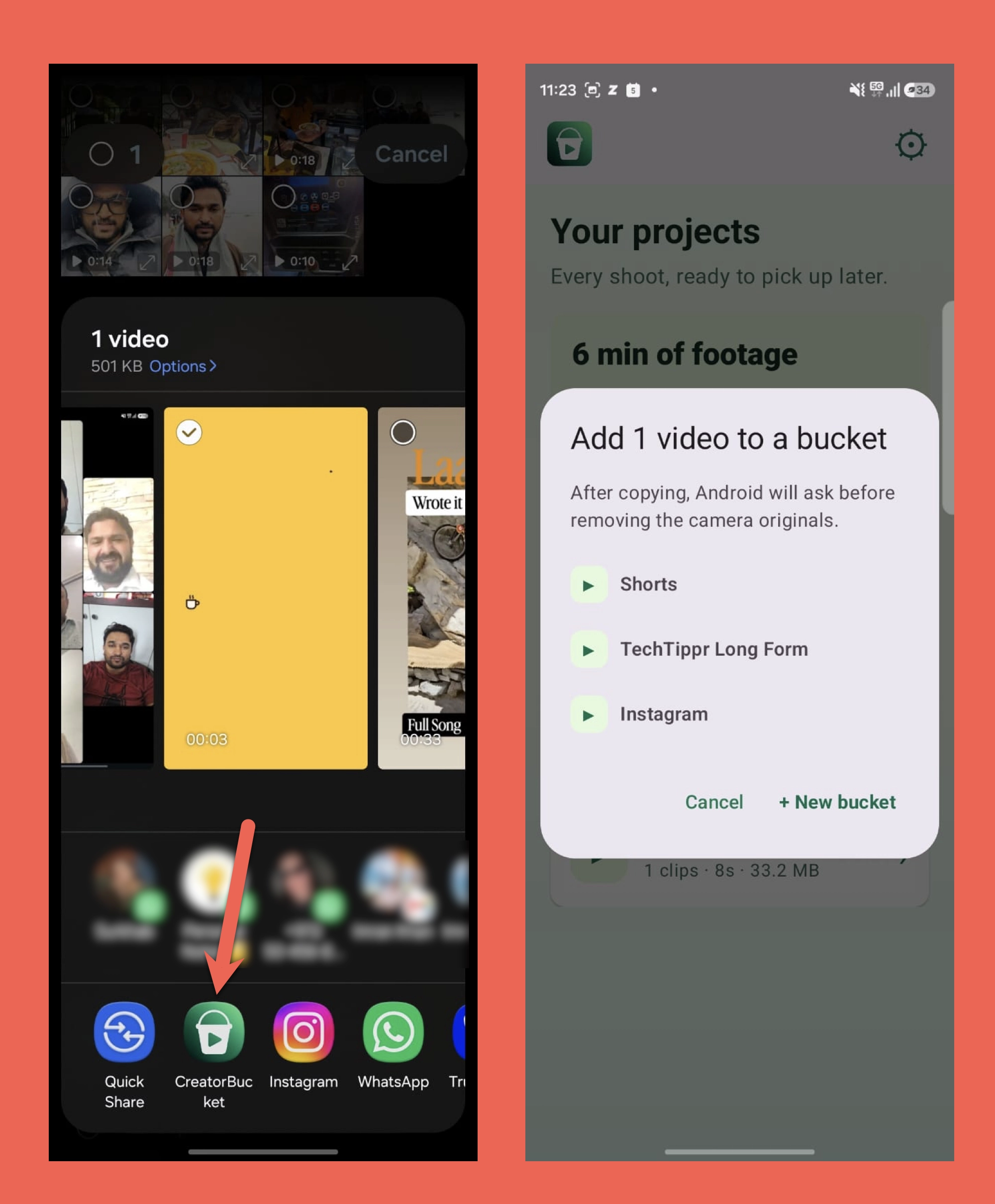
After recording, select a local video in Gallery or Files and tap Share. Choose Creator Bucket from Android’s Share sheet. You can create a new bucket for a fresh project or add the clip to one you already started. The app accepts multiple videos too, so you can gather a group of related shots at once instead of sharing them individually.
For example, if I am making a phone camera review, I can put the unboxing, outdoor tests, close-ups, and B-roll in one bucket named for that review. Tomorrow I can record more footage and send those clips into the same bucket. When I return to the project, the material is together instead of spread throughout the camera roll.
3. Add footage from inside a bucket when you need to
The Share sheet is my fastest route, but it is not the only one. Open Creator Bucket, choose the project bucket, and use its add-footage flow to pick videos from your phone’s local gallery or file picker. This is useful for clips you recorded earlier, or for that one shot you remembered after you had already sorted the rest of the project.
I also add a short note or shot list when a clip’s purpose is not obvious from its thumbnail. A note such as “use the second outdoor shot for the opening” saves time later, especially when several takes look alike. Tapping a clip lets me preview it before I export the project.
4. Check the project before you start editing
The home view shows how many clips each bucket contains and the total recorded duration. Those numbers are simple, but they are useful. If the project has fewer clips than I expected, I can check the gallery before leaving the phone behind. If the bucket has plenty of footage, I know I can move ahead to the edit without a last-minute hunt.
You can change the home view from the settings menu, including a footage timeline, dashboard tiles, or a project gallery. Whichever view you use, the goal is the same: see the state of a project quickly and open the clips that belong to it.
Copy or Move: How to Keep the Camera Roll Clean
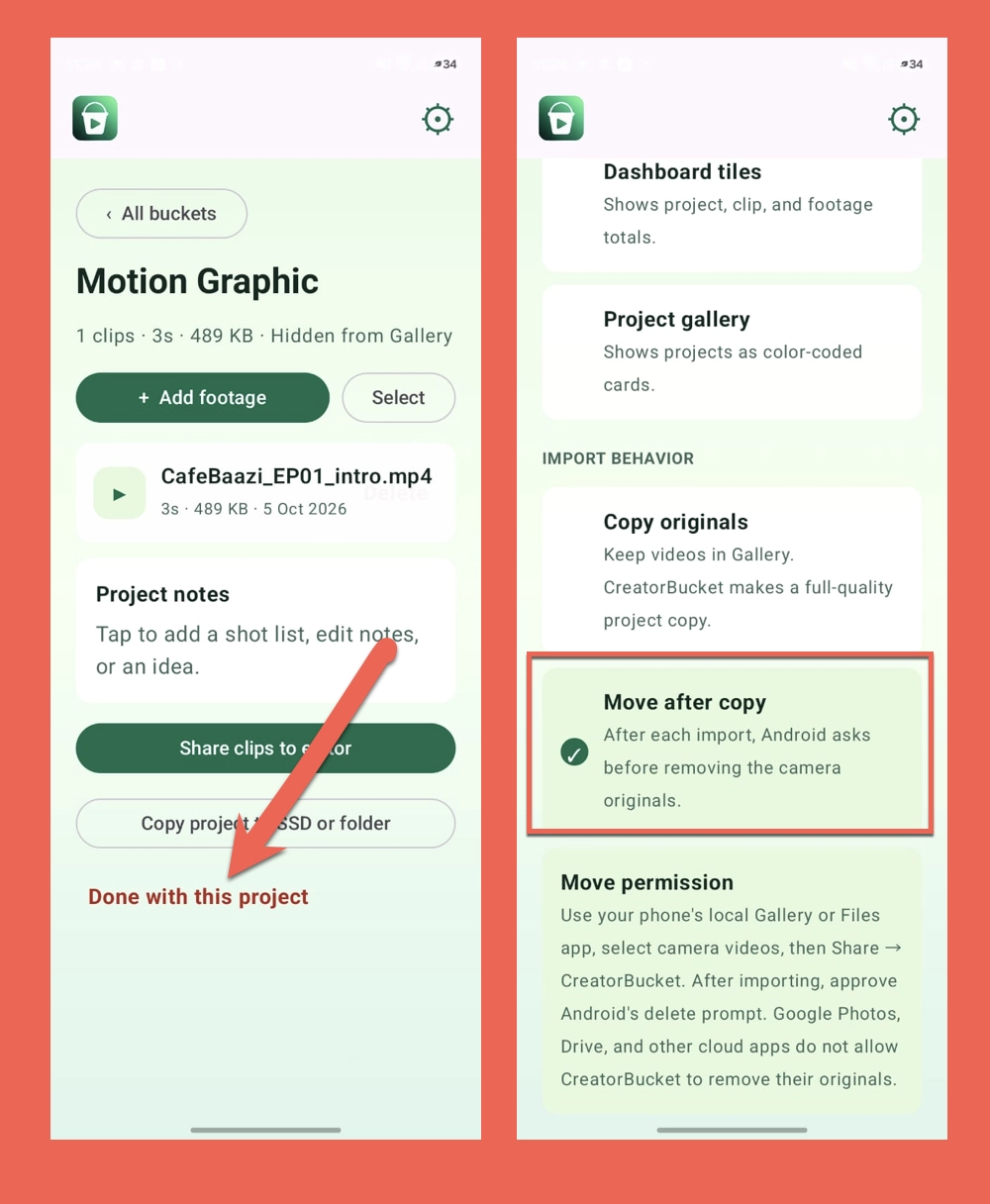
Creator Bucket copies video files by default. That leaves the original recording where it was in your camera roll and places a project copy in the app. It is the safer option when you are first learning the workflow, because the original stays available in Gallery. The project copy does not show up there as an extra duplicate.When I want a local camera recording removed from the gallery after it has been collected, I turn on Move after copy in Creator Bucket’s settings before sharing the video. Android then asks me to approve deletion of the original after the project copy is made. I check that the video is present in the bucket before approving the move. If the source is Google Photos, Drive, or another cloud service, the app cannot delete that cloud original; those items are copied instead.
This difference matters. Copy mode organizes the edit but does not remove the original from your camera roll. Move after copy is the option that helps clear local creator footage out of the gallery, and it requires Android’s confirmation. Choose the mode based on how you back up your recordings and whether you still need the original in its usual location.
My Galaxy Fold to SSD to Computer Workflow
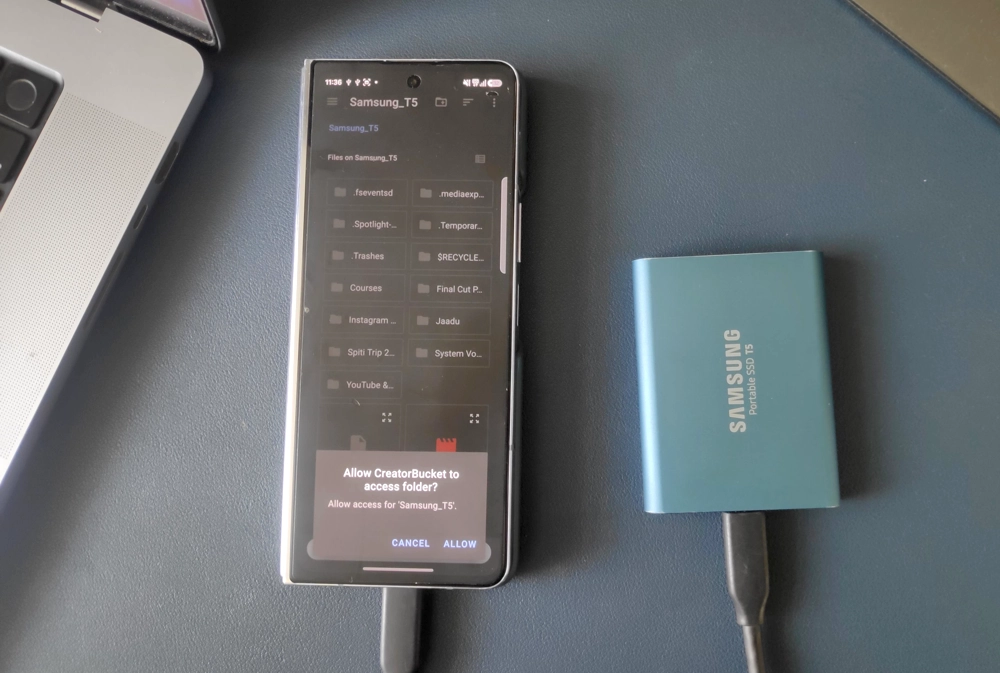
I use a Samsung T7 1TB portable SSD with my Galaxy Fold. The USB-C drive connects to the phone, then later to my computer. Creator Bucket helps me gather the footage first, so I am exporting one project’s clips rather than searching the phone for each file at transfer time. The Amazon link is an affiliate link; I may earn a commission if you buy through it.When a bucket is ready, I connect the SSD, choose the project’s export or copy action, and use Android’s folder picker to select a folder on the drive. I give the folder the project name, such as “Camera review B-roll,” so it is obvious what I am opening on the computer. Creator Bucket uses numbered filenames when a destination already contains a clip with the same name, avoiding an accidental overwrite during export.
After the copy finishes, I open the SSD folder and spot-check the files before disconnecting the drive. Then I connect the SSD to my computer and bring the footage into my editor. If I am editing on the phone instead, I can share clips from the bucket to an editing app. The exact route changes with the project, but the bucket stays the single place where I verify that I have every shot I meant to use.
- Record the project clips normally on the phone.
- Share each clip, or a batch of clips, into the matching Creator Bucket project.
- Check the bucket’s clip count, footage duration, previews, and notes.
- Connect the USB-C SSD and export the complete project to a named folder.
- Verify the SSD copy, then connect the drive to the computer for editing.
What Happens When a Project Is Finished?
Once the footage is safely in my editing workflow, I no longer need every working copy on the phone. Creator Bucket lets you remove selected clips from a bucket or use Done with this project to remove the project’s app copies. These actions ask for confirmation. Removing the app copies does not delete the original camera videos that remained in Gallery under Copy mode.Export before cleanup
Bucket copies live in Creator Bucket’s private app storage. Export any project you still need before using Done with this project or uninstalling the app. The current build has no cloud backup or background import, and uninstalling the app removes its private working copies.
For me, the clean end state is a project folder on the SSD or computer, with the phone ready for the next shoot. I can keep the bucket while I am still editing and remove its working copies only after I have checked the export. That is more predictable than deleting clips from a crowded camera roll and hoping I did not miss the one take I need.
How to Download Creator Bucket for Android
Creator Bucket is currently available as a debug APK from a successful GitHub Actions build, rather than a Google Play listing. Open the CreatorBucket Android build page on GitHub, sign in to GitHub, and find the Artifacts section. Download CreatorBucket-debug-apk, unzip it, and install app-debug.apk on your Android phone. The project’s README explains the current features and build scope.GitHub workflow artifacts expire, so that specific build link may stop offering the APK. If it has expired, check the repository’s latest successful Android build for a current artifact. Because this is a debug build distributed outside Google Play, review the source and install it only if you are comfortable with that route. I will update the download path if a permanent release becomes available.
Frequently Asked Questions
Can I add several clips to one Creator Bucket project?
Yes. You can share one or multiple local videos from Android’s Share sheet and choose an existing bucket. That is useful when a shoot produces several B-roll clips or when you are collecting footage recorded on different days.
Will the original video disappear from my gallery?
Not in the default Copy mode. The original stays in Gallery while Creator Bucket keeps a project copy outside Gallery indexing. For a local camera video, you can enable Move after copy in settings and approve Android’s deletion prompt after the copy. Cloud sources such as Google Photos or Drive are copied without deleting their originals.
Does Creator Bucket work with photos too?
The current build supports video files. It does not yet import photos, so use your gallery or file manager for still images until photo support is added.
Can I send an entire project to an external SSD?
Yes. Connect a compatible drive to the Android phone, export or copy the bucket through Android’s folder picker, and select a folder on the SSD. Check the copied clips on the drive before deleting any working copies from the phone.