
- 011. Scan and Sign Documents Without a Printer
- 022. Translate Text in Real-Time with the Camera
- 033. Identify Plants, Animals, and Objects
- 044. Remember Where You Parked
- 055. Read QR Codes and Barcodes
- 066. Use It as a Magnifying Glass
- 077. Capture Whiteboards and Presentations
- 088. Check for Hidden Cameras in Hotels or Rentals
- 099. Measure Distances and Objects with AR
- 10Frequently Asked Questions
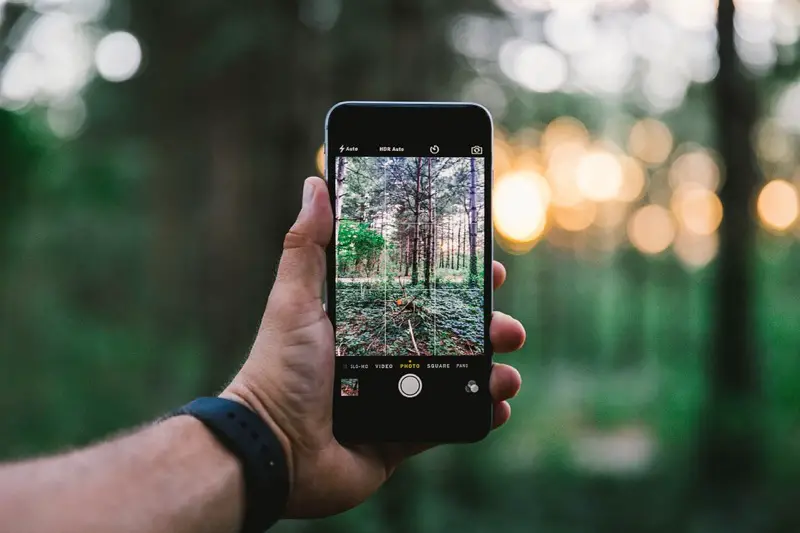
Most people use their smartphone camera for two things: selfies and food photos. But the camera in your pocket is genuinely one of the most versatile tools you own — and most of its best uses have nothing to do with photography. Here are nine ways to put it to work.
Short Answer: Your phone camera can scan documents, translate text in real-time, identify plants and objects, remember where you parked, and replace a magnifying glass — most of these features are built in, no app download required.
1. Scan and Sign Documents Without a Printer
Stop emailing “sorry I don’t have a scanner” and use your phone instead. Apple’s Files app and Notes app have built-in document scanning. On Android, Google Drive’s camera icon scans documents directly to PDF with automatic edge detection and perspective correction.
For contracts and forms, tools like Adobe Scan or Microsoft Lens add OCR (optical character recognition) so the scanned text becomes searchable and copy-paste-able.
📸 SCREENSHOT NEEDED: iPhone Notes app showing the document scanner interface with auto-detected edges highlighted
2. Translate Text in Real-Time with the Camera
Point your camera at a menu in another language, a foreign street sign, or instructions in a language you don’t read — and see an instant translation overlaid on the image. Google Translate’s camera mode does this live, in real-time, with the translated text replacing the original on screen.
On iPhone, the built-in Translate app does this too — or just use the camera’s Live Text feature and tap “Translate.”
3. Identify Plants, Animals, and Objects
Google Lens (built into Android’s camera and Google Photos) and iPhone’s Visual Look Up can identify plants, animals, landmarks, artwork, and products just by pointing the camera at them. This works offline in many cases once the model is cached.
Use Case:
Spotted an unknown plant in your garden? Take a photo in Google Lens. It identifies species, tells you if it’s toxic, and shows care guides — in under 5 seconds.
4. Remember Where You Parked
Before walking away from your car, take a photo of the surrounding area, a landmark, or the street sign. Even better — drop a pin in Google Maps or Apple Maps at your parking spot. The camera photo gives you a visual reference the maps pin sometimes lacks in crowded parking lots.
5. Read QR Codes and Barcodes
Your phone’s default camera app can read QR codes instantly — no separate app needed. For barcodes on products, Google Lens or Amazon’s shopping camera will show you the product name, reviews, and price comparisons from multiple retailers in seconds.
📸 SCREENSHOT NEEDED: Google Lens scanning a product barcode and showing price comparison results from multiple stores
6. Use It as a Magnifying Glass
Struggling to read small print on medicine labels, electronics manuals, or restaurant receipts? Open your camera app and zoom in — or better, use the dedicated Magnifier app. On iPhone, it’s at Settings → Accessibility → Magnifier. It adds a torch button, contrast controls, and freeze-frame for fine print reading.
7. Capture Whiteboards and Presentations
In a meeting where someone is writing on a whiteboard? Photograph it before it’s erased. Microsoft Lens and Google PhotoScan both do automatic whiteboard enhancement — correcting angles, boosting contrast, and removing glare so the text is actually readable in the photo.
8. Check for Hidden Cameras in Hotels or Rentals
Infrared camera lenses emit a faint glow visible through smartphone cameras, even when invisible to the naked eye. In a dark room, open your camera and slowly scan smoke detectors, clocks, USB chargers, and air vents. If you see a small bright dot where there shouldn’t be one, investigate further.
Warning: This method detects some hidden cameras but not all. Cameras with strong IR cut filters won’t show up. For high-stakes situations, use a dedicated RF detector or a camera lens finder app.
9. Measure Distances and Objects with AR
iPhone’s built-in Measure app uses augmented reality to measure the length, width, and height of real-world objects. Point it at a piece of furniture, a room, or a package. On Android, Google’s Measure app does the same. Neither is as accurate as a tape measure, but for quick estimates — dimensions of a desk before buying, or checking if a sofa fits in a doorway — it’s surprisingly useful.
Quick checklist:
- ✅ Scan documents with Google Drive or Apple Notes instead of a printer
- ✅ Use Google Translate camera for real-time text translation
- ✅ Try Google Lens for plant/animal/product identification
- ✅ Photograph your parking spot before walking away
- ✅ Use the Magnifier app for small-print reading
- ✅ Try the Measure app before buying furniture or appliances
Frequently Asked Questions
Does Google Lens work without the internet?
Basic text recognition works offline once cached. Plant/animal identification and product search require an internet connection for accurate results.
Is the iPhone Measure app accurate enough for real use?
Within 1-3 cm accuracy on most objects. Good enough for furniture dimensions and room estimates. Not precise enough for construction or precision work.
Can I scan multi-page documents with my phone camera?
Yes — both Apple Notes and Google Drive support multi-page scans. Tap the shutter for each page and they’re automatically combined into a single PDF.
Does camera translation work on handwriting?
Google Translate’s camera mode supports printed and typed text reliably. Handwriting recognition is improving but less accurate, especially for cursive.
More Smartphone Tips ↗iPhone Tips
Your camera is the most underused app on your phone. Start with Google Lens if you’re on Android — it ties together identification, translation, and search in one place. iPhone users already have Live Text and Visual Look Up baked in. Either way, your camera is ready to do a lot more than you’ve been asking it to.