
- 01Why Use a Device Mockup?
- 02The Fast Way: Create Mockups With Mocksy
- 03Free Web-Based Mockup Generators
- 04Doing It Manually (and Why You Probably Should Not)
- 05Choosing the Right Device Frame
- 06Where Mockups Make the Biggest Difference
- 07Types of Device Mockups
- 08Mockups vs Real Device Photos
- 09Using Mockups Across Your Marketing
- 10Frequently Asked Questions
- 11Tips for Mockups That Convert
- 12The Bottom Line
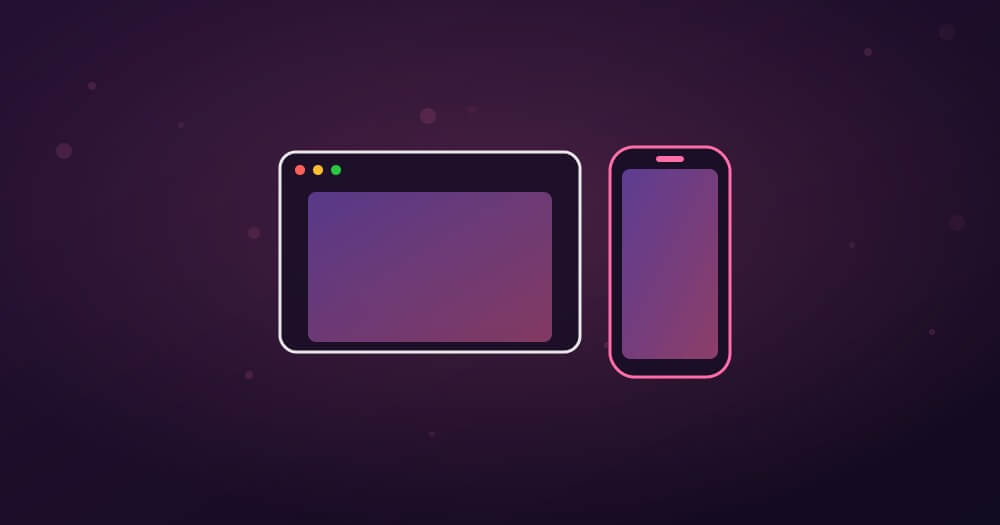
Device mockups — a screenshot shown inside a Mac, iPhone or browser frame — instantly make your app or website look real and professional. But you do not need Photoshop or expensive design software to make them. Here is how to create device mockups fast, without Photoshop, so your product visuals look polished and professional in seconds instead of hours of design work.
Short Answer: To create device mockups without Photoshop, use a dedicated mockup tool that wraps your screenshot in a device or browser frame and adds a background, padding and shadow automatically. On a Mac, Mocksy turns a flat screenshot into a framed, gradient-wrapped mockup in under 30 seconds. Free web-based mockup generators are an option too, but a native tool is faster for regular use and keeps everything on your machine.
A mockup does two jobs: it frames your screenshot in a recognisable device, and it presents it attractively on a background. Both used to require design skills. Now they take seconds. Here is how.
Fast device mockups – the essentials:
- Wrap the screenshot in a device or browser frame
- Add a gradient or solid background with padding
- Add a soft shadow for depth
- No Photoshop needed – use a dedicated tool
- Keep frames and style consistent across a set
Why Use a Device Mockup?
A mockup gives your screenshot context and credibility. Showing an app screenshot inside a phone frame tells the viewer instantly “this is a real app on a real device,” which is far more convincing than a bare screen grab. The same goes for a website inside a browser frame. Mockups are the standard on app stores, landing pages, portfolios and pitch decks precisely because they make products look finished and trustworthy. They are one of the highest-impact, lowest-effort ways to present your work professionally.
The Fast Way: Create Mockups With Mocksy
Mocksy is a lightweight Mac app that creates device mockups in seconds — no Photoshop, no design skills. Drop in a screenshot and it wraps it in a clean frame with a gradient background, padding and a soft shadow, turning a flat grab into a polished, share-ready mockup in under 30 seconds, right on your Mac. For anyone who regularly shows off an app, a website or a product — founders, designers, marketers, creators — it removes the tedious design work and just gives you a professional mockup instantly.
Get Mocksy for Mac ↗
Make screenshots look pro →
Free Web-Based Mockup Generators
If you only need the occasional mockup, free web-based generators let you upload a screenshot and drop it into a device frame in the browser. They are handy for one-offs and require no install. The trade-offs are that you upload your screenshot to their servers (a privacy consideration for unreleased products), you may hit usage limits, and switching between the browser and your work is slower for regular use. For frequent mockups, a native Mac tool is quicker and keeps everything local.
Doing It Manually (and Why You Probably Should Not)
You can create mockups by hand in an image editor using device-frame templates — download a frame, place your screenshot inside it, add a background and shadow. It gives full control, but it is slow and requires design know-how, and you have to repeat the whole process for every screenshot and every device. Unless you are a designer crafting a single hero image, a dedicated mockup tool will produce a comparable or better result in a fraction of the time. The manual route is rarely worth it for everyday product visuals.
Choosing the Right Device Frame
Match the frame to the content. Show a mobile app in a phone frame, a web app or website in a browser frame, and a desktop app in a Mac window frame. Using the right frame makes the mockup read correctly at a glance. If you are showing a product across devices — say a responsive website on both phone and desktop — a matching set of frames on the same background looks especially polished and demonstrates range. Consistency across the set is what makes it feel like a designed presentation rather than a collection of separate images.
Warning: If you use a web-based mockup generator for an unreleased product or confidential screen, remember you are uploading that image to a third-party server. For anything sensitive or pre-launch, prefer a native tool like Mocksy that works locally on your Mac, and always check the screenshot for private information before sharing the finished mockup.
Where Mockups Make the Biggest Difference
Mockups shine anywhere you present a product. On app store listings, framed screenshots directly influence downloads. On landing pages, a device mockup of your app or site builds instant credibility. In portfolios and case studies, mockups make your work look finished and professional. In pitch decks and social posts, they help your product stand out and look real. In each case, the few seconds to create a mockup return outsized results in how your product is perceived. Combined with polished screenshots — see our guide on making screenshots look professional — mockups give you a complete, repeatable way to present your product beautifully.
Checklist: create device mockups fast
- ✅ Pick the right frame for the content (phone, browser, Mac)
- ✅ Add a gradient or solid background with padding
- ✅ Add a soft shadow for depth
- ✅ Use a dedicated tool like Mocksy – no Photoshop needed
- ✅ Keep frames and style consistent across a set
- ✅ Use a local tool for unreleased or sensitive screens
Types of Device Mockups
Mockups come in a few common styles, and knowing them helps you pick the right one. Flat frames show the device head-on — a phone, browser or Mac window facing the viewer — which is clean, clear and the most versatile for app stores and landing pages. Angled or perspective mockups show the device at a tilt for a more dynamic, lifestyle feel, popular in marketing headers. Multi-device mockups show the same product across a phone and a desktop together to demonstrate responsiveness. And clay or minimal mockups use a simplified device shape to keep all attention on the screen content. For most product visuals, a clean flat frame is the safest and most professional choice, with angled and multi-device styles reserved for hero images where you want extra visual impact.
Mockups vs Real Device Photos
You might wonder whether to photograph a real device instead of using a digital mockup. Digital mockups win for almost every practical purpose: they are pixel-perfect, endlessly repeatable, always show your latest screenshot crisply, and take seconds to produce. Real device photos can look authentic and warm for certain lifestyle marketing, but they are slow to shoot, hard to keep consistent, and the on-screen content is difficult to capture sharply. For app stores, landing pages, docs and decks, a clean digital mockup is faster, sharper and more flexible. Unless you specifically want a human, in-context feel that only a real photo provides, a mockup tool is the better choice nearly every time.
Using Mockups Across Your Marketing
Once you can make mockups quickly, they become a versatile part of your whole marketing toolkit. Use them for app store screenshots, website hero images, feature announcements, social posts, email headers, investor decks and portfolio case studies. The same screenshot, wrapped in an appropriate frame on a consistent background, can be repurposed across all of these while keeping a unified look that reinforces your brand. This repeatability is the real advantage of a fast mockup tool: you are not commissioning or building a bespoke image for every channel, you are producing on-brand mockups on demand. For a solo founder or a small team, that speed and consistency is the difference between product visuals that look scrappy and ones that look like an established company made them.
Frequently Asked Questions
Are device mockups worth it for a small product?
Absolutely – arguably more so, because they make a small or new product look established and credible. A clean mockup signals professionalism that raw screenshots do not, and since a fast tool makes them in seconds, the effort is minimal for a real boost in how your product is perceived.
How do I create a device mockup without Photoshop?
Use a dedicated mockup tool. On a Mac, Mocksy wraps your screenshot in a device or browser frame with a background and shadow in one step. Free web-based mockup generators also work for occasional use. Neither requires Photoshop or design skills.
What is the fastest way to make a mockup?
A native app built for it. Mocksy creates a framed, gradient-wrapped mockup in under 30 seconds on your Mac, which is much faster than building one manually in an editor or switching to a web tool for every image.
Are there free mockup tools?
Yes, several free web-based mockup generators let you drop a screenshot into a device frame in the browser. They are good for one-offs, but they upload your image to their servers and can be slower for regular use than a native tool.
Which device frame should I use?
Match the frame to the content: a phone frame for mobile apps, a browser frame for websites and web apps, and a Mac window frame for desktop apps. The right frame makes the mockup instantly clear and looks more professional.
Can I make mockups for both phone and desktop?
Yes. Showing a product on multiple device frames on a matching background is a polished way to demonstrate a responsive app or site. A tool like Mocksy lets you frame each screenshot consistently so the set looks like a cohesive presentation.
Do mockups work for both apps and websites?
Yes. Use a phone frame for mobile apps, a browser frame for websites and web apps, and a Mac window frame for desktop apps. A good mockup tool offers the right frames for each, so whether you are showing an app or a site, you can present it in a fitting, professional device frame.
Tips for Mockups That Convert
If your mockups are meant to drive downloads or signups, a few choices help. Lead with your strongest screen — the one that shows the core value of your product — rather than a settings page. Keep the on-screen content clean and readable, since a cluttered screenshot inside a beautiful frame still confuses viewers. Use a background colour that complements your product’s interface and brand rather than clashing with it. And keep a consistent style across a sequence of mockups so a set of app store screenshots or landing-page images reads as one cohesive story. The frame and background get attention, but it is the clarity of what is on the screen that ultimately convinces people, so treat the mockup as a way to showcase good content, not to disguise weak content.
Can I create a mockup from any screenshot?
Yes. As long as you have a clean screenshot of your app or website, a mockup tool can wrap it in an appropriate device frame with a background and shadow. Capturing the screenshot at a good resolution first gives the sharpest mockup, but the process works with any standard screen capture.
The Bottom Line
Device mockups make your app, website or product look real and professional, and you no longer need Photoshop to create them. A dedicated Mac tool like Mocksy wraps your screenshot in a clean frame with a gradient background and shadow in seconds, while free web generators cover the occasional one-off. Pick the right frame, keep your style consistent, use a local tool for anything unreleased, and your product visuals will look polished and credible everywhere you share them, from the app store to your pitch deck.
Create mockups fast — Get Mocksy ↗
Related: how to make screenshots look professional, and how to add a background to a screenshot.