
- 01Start With the Basics
- 02Fix 1: Clear the Stuck Print Queue
- 03Fix 2: Take the Printer Off 'Offline' Mode
- 04Fix 3: Reconnect or Reinstall the Printer
- 05Fix 4: Update the Printer Driver
- 06Frequently Asked Questions
- 07Fixing Common Print Quality Problems
- 08Wireless vs USB Printing: Which Is More Reliable?
- 09Printing From Your Phone
- 10Key Takeaways
Short Answer
If your printer won’t print: check it’s powered on and connected to the same Wi-Fi as your computer, restart both the printer and computer, clear the stuck print queue, set the printer as default and ‘Use Printer Online,’ and reinstall the printer if needed. Most ‘printer offline’ problems are a stalled queue or a Wi-Fi hiccup — restarting and clearing the queue fixes the majority.
Few things are as maddening as a printer that shows ‘offline’ or silently swallows your print jobs when you’re in a hurry. The good news is that printers fail in predictable ways, and the fixes are almost always about connection and the print queue — not a broken printer. Here’s the reliable order to work through.
Start With the Basics
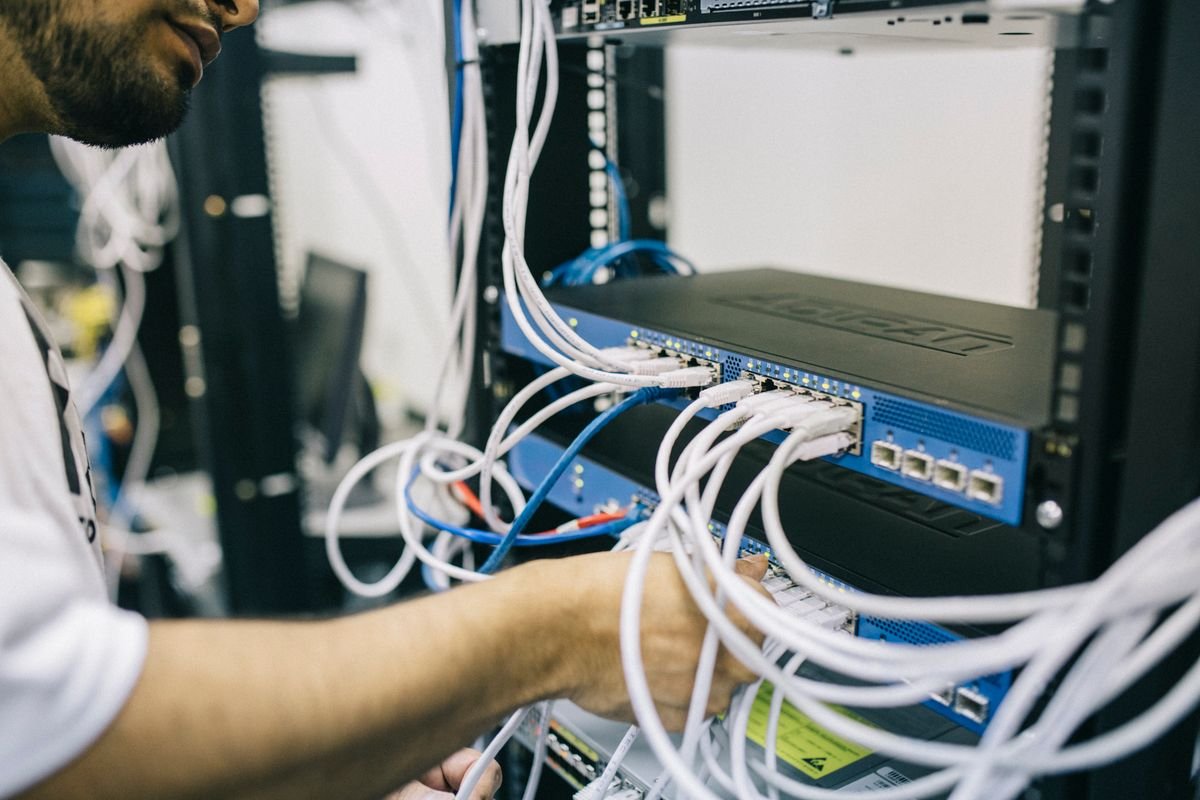
- Check power and connection: printer on, and on the same Wi-Fi network as your computer (a very common mismatch)
- Restart everything: turn the printer fully off and on, and restart your computer — clears most glitches
- Check for paper, ink, and errors: a jam, empty tray, or blinking error light will silently stop printing
- Check the cable (if wired): reseat the USB cable or try a different port
Fix 1: Clear the Stuck Print Queue
A single stuck job can freeze everything behind it and flip the printer to ‘offline.’ On Windows, go to Settings > Bluetooth & devices > Printers & scanners > your printer > Open print queue, then cancel all documents. On Mac, System Settings > Printers & Scanners > your printer > Open Print Queue and delete the stuck jobs. If a job won’t clear, restart the print spooler (Windows: restart the ‘Print Spooler’ service) or just reboot — then try printing again.Fix 2: Take the Printer Off ‘Offline’ Mode
Windows sometimes flags a working printer as offline and stays that way. Open the print queue, click the ‘Printer’ menu, and make sure ‘Use Printer Offline’ is unchecked and ‘Pause Printing’ is off. Also set the right printer as default (Windows can silently switch your default to ‘Microsoft Print to PDF’ or a disconnected printer), so your jobs actually go to the real machine.
Fix 3: Reconnect or Reinstall the Printer
If it’s still offline, remove and re-add the printer. In Printers & scanners, remove the device, then add it again — this re-establishes the connection and refreshes the driver. For network printers, confirm the printer and computer are on the same Wi-Fi band (mixing 2.4GHz and 5GHz networks can hide the printer). If you’re setting one up from scratch, our full guide to setting up a printer in Windows walks through it. A Wi-Fi issue on the network itself can also be the cause — see Wi-Fi connected but no internet if other devices are struggling too.Fix 4: Update the Printer Driver
An outdated or corrupted driver causes many print failures, especially after a Windows update. Download the latest driver from the printer manufacturer’s website (HP, Canon, Epson, Brother) rather than relying on the generic one, and reinstall. This resolves cases where the printer connects but produces errors, blank pages, or garbled output.Frequently Asked Questions
Why does my printer keep going offline?
Usually a Wi-Fi connection that drops, a stuck print queue, or Windows’ ‘Use Printer Offline’ setting getting toggled. Give the printer a static IP or reconnect it to a stable network, keep the queue clear, and ensure offline mode is unchecked. Sleep/power-saving settings on the printer can also cause it to appear offline — disabling deep sleep helps.
Why won’t my printer print even though it says ready?
Check that the correct printer is set as default (not ‘Print to PDF’ or an old device), that no job is stuck in the queue, and that you’re not printing to the wrong tray or paper size. A silent failure with a ‘ready’ status is often a wrong-default-printer or stuck-queue problem — clear the queue and confirm the default.
How do I fix a printer after a Windows update?
Windows updates sometimes break printer drivers. Reinstall the printer (remove and re-add it) and download the latest driver from the manufacturer’s site. Running the built-in printer troubleshooter (Settings > System > Troubleshoot) also fixes many post-update issues automatically.
Set a default printer and disable deep sleep
Two settings prevent most recurring problems: set your real printer as the Windows default (turn off ‘Let Windows manage my default printer’), and disable the printer’s deep-sleep/power-save mode in its settings. Together they stop the printer from vanishing offline between jobs.
Use manufacturer drivers, not just Windows’ generic ones
Windows’ automatic driver often works for basic printing but can cause errors, missing features, or blank pages. For reliable results — especially with all-in-one and photo printers — install the full driver package from the manufacturer’s official website rather than relying on the generic one.
Fixing Common Print Quality Problems
Sometimes the printer prints, but the output is wrong — faded text, streaks, missing colors, or garbled characters. For inkjet printers, faded or streaky prints usually mean low ink or a clogged printhead; run the printer’s built-in cleaning cycle (from its menu or the companion app), which clears dried ink from the nozzles. If cleaning doesn’t help after two or three cycles, the cartridge may be empty or the printhead may need manual cleaning.For laser printers, streaks or faded areas often mean a low toner cartridge — gently rocking the cartridge side to side redistributes toner and can buy you more pages. Garbled text or strange characters almost always point to a driver problem: reinstall the correct manufacturer driver. And if colors look off, the printer’s color calibration (in its settings) or a nozzle check will usually pinpoint whether it’s a cartridge or a settings issue.
Wireless vs USB Printing: Which Is More Reliable?
Wireless printing is convenient — print from any device without cables — but it’s also where most ‘printer offline’ problems originate, because it depends on a stable Wi-Fi connection between printer and device. If your printer frequently drops offline, connecting it directly to your computer or router with a USB or Ethernet cable eliminates the wireless variable and is far more reliable for a printer that stays in one place.If you prefer wireless, a few things improve stability: give the printer a static IP address (via your router settings) so it doesn’t change addresses and ‘disappear,’ keep it on the same Wi-Fi band as your main devices, and disable its deep-sleep mode so it stays reachable. For a home office printer used daily, a wired connection is the low-drama choice; for occasional printing from phones and laptops around the house, wireless with these tweaks works well.
Printing From Your Phone
Modern printers make phone printing easy, but the method varies. iPhones use AirPrint — as long as your printer supports it (most do) and is on the same Wi-Fi, it appears automatically in the Share > Print menu with no app needed. Android uses the built-in Default Print Service or the manufacturer’s app (HP Smart, Canon PRINT, Epson iPrint), which you install once and then print from any app’s share menu.If your phone can’t find the printer, the usual cause is a network mismatch — the phone and printer must be on the same Wi-Fi network (watch out for guest networks and 2.4GHz-vs-5GHz splits). Restarting both and confirming they share a network resolves most phone-printing failures, the same connection principle that governs printing from a computer.
Why does my printer say offline when it’s clearly on?
Windows often mislabels a working printer as offline after a Wi-Fi hiccup or a stuck print job. Open the print queue, clear any stuck documents, and in the Printer menu uncheck ‘Use Printer Offline.’ Confirm it’s set as the default printer, and restart the print spooler or the computer if needed. This false-offline state is one of the most common and most easily fixed printer problems.
Key Takeaways
A printer that won’t print is almost always a connection or queue problem, not a broken machine. Confirm power and network, restart both devices, clear the stuck queue, uncheck ‘Use Printer Offline,’ set the right default, and reinstall with manufacturer drivers if needed. Wired connections and a static IP prevent most recurring offline issues.- Confirm the printer and computer share the same Wi-Fi network
- Restart both, then clear stuck jobs from the print queue
- Uncheck ‘Use Printer Offline’ and set the correct default printer
- Reinstall with the manufacturer’s driver, not just the generic one
- Use a wired connection or static IP to stop recurring offline drops
Why does my printer print blank pages?
Common causes are empty or clogged ink/toner, protective tape left on a new cartridge, or a driver issue. For inkjets, run a printhead cleaning cycle; for lasers, check toner and remove any packaging strips. If pages are blank with plenty of ink, reinstall the correct driver — a corrupted driver can send blank output.
How do I print from my phone to a Wi-Fi printer?
On iPhone, use AirPrint — if the printer supports it and shares your Wi-Fi, it appears in the Share > Print menu automatically. On Android, install the manufacturer’s app (HP Smart, Canon PRINT) or use the built-in print service. The key requirement is that phone and printer are on the same network, not a separate guest or band.