
- 01First: Is It One Device or All of Them?
- 02Fix 1: Power-Cycle Your Router and Modem
- 03Fix 2: Device-Specific Fixes (One Device Affected)
- 04Fix 3: Deeper Router Checks (All Devices Affected)
- 05Fix 4: DNS Issues
- 06Frequently Asked Questions
- 07How to Prevent 'No Internet' Problems
- 08Router vs Modem: Knowing Which Is Which
- 09Key Takeaways
If Wi-Fi is connected but there’s no internet: restart your router and modem, restart your device, and ‘forget’ then rejoin the network. If only one device is affected, renew its IP or reset its network settings; if all devices are affected, the problem is your router or internet provider. Power-cycling the router fixes the majority of cases.
It’s one of the most confusing tech problems: your device says it’s connected to Wi-Fi, the signal is strong, but nothing loads. The key to fixing it quickly is figuring out where the break is — your device, your router, or your internet provider. Once you know that, the fix is usually straightforward.
First: Is It One Device or All of Them?
This single question cuts your troubleshooting in half. Try loading a website on a second device (phone, laptop). If only one device has no internet, the problem is that device’s settings — jump to the device fixes below. If every device is affected, the problem is your router or your internet provider — start with power-cycling.
Fix 1: Power-Cycle Your Router and Modem
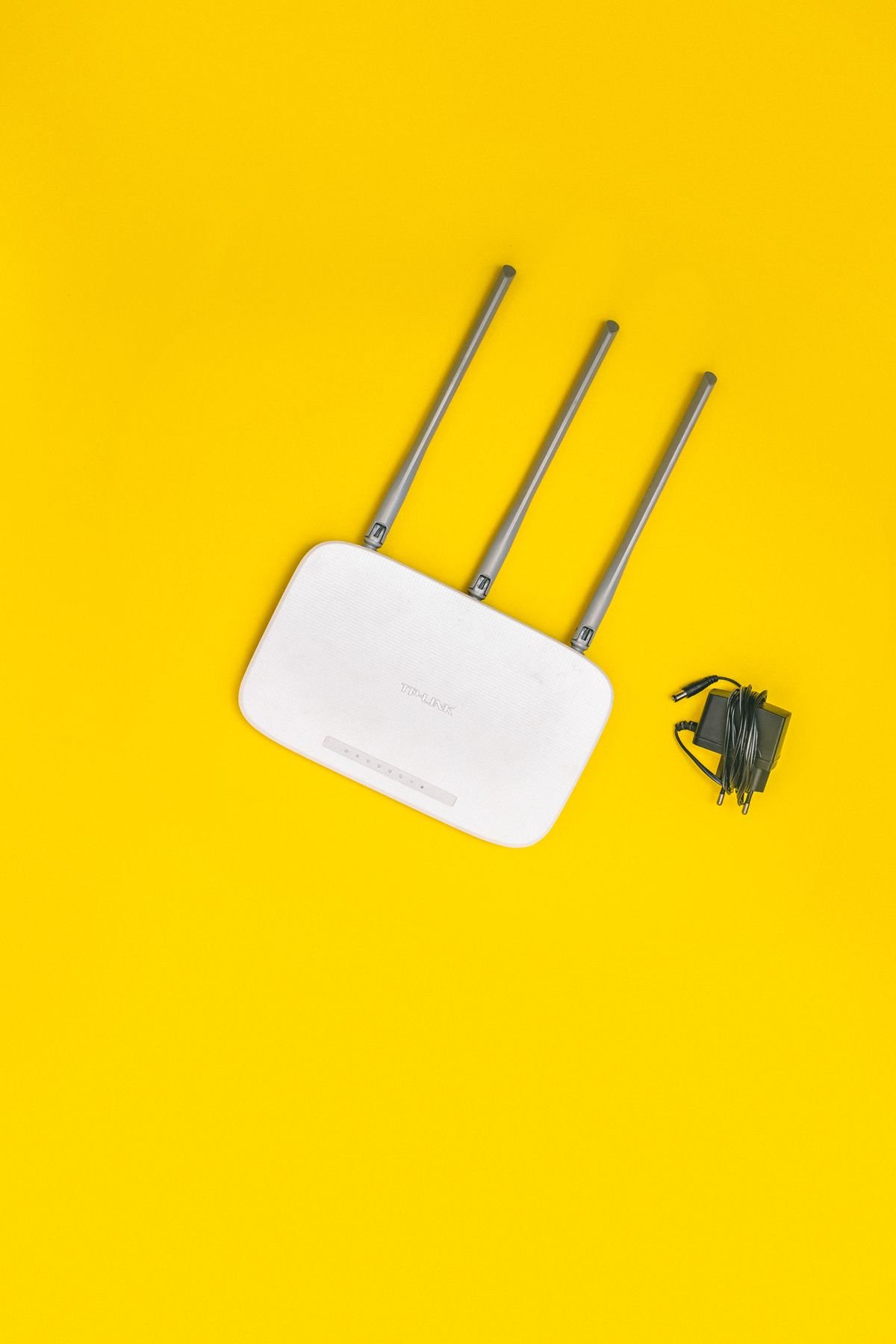
This resolves more ‘no internet’ cases than anything else. Unplug both your router and modem (or your combined gateway) from power. Wait a full 30 seconds — this clears their memory and forces a fresh connection to your provider — then plug the modem back in first, wait for its lights to stabilize, then the router. Give it two minutes to fully reconnect before testing.
Fix 2: Device-Specific Fixes (One Device Affected)
- Forget and rejoin the network: removes a corrupted saved connection — then reconnect with the password
- Toggle Wi-Fi or airplane mode off and on: forces the device to renegotiate the connection
- Renew the IP address: the device may have a bad IP — forgetting/rejoining usually re-requests one
- Reset network settings: on phones, Settings > Reset > Reset Network Settings clears all network configs (you’ll re-enter Wi-Fi passwords)
- Disable VPN or proxy: a stuck VPN can block traffic while showing ‘connected’
If a VPN is the culprit — common on public and hotel networks — our guide to fixing a VPN that won’t work on hotel Wi-Fi walks through the captive-portal issue specifically.
Fix 3: Deeper Router Checks (All Devices Affected)
If power-cycling didn’t help and every device is offline, check the physical connections — the cable from the wall to your modem, and the modem-to-router cable — for anything loose. Look at your modem’s lights: a missing or red ‘internet’/’online’ light usually means the outage is on your provider’s end. Check your provider’s app or status page (from mobile data) for a reported outage in your area before troubleshooting further.
Fix 4: DNS Issues
Sometimes the connection works but your device can’t translate website names to addresses — a DNS problem. Try changing your device or router DNS to a public one like Google (8.8.8.8 / 8.8.4.4) or Cloudflare (1.1.1.1). If sites suddenly load after this, DNS was your issue. This is a common fix when some sites load but others don’t.
Frequently Asked Questions
Why does my phone say ‘Connected, no internet’?
It means your device reached the router but the router isn’t passing internet through — usually because the router lost its connection to your provider, or your device has a bad IP/DNS configuration. Power-cycle the router first; if only your phone is affected, reset its network settings.
Why is my Wi-Fi connected but only some websites work?
That pattern points to DNS or a captive portal. Try switching to public DNS (1.1.1.1 or 8.8.8.8). On public/hotel Wi-Fi, you may need to open a browser and complete a login page (captive portal) before the internet works — many apps fail silently until you do.
How do I know if it’s my provider’s outage?
Check your modem’s ‘internet/online’ light — if it’s off or red, the signal from your provider is down. Confirm on your provider’s app or an outage-tracker site using mobile data. If multiple devices show no internet and the modem light is out, it’s almost certainly the provider, not your equipment.
Nine times out of ten, unplugging the modem and router for 30 seconds fixes ‘connected, no internet.’ Do this first, every time, before diving into settings. Most support calls end with exactly this step — save yourself the wait.
A full router factory reset erases your Wi-Fi name, password, and any custom settings, meaning every device must reconnect. Try power-cycling (unplug/replug) first — that keeps your settings. Only factory-reset the router as a last resort, and note your Wi-Fi credentials beforehand.
How to Prevent ‘No Internet’ Problems
A few steps make the ‘connected, no internet’ state far less frequent. Restart your router every week or two — many routers develop memory issues over long uptimes, and a periodic reboot keeps them healthy (a smart plug on a schedule can automate this). Keep the router’s firmware updated via its app or admin page, since updates fix stability and security bugs. And position the router centrally and off the floor, because weak signal at the edges of your home causes intermittent drops that look like ‘no internet.’
If your home is large or has dead zones, a mesh Wi-Fi system or a well-placed extender prevents the marginal-signal drops that plague single-router setups. And label which devices belong on your network — an overloaded router juggling dozens of gadgets can struggle. These small measures turn Wi-Fi from something you constantly troubleshoot into something you forget about.
Router vs Modem: Knowing Which Is Which
Troubleshooting is easier when you know your equipment. The modem is the box that connects your home to your internet provider (via cable, fiber, or DSL); the router creates your Wi-Fi network and shares the connection to your devices. Many providers combine both into a single ‘gateway,’ but if you have two boxes, the modem is the one with the coax or fiber line from the wall.
This matters because the fix differs: a problem at the modem (no ‘online’ light) means the internet signal itself is down — a provider or cabling issue. A problem at the router (modem online but no Wi-Fi) means your local network is the culprit. When you power-cycle, always restart the modem first and let it fully connect before the router, so the chain re-establishes in the right order.
Should I use my provider’s router or buy my own?
Provider routers are convenient but often basic, and many charge a monthly rental fee. Buying your own router (or mesh system) usually means better performance, more features, and no rental charge — it pays for itself within a year or two. Just confirm compatibility with your provider first. If you rent a combined modem-router, you may still need the provider’s modem while adding your own router.
Key Takeaways
The fastest path through ‘connected, no internet’ is knowing where the break is. Test a second device: if all are affected, power-cycle the modem then router; if only one is, reset that device’s network settings. Power-cycling fixes most cases, and a periodic router reboot prevents them from recurring.
- Check if one device or all are affected to locate the problem
- Power-cycle modem then router, waiting 30 seconds
- Forget/rejoin the network or reset network settings on one device
- Try public DNS (1.1.1.1 or 8.8.8.8) if some sites won’t load
- Check the modem’s ‘online’ light for a provider outage
How long should I unplug my router for?
Wait a full 30 seconds after unplugging before powering back on. This clears the device’s memory and, importantly, signals your provider’s system to release and re-establish the connection cleanly. Plugging it back in too quickly can skip that reset. Restore the modem first, let it fully connect, then the router.
Why does my internet drop at the same time every day?
A scheduled event is usually the cause — an automatic router reboot, a provider maintenance window, or network congestion at peak hours when everyone’s online. Check your router’s admin page for a scheduled restart setting, and contact your provider if it aligns with a maintenance or congestion pattern in your area.
Will restarting my phone fix ‘connected, no internet’?
Sometimes — restarting the phone clears its network stack and can resolve a bad IP or DNS state on that one device. It’s a quick, harmless step to try. But if every device shows no internet, the phone isn’t the problem; restart the router and modem instead. Match the fix to whether one device or all are affected.