

- 01Quick Answer
- 02TL;DR
- 03Why Creating Typewriter Captions in Final Cut Pro Is So Annoying
- 04The Problem With Existing Caption Tools
- 05Why I Built This Plugin
- 06What Does the Plugin Do?
- 07How I Use It In My Videos
- 08Why I Prefer This Over AI Caption Tools
- 09Installation Takes Less Than A Minute
- 10Download Custom Captions
Add Cinematic Typewriter Captions to Final Cut Pro Without Paying Monthly Subscriptions
If you’re a Final Cut Pro creator, chances are you’ve seen those beautiful animated captions where words appear one by one and the currently spoken word gets highlighted.
They look fantastic.
The problem?
Most creators either use expensive AI caption tools or spend way too much time manually creating the effect inside Final Cut Pro.
After struggling with this myself, I ended up creating my own solution.
And today, I’m giving it away for free.
Quick Answer
Looking for a free typewriter text effect for Final Cut Pro?
I’ve created a custom caption plugin that gives you:
✅ Word-by-word typewriter animation
✅ Highlighted active word effect
✅ Adjustable typing speed
✅ Adjustable highlight speed
✅ Blur reveal controls
✅ Complete control inside Final Cut Pro
✅ No subscription
✅ No external apps
✅ Completely free
TL;DR
If you edit videos in Final Cut Pro and want animated captions similar to Instagram Reels, YouTube Shorts, or documentary-style videos, this free plugin can save you a lot of time.
Instead of paying monthly subscriptions for caption apps, you can simply drag the title into your timeline and customize everything inside Final Cut Pro.
I originally built this plugin for myself and have been using it for several weeks. It worked so well that I decided to share it with everyone.
Why Creating Typewriter Captions in Final Cut Pro Is So Annoying
Final Cut Pro actually has tools that can create a typewriter effect.
But let’s be honest…
It isn’t fun.
Every time I wanted animated text I found myself:
- Forgetting the settings.
- Tweaking keyframes.
- Adjusting timing.
- Playing with masks.
- Repeating the same steps again and again.
And somehow, after a few weeks, I’d forget the process and start searching YouTube tutorials again.
Sound familiar?
I just wanted something simple:
Drag → Change Text → Done.
No keyframes.
No complicated setup.
No remembering tutorials.
The Problem With Existing Caption Tools
There are some amazing tools available.
Apps like:
- Captions
- Submagic
- Veed
- Descript
do an incredible job.
But they come with one issue.
Monthly subscriptions.
Many of these tools cost between $10–$40 per month.
That’s fine if you’re publishing content every day.
But if you’re like me and create videos occasionally, it doesn’t really make sense.
Why pay monthly for something you’ll use a few times?
I wanted something that fit directly inside my editing workflow.
Something lightweight.
Something fast.
And most importantly…
Something I own.
So I created it.
Why I Built This Plugin
Honestly, I never planned to release it.
This started as a personal project.
I simply wanted:
- Typewriter animation.
- Highlighted words.
- Full control over speed.
- Easy drag-and-drop workflow.
- No subscriptions.
After using it in my own videos for the past few weeks, I realized other creators might find it useful too.
So instead of letting it sit on my Mac forever, I decided to share it with everyone.
What Does the Plugin Do?
The plugin creates animated captions that:
Type words one by one
Perfect for:
- YouTube videos
- Shorts
- Reels
- Tutorials
- Documentary videos
Highlight the currently spoken word
This creates that premium caption effect often seen in:
- Alex Hormozi videos
- Documentary channels
- Podcast clips
- Educational videos
Reveal text smoothly
You can add:
- Blur reveal
- Typewriter effect
- Highlight effect
to make captions more engaging.
Gives full control
You can adjust:
- Typewriter speed
- Highlight speed
- Reveal amount
- Text size
- Colors
- Font style
All from inside Final Cut Pro.
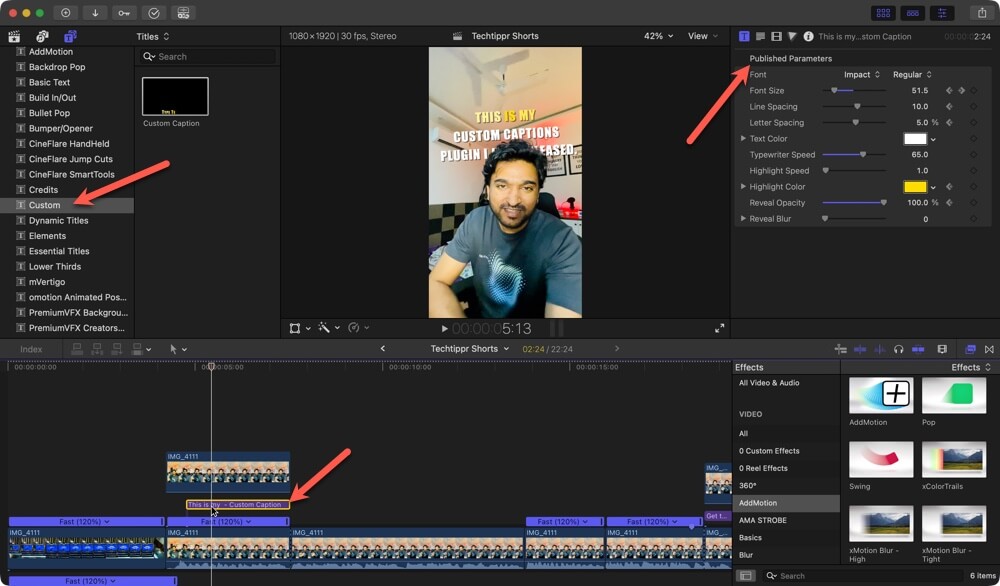
Show the plugin inside Final Cut Pro title browser.
Suggested caption:
Custom Captions plugin inside Final Cut Pro.
How I Use It In My Videos
Personally, I don’t use this effect throughout an entire video.
AI caption tools are better for long videos.
Instead, I use this plugin for emphasis.
For example, a part I feel needs emphasis, I write caption for that part. Then I use the highlight text effect on top of that.
Sometimes, I add blue to the main footage, so that the text is proper to read.
Dramatic reveals
Perfect for documentaries and storytelling.
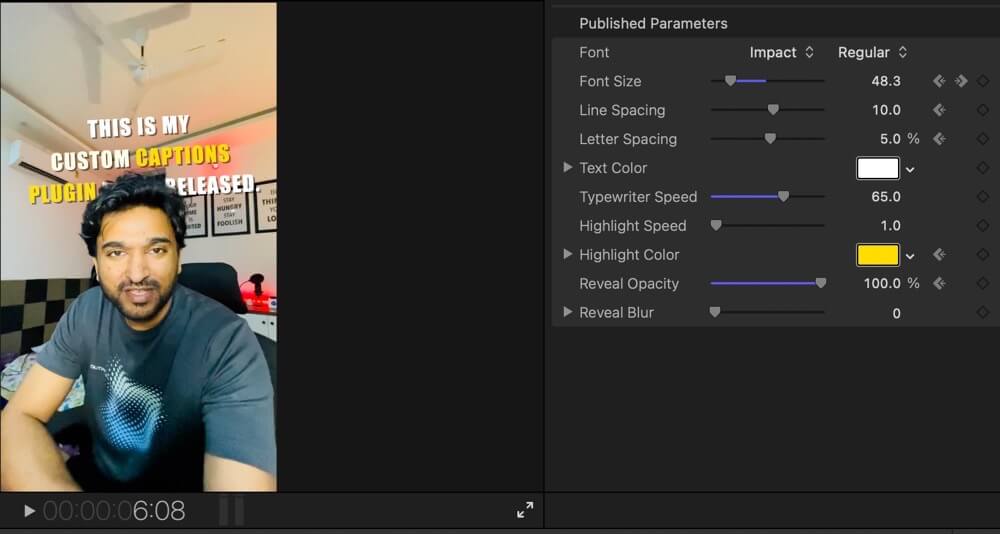
Adjust typing speed, highlight speed and reveal controls.
Why I Prefer This Over AI Caption Tools
AI tools are amazing.
But sometimes I want manual control.
AI tools often:
- Create too many captions.
- Use styles I don’t like.
- Require exporting and importing.
- Cost money every month.
This plugin stays entirely inside Final Cut Pro.
That means:
Faster workflow
No switching between apps.
Better control
Customize exactly how the text behaves.
More creative freedom
Use it only where needed.
No recurring costs
Once downloaded, it’s yours.
Perfect For
This plugin is ideal if you create:
YouTube videos
Highlight important moments.
YouTube Shorts
Create engaging captions.
Reels
Increase watch time.
Tutorials
Show steps clearly.
Documentary videos
Add cinematic typewriter effects.
Podcast clips
Highlight spoken words.
Educational content
Keep viewers focused.
Installation Takes Less Than A Minute
Installation is extremely simple.
Step 1
Download the ZIP file.
Step 2
Extract the folder.
Step 3
Copy the folder.
Step 4
Go to:
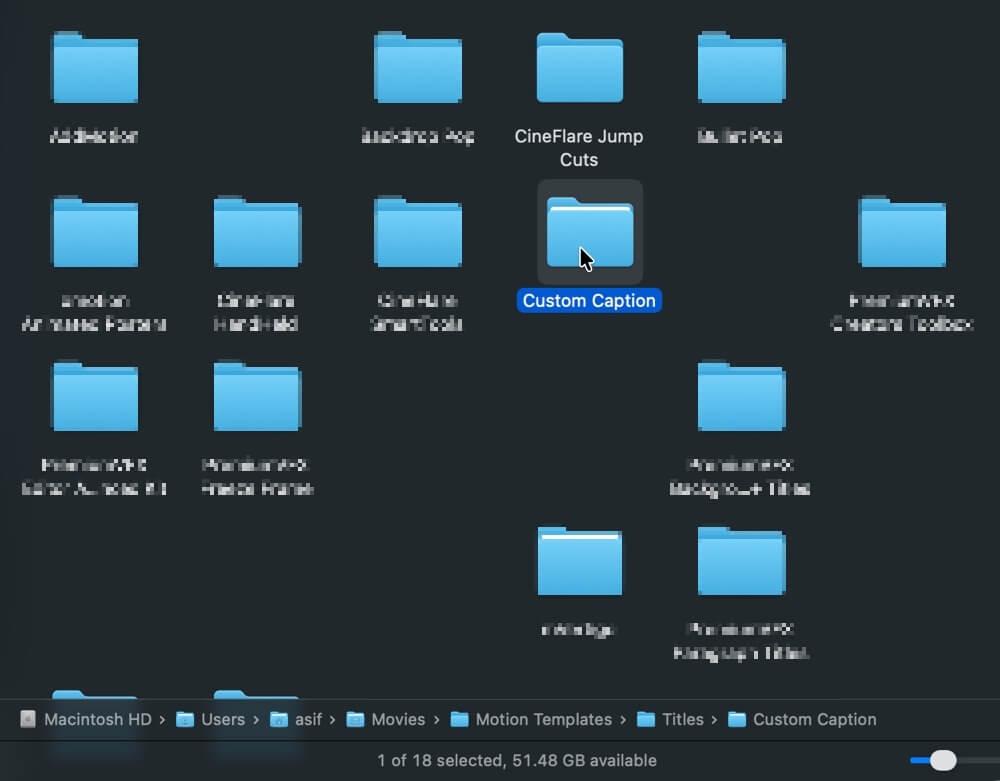
Movies → Motion Templates → Titles
Step 5
Paste the folder there.
Step 6
Restart Final Cut Pro.
That’s it.
The plugin will appear in the Titles section.
Download Custom Captions
Download it from Gumroad
Recommended for you
Video Editing Services
Human-led video editing from ₹399 per finished minute for YouTube, Shorts, talking-head videos, brand films and documentaries.
Our Product