
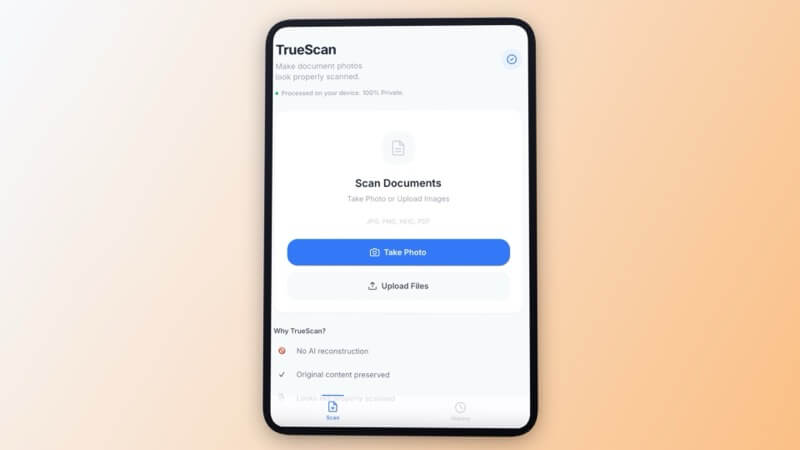
Most document scanner apps have the same problem: they’re either packed with ads, locked behind a subscription, or they “enhance” your document with AI reconstruction that changes what was actually on the page. I got tired of it and built something simpler.
Short Answer: TrueScan is a free PWA (Progressive Web App) document scanner that makes phone photos of documents look properly scanned — without ads, without a subscription, and without uploading your files to any server. It runs entirely in your browser, works on any device, and can be installed on your iPhone or Android home screen in seconds.
Why I Built TrueScan
The existing scanner apps fall into two camps. The free ones are riddled with ads, push aggressive upsells, and most haven’t been meaningfully updated in years. The good ones charge $5–10 a month for what is essentially a photo processing filter.I needed something I could open instantly on any device — phone, tablet, someone else’s computer — scan a document, and get a clean result without installing anything or handing over payment details. Nothing like that existed, so I built it.
TrueScan is a PWA — a Progressive Web App. It lives at a URL, works like a native app, and can be installed on your iPhone or Android home screen without going through the App Store or Play Store. No download. No account. No ads. You open it, scan your document, and you’re done.
What TrueScan Does Differently
The key design decision was processing on your device. TrueScan never uploads your document to a server. Everything — the image processing, the cleanup, the output — happens locally in your browser. That matters for anything sensitive: medical records, legal documents, financial paperwork, personal IDs.The other thing it doesn’t do is AI reconstruction. Several popular scanner apps use AI to “improve” your document — which sounds great until you realise it’s rewriting characters, smoothing out handwriting, and in some cases changing what the document actually says. TrueScan preserves the original content exactly as it is. The goal is a better-looking scan of what you actually have, not a machine’s interpretation of it.
Three Scanning Modes
TrueScan gives you three processing styles depending on what you’re scanning:- Authentic Scan — the default mode, designed for general documents. Preserves handwriting, stamps, signatures, and annotations exactly as they appear. Best for forms, letters, and anything with mixed printed and handwritten content.
- High Contrast — stronger blacks and whites for clean printed documents. Makes text sharper and more legible, great for typed letters, printed contracts, and receipts where you don’t need to preserve subtle ink variations.
- Handwriting Preserve — gentle cleanup specifically for handwritten documents. Removes background noise and uneven lighting without affecting the handwriting itself. Ideal for notes, sketches, and forms filled in by hand.
How to scan a document:
Open TrueScan → Take Photo or Upload File → Choose Processing Style → Create True Scan → Download
How to Install TrueScan on Your Phone (No App Store)
This is where PWAs are genuinely clever. You get a home screen icon and an app-like experience without going through any app store.On iPhone (Safari): Open techtippr.com/apps/truescan in Safari, tap the Share button, scroll down and tap “Add to Home Screen”, give it a name and tap Add. Done — TrueScan is now on your home screen like any other app.
On Android (Chrome): Open the URL in Chrome, tap the three-dot menu, tap “Add to Home Screen” or “Install App”. Same result — home screen icon, full-screen experience, no Play Store required.
It updates automatically whenever I push a new version. No manual updates, no app store delays.
TrueScan vs the Competition
Here’s how TrueScan compares to the most commonly used scanner apps:- CamScanner — the most downloaded scanner app. Free tier adds watermarks to every scan. Premium is $4.99/month or $49.99/year. Has had security concerns in the past. Uploads to their servers.
- Adobe Scan — clean and reliable, but requires an Adobe account. Free tier has usage limits and pushes Adobe cloud storage. Part of a larger subscription ecosystem.
- Microsoft Lens — good quality, requires a Microsoft account, integrates with OneDrive and Office. Fine if you’re in the Microsoft ecosystem; unnecessary overhead if you’re not.
- Apple Notes scanner — built into iOS Notes, decent quality, but no processing modes, no Android support, and buried in an app you might not use for anything else.
- TrueScan — free, no account, no ads, no watermarks, no server upload, works on every device with a browser, three processing modes, installable as PWA.
Note: TrueScan is optimised for making photos of documents look scan-quality. It’s not an OCR tool — it doesn’t convert your document to editable text. For OCR, Google Drive’s built-in document scanning (open a PDF in Drive and it offers to extract text) works well alongside TrueScan.
What It’s Good For
- Scanning forms, prescriptions, and medical documents you need to share digitally
- Cleaning up WhatsApp-quality photos of documents before emailing them
- Scanning handwritten notes after a meeting or class
- Making photos of receipts and invoices look professional for expense claims
- Any situation where you need a quick scan on a device that doesn’t have a scanner app installed
TrueScan Quick Checklist:
- ✅ Free — no subscription, no watermarks, no account needed
- ✅ Private — all processing happens on your device, nothing uploaded
- ✅ No AI reconstruction — your original content is preserved exactly
- ✅ Three modes: Authentic Scan, High Contrast, Handwriting Preserve
- ✅ Works on iPhone, Android, desktop — any browser
- ✅ Installable on home screen as PWA in under 30 seconds
Frequently Asked Questions
Is TrueScan really free?
Yes — completely free, no ads, no premium tier, no watermarks. It’s a tool I built for my own use and made available publicly.
Does TrueScan upload my documents anywhere?
No. All processing runs locally in your browser. Your documents never leave your device. This is one of the core design decisions — particularly important for sensitive documents like medical records, legal paperwork, or financial documents.
What’s a PWA and why does it matter?
A Progressive Web App is a website that behaves like a native app. You can use it directly in your browser without installing anything, or add it to your home screen for an app-like experience. The practical benefit: you can use TrueScan on any device — your phone, a friend’s tablet, a shared office computer — without installing an app or creating an account first.
What file formats does TrueScan support?
You can upload JPG, PNG, HEIC, and PDF files, or take a photo directly with your camera. Output is downloaded as a JPEG.
Will TrueScan change what my document says?
No. Unlike AI-powered scanners that reconstruct or “improve” content, TrueScan processes the visual appearance of your document without altering the actual content. What was written stays exactly as written.
Try TrueScan Free ↗
Add to Home Screen
Where to Find It
TrueScan is available at techtippr.com/apps/truescan. Open it on your phone right now — no download required. If you find it useful, add it to your home screen so it’s there whenever you need it.If you’re into tools that work without the bloat, you might also like the Milk Tracker Notion template — another tool I built for a specific problem that didn’t have a clean existing solution.