
- 01What is Dynamic Captions, the browser caption editor?
- 02Watch the captioning workflow
- 03How to use Dynamic Captions: a quick-start workflow
- 04SRT import versus script-based caption timing
- 05How the ChatGPT handoff works without an API key
- 06Editing timing and styling in a browser caption editor
- 07How to use rendered captions in your existing video editor
- 08English, Hinglish, and multilingual captions
- 09Dynamic Captions price and what the purchase includes
- 10Who should use Dynamic Captions—and who should not?
- 11Related guides for the rest of your creator workflow
- 12The bottom line
Dynamic Captions is a standalone browser caption editor for creators who want to adjust caption timing, text, and styling without changing video editors. Import an SRT or start with a script, review the captions, then render a video to use in your existing editing workflow. It is not an editor plugin, and its optional ChatGPT copy/paste workflow does not require an API key.
You finish editing a video, then discover that the captions need their own editing session. One line arrives too early, another wraps awkwardly, and the text style does not match the rest of your content.
Switching to a different editor just to handle that finishing step may not be appealing. Neither is configuring an AI API when all you want is help cleaning up a few captions. Dynamic Captions is designed around that gap: a separate place to work on captions, while keeping the editor you already know.
We will look at how the workflow fits together, where an existing SRT makes things simpler, and what to expect from its rendered output. This is a feature-based review, not a hands-on performance test or a promise that every AI suggestion will be correct.
Dynamic Captions was created by Asif Ahmed, who runs Techtippr. This article introduces our own product and evaluates its stated workflow and limitations; it is not an independent third-party review.
What is Dynamic Captions, the browser caption editor?
Dynamic Captions runs in a modern desktop browser. According to the official product listing, the purchase includes the standalone dynamic-captions.html browser app, reusable graphics, character and sound libraries, and a project save/open workflow.
You can upload finished footage, provide a script, or import an SRT subtitle file. From there, you create and edit timed captions, style them against the footage, and render the result. AI assistance is optional; captions can also be created and adjusted manually.
The distinction worth remembering is that this is a captioning workspace, not a replacement for your complete video editor. It does not install a native caption panel inside Premiere Pro, Final Cut Pro, DaVinci Resolve, or CapCut.
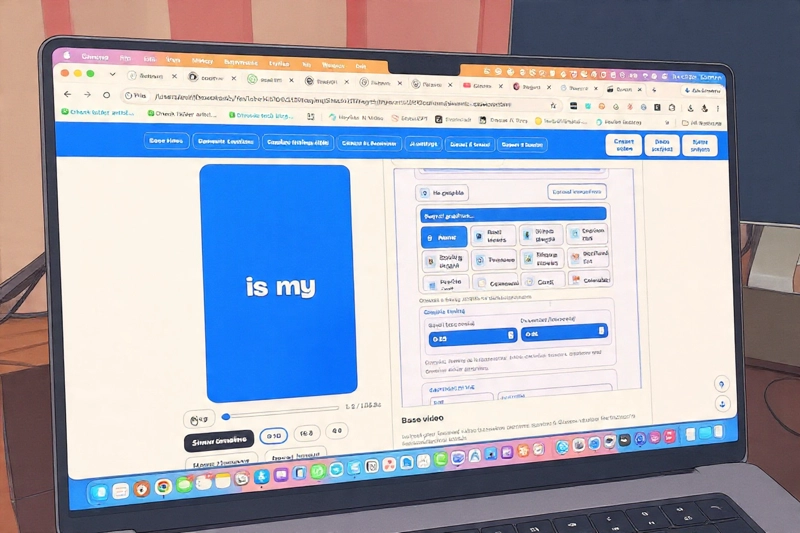
Watch the captioning workflow
The linked video uses “FREE” in its title. That title should not be taken as the current purchase price: the Dynamic Captions product page lists $1.99 USD as checked on October 13, 2026. Use the video as a workflow reference and the live product page for current purchase details.
How to use Dynamic Captions: a quick-start workflow
- Open the standalone app in a modern desktop browser and bring in your finished footage for preview.
- Import a correctly aligned SRT, or provide a script and treat its estimated timing as a starting point.
- Choose the caption language. Use optional ChatGPT assistance if you want it, or continue manually.
- Edit the wording, line breaks, start times, and durations against the footage.
- Choose styling, preview the result, and save the editable project with backups of its media.
- Choose whether footage appears in the render, export the result, and check that video before importing it into your editor.
SRT import versus script-based caption timing
These are different starting points, and choosing the right one avoids unnecessary work. An SRT provides text with supplied timecodes. A script provides words, but not necessarily an accurate map of when you spoke them.
If you already have an SRT aligned to the finished video, Dynamic Captions preserves its supplied timings when importing it. That gives you a defined timing baseline while you edit or polish the text. Preserving timings does not mean verifying them: an incorrectly timed source file still needs review.
| Starting point | What happens | What you should check |
|---|---|---|
| Existing SRT | Supplied timings are preserved on import | Text, cue boundaries, and whether the SRT matches this cut |
| Script | Caption timing is estimated and adjustable | Pauses, pacing, sentence splits, and sync against the footage |
| ChatGPT handoff | Copy/paste assistance for translation, polishing, or timing suggestions | Meaning, returned content, names, and timing before rendering |
With a script, treat the estimated timing as a draft. A speaker might pause, skip a sentence, or add a phrase that was not written down. Preview the video and adjust caption starts and durations to match the actual delivery.
The ChatGPT route is assistance layered onto this process, not a substitute for checking the timeline. It does not make estimated script timing equivalent to a verified, correctly aligned SRT.
How the ChatGPT handoff works without an API key
The app has a ChatGPT Plus option in AI Settings. It prepares a prompt for you to copy into ChatGPT; you then paste the response back into Dynamic Captions. The product describes this handoff as useful for translation, caption polishing, or timing suggestions.
You remain part of the loop. Instead of the app automatically making an API request with your credentials, you move the prompt and response between the two tools. That can suit someone who wants occasional AI help without configuring an API connection.
- Choose the ChatGPT Plus option in the app’s AI Settings.
- Use the prepared prompt and copy it into ChatGPT.
- Review the response, then paste it back into Dynamic Captions.
- Check the resulting caption text and timing against your footage before rendering.
This route still requires access to ChatGPT. ChatGPT Plus is not included in the Dynamic Captions purchase, and any ChatGPT subscription requirements or usage limits remain separate. “No API key required” does not mean “ChatGPT included” or “unlimited AI.”
Optional API providers are available for users who prefer to connect their own keys. They are an alternative, not a prerequisite for the copy/paste route. If you already have timed subtitles, you can also work on them manually without using AI.
Step 1
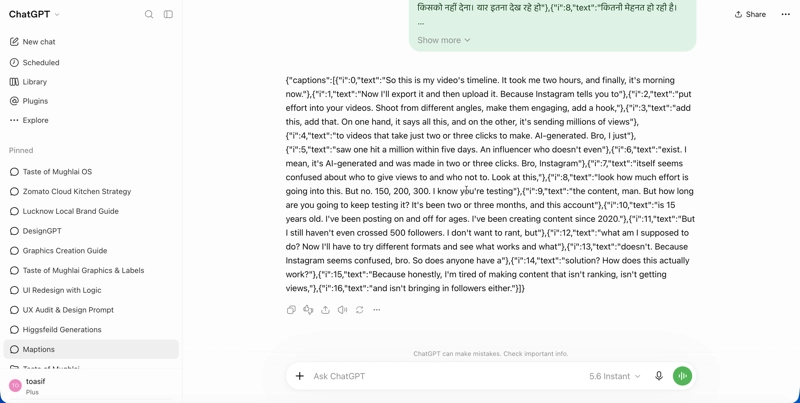
Pasting the Directions into ChatGPT for JSON FIle
Step 2
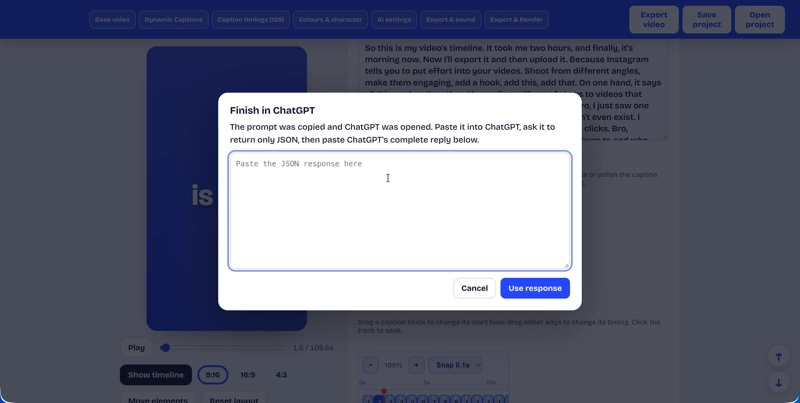
Pasting the JSON file back into the box in Dynamic Captions
Editing timing and styling in a browser caption editor
Dynamic Captions allows individual caption editing, including the words, line breaks, start time, and duration. You can select multiple captions for timing adjustments together. That gives you a way to address a group of cues rather than treating every timing correction as a separate task.
For example, if a sentence appears before the speaker begins, adjust its start time and replay that section. If the words are right but the line break separates a name or phrase, revise the break. If an entire section needs a timing adjustment, use the multi-caption controls and then verify the boundaries.
Style the captions without burying the message
Styling includes fonts, colors, emphasis, animations, graphics, and sound. Elements can be moved and resized, and you can preview captions against the footage. The app includes reusable libraries and lets you add your own assets.
Our recommendation is to begin with readability: clear contrast, comfortable text size, and a position that does not obscure important action. Add emphasis or motion where it supports a phrase, rather than making every word compete for attention. These are editing recommendations, not claims about improved views or retention.
Save the project before rendering so you can return to its editable caption work. The app supports saving and reopening projects in the browser; keep backups of important project files, footage, and custom assets rather than relying on a browser session alone.
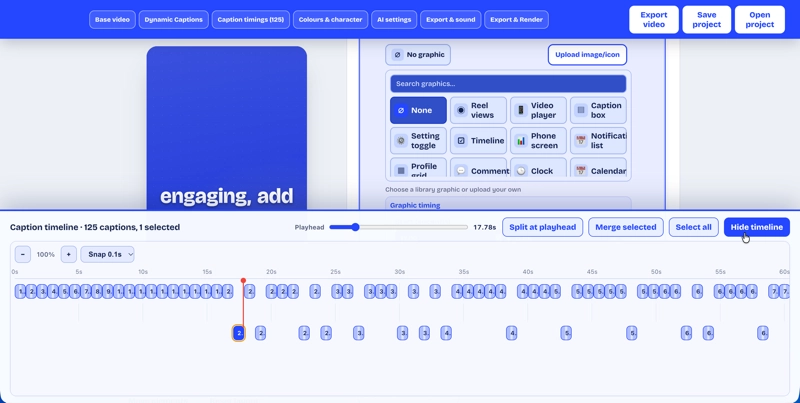
Two ways to adjust caption timings 1. The Timeline Mode | 2. The Editor mode
How to use rendered captions in your existing video editor
The basic handoff is straightforward: finish the main edit, bring the footage into Dynamic Captions, work on its captions, render the result, and import that video into your preferred editor. The product names Premiere Pro, Final Cut Pro, DaVinci Resolve, and CapCut as examples of editors that can accept video files.
That is file-based compatibility, not a native integration. The imported render is video, not a collection of editable caption layers created inside those editors. To change the caption wording or animation afterward, return to the saved Dynamic Captions project, make the change, and render again.
Dynamic Captions does not create native caption layers inside your video editor. It lets you choose whether footage appears in the render, but that option alone is not a promise of a transparent background or a particular codec. Check the exported file before planning an overlay workflow.
Caption the cut you actually intend to use. If you remove a sentence or rearrange clips after creating captions, the timing may no longer match. A useful workflow is to complete structural edits first, then caption, review, and render. Leave room for corrections rather than assuming the first render is final.
If your priority is editing captions directly in Final Cut, our Final Cut Pro captions guide covers that different approach. Dynamic Captions is for creators comfortable keeping caption authoring separate from their editor’s native timeline.
English, Hinglish, and multilingual captions
Dynamic Captions supports English, Hinglish, and a range of other languages. The listing includes Hindi, Urdu, Bengali, Spanish, French, German, Arabic, Japanese, and others. That makes mixed-language and translated-caption workflows part of the intended use, rather than limiting the app to English text.
Language support is not an accuracy guarantee. AI results vary with language, dialect, context, and source audio. Review names, specialist terms, jokes, and sentences where a translation could change the speaker’s meaning. Also check that the text fits the available reading time.
For a Hindi-English video, decide how you want mixed-language phrases represented and keep that choice consistent. Preview the chosen font with the actual script and characters. Do not assume a translation is ready merely because it returned plausible-looking text.
Dynamic Captions price and what the purchase includes
As of October 13, 2026, the Gumroad product page shows a $1.99 USD price. It is a one-time purchase; the live page remains the reference if pricing changes or your checkout displays a different currency.
The purchase covers the standalone browser app, reusable graphic, character, and sound libraries, and the editable project save/open workflow. ChatGPT Plus and third-party API services are not bundled with it. Any costs or access requirements for those optional services are separate.
Do not interpret the low price as a promise about rendering speed, maximum video length, export resolution, or universal format support. We have not independently tested those limits for this review. If a specific delivery format matters to your project, confirm it before relying on this workflow.
Who should use Dynamic Captions—and who should not?
The strongest fit is someone who wants caption control as a separate finishing stage and is comfortable reviewing the result before exporting.
- Short-form creators: people preparing Reels or Shorts who want to personalize caption text, placement, and emphasis.
- Creators with an existing SRT: people who already have timed subtitles and want to work from those supplied timecodes.
- Multilingual creators: people who want optional language assistance but will review meaning and timing themselves.
- Editors keeping their current software: people happy to import a rendered video rather than install a native caption plugin.
It is a weaker fit if you need every caption to remain a native, editable timeline element in your editor, expect hands-off AI accuracy, or require confirmed professional delivery specifications that this introduction has not tested.
Pros and trade-offs
| Potential benefit | Trade-off to understand |
|---|---|
| Caption timing and visual controls in one browser workspace | You still need to review sync, text, and readability |
| Existing SRT timings preserved on import | Bad source timing is not automatically corrected |
| ChatGPT copy/paste workflow without an API key | Requires your own ChatGPT access and manual handoff |
| Rendered output for your existing editing workflow | No native editable caption layers inside that editor |
| Reusable libraries and custom assets | Projects and source media still need backups |
Related guides for the rest of your creator workflow
Related Content
- Best Free AI Transcription Tools — explore the transcription stage before you review and style captions.
- How to Add Captions and Subtitles in Final Cut Pro — compare a native-editor caption workflow.
- Channel Desk: Manage Multiple YouTube Channels from One Workspace — organize the publishing stage once your video is ready.
The bottom line
Dynamic Captions offers a focused approach to a familiar creator problem: captions can need more attention than the rest of the edit. Its combination of SRT import, adjustable script timing, styling controls, reusable assets, and optional ChatGPT handoff may suit creators who want that work in a separate browser tool.
The trade-off is clear. You keep your preferred editor, but the handoff is rendered video—not native caption layers. You can get AI help without an API key, but you still supply your own ChatGPT access and review the output.
If that workflow matches how you create videos, you can find Dynamic Captions on Gumroad. Start with a short project, check the text and timing carefully, and keep the editable project for any changes you need later.