
Shaky footage ruins otherwise great videos. Whether it’s from walking while filming or just unsteady hands, there are several ways to fix it — both while shooting and in post-processing.
Short Answer: You can stabilize shaky videos on your phone using Google Photos’ stabilization tool (free, Android/iPhone), CapCut’s stabilization feature, or your phone’s built-in stabilization settings while recording. For the best results, use your phone’s EIS/OIS features while recording rather than fixing it after.
Fix Shaky Video After Recording
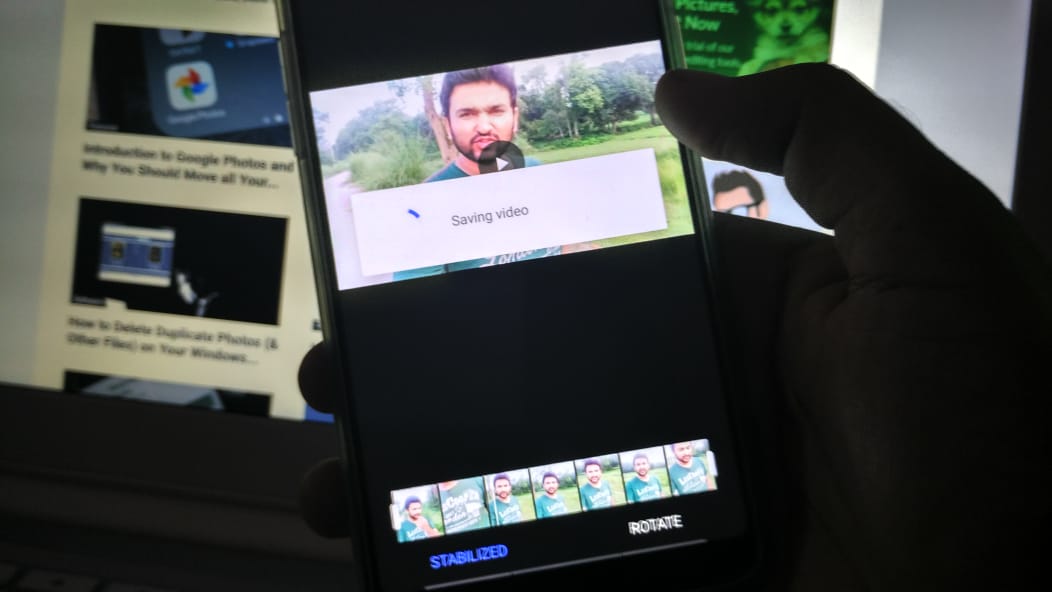
Method 1: Google Photos (Free, Android & iPhone)
Google Photos has a built-in video stabilization feature that works surprisingly well and is completely free.
- Open Google Photos and find the shaky video
- Tap Edit (the pencil icon)
- Tap the Stabilize button (looks like a video camera with lines around it)
- Wait for it to process — it may take a minute for longer videos
- Tap Save copy
📸 SCREENSHOT NEEDED: Google Photos video editor with Stabilize button highlighted
Method 2: CapCut (Free, Best Quality)
CapCut offers one of the best free video stabilization tools on mobile, with more control than Google Photos.
- Open CapCut and import your shaky video
- Tap the video clip in the timeline
- Tap Stabilize from the bottom toolbar
- Choose a stabilization level (1–5, where 5 is most aggressive)
- Tap the checkmark and export
📸 SCREENSHOT NEEDED: CapCut video editor showing Stabilize option in the bottom toolbar with level selector
Warning: Aggressive stabilization crops the edges of your video to allow for movement compensation. The higher the stabilization level, the more crop. For very shaky footage, expect to lose 10-20% of the frame edges.
Method 3: iPhone Photos App
The iPhone’s built-in Photos app doesn’t have a dedicated stabilization button, but it automatically applies minor stabilization when you trim or edit a video. For heavy stabilization, use a third-party app like CapCut or iMovie.
Method 4: iMovie (iPhone)
iMovie for iPhone includes stabilization:
- Import your video into iMovie
- Select the clip and tap the stabilization icon (looks like a steering wheel)
- Enable Stabilize Shaky Video
- Export when done
📸 SCREENSHOT NEEDED: iMovie on iPhone with clip selected and stabilization icon visible in the toolbar
Prevent Shaky Video While Recording
Fixing shaky video is always second-best to shooting steady footage in the first place. Here’s how:
Enable Electronic Image Stabilization (EIS)
Most modern Android phones and iPhones have EIS built into the camera. On Android, it’s often called “Video Stabilization” in camera settings. On iPhone, it’s always on.
Use a Gimbal or Grip
A phone gimbal (like the DJI OM series) is the best hardware solution for walking shots. Even a basic grip or tripod eliminates most shake.
Shooting Tips
- Tuck your elbows against your body when filming
- Walk heel-to-toe rather than flat-footed
- Use two hands and hold your breath for the shot
- Slow down your walking pace by 20%
Quick comparison:
Best free → Google Photos | Best quality → CapCut | iPhone → iMovie | No crop → Use EIS while recording
FAQ
Does video stabilization reduce quality?
Yes, slightly. Stabilization works by cropping the edges and using the extra frame space to compensate for movement. This means a small reduction in resolution. Google Photos and CapCut both do this.
Can I stabilize 4K video on my phone?
Yes, but it takes longer to process. Google Photos handles 4K stabilization on most mid-range and flagship phones. Expect a few minutes of processing time.
Is there a way to stabilize video without cropping?
Not reliably on mobile. Professional tools like Adobe Premiere can use content-aware fill to avoid cropping, but that’s not available in phone apps. Your best option is to shoot with stabilization on so cropping isn’t needed.
Quick checklist:
- ✅ Try Google Photos stabilization first — it’s free and requires no install
- ✅ Use CapCut for more aggressive stabilization with level control
- ✅ Enable camera’s built-in EIS for future recordings
- ✅ Consider a basic tripod or phone grip for walking shots
Get Google Photos ↗ ↗Get CapCut Free
Conclusion
For quick fixes, Google Photos’ stabilization is hard to beat — it’s free, fast, and already on your phone. For more control, CapCut gives you level-based stabilization with great results. Going forward, shooting with EIS enabled and using two hands will reduce the need for post-processing. See our best video editing apps guide for more mobile editing tools.
Recommended for you
Video Editing Services
Human-led video editing from ₹399 per finished minute for YouTube, Shorts, talking-head videos, brand films and documentaries.
Our Product