
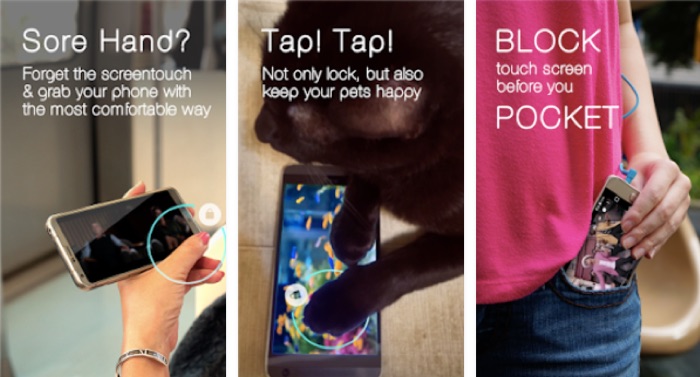
You hand your phone to a child playing a game or watching a video. Within seconds they’ve accidentally paused it, switched apps, or called someone. These are practical ways to lock the screen so only the content they’re watching keeps playing — without interruption.
Short Answer: The simplest solution is Android’s built-in Screen Pinning feature: Settings → Security → Screen Pinning. Once pinned, the current app stays locked on screen and the child can’t switch apps, access notifications, or go back to the home screen without your PIN.
Method 1: Android Screen Pinning (Built-In, Free)
Screen Pinning locks the current app on screen. The child can interact with the app normally but can’t exit it without entering your PIN.
How to enable Screen Pinning:
- Go to Settings → Security → Screen pinning (varies by Android version — may be under Privacy or Advanced)
- Toggle Screen pinning ON
- Enable “Lock device when unpinning” so a PIN is required to exit
How to pin an app:
- Open the app you want to pin (YouTube, a game, etc.)
- Open Recent Apps (square button or swipe up and hold)
- Tap the app icon at the top of the card
- Select “Pin”
- The app is now pinned — back button and home button are locked
📸 SCREENSHOT NEEDED: Android Recent Apps screen showing app icon tapped with ‘Pin’ option visible in dropdown
How to unpin:
Hold Back and Recents buttons simultaneously (or swipe up + hold on gesture navigation). You’ll be prompted for your PIN or biometric before the screen unpins.
Method 2: YouTube Kids Pinning (For YouTube Specifically)
If they’re watching YouTube, switch to YouTube Kids — it’s designed specifically for children with:
- Age-appropriate content filtering
- Timer controls (set a watch limit)
- No comments, no recommendations outside filtered content
- Locked with a parent code to exit
Method 3: Google Kids Space / Family Link
For longer-term restrictions on a dedicated kids’ device:
- Google Family Link: Full parental controls — app approvals, screen time limits, location, and content filters
- Set up via family.google.com on your account and on the child’s device
Method 4: Guided Access (iPhone)
On iPhone, the equivalent is Guided Access:
- Settings → Accessibility → Guided Access → toggle on
- Open the app you want to lock
- Triple-press the side button
- Tap Start — the child is locked in that app
- Triple-press the side button and enter your passcode to exit
Quickest option:
Screen Pinning is the fastest solution — enable it once in Settings, then pin any app in two taps from Recent Apps. No additional apps needed and it works with any app on the phone.
Warning: Screen Pinning doesn’t prevent all interactions within the pinned app — the child can still interact with whatever is on screen (pause buttons, in-app buttons, etc.). To prevent accidental pausing in YouTube, enable autoplay and disable the scrub bar by starting in YouTube Kids.
Quick checklist:
- ✅ Enable Screen Pinning once in Settings → Security → Screen pinning
- ✅ To pin an app: Recent Apps → tap app icon → Pin
- ✅ Require PIN to unpin so child can’t accidentally exit
- ✅ Use YouTube Kids for video watching — built-in content filters and locks
- ✅ Family Link for comprehensive parental controls on a dedicated kids’ device
FAQ
Does Screen Pinning prevent calls from coming through?
No — incoming calls still ring and can be answered while an app is pinned. If you want to prevent calls too, enable Do Not Disturb mode (Settings → Sounds → Do Not Disturb) before handing over the phone.
Can the child access the notification bar while Screen Pinning is active?
No — Screen Pinning disables the notification bar and status bar swipe-down gesture while active. The child is fully contained within the pinned app.
Is there a way to stop a child from pressing the volume buttons?
Screen Pinning doesn’t lock physical buttons. You can cover the volume buttons with a phone case, or use a third-party app like “Touch Lock” that disables all hardware buttons and touch input except for specific areas of the screen.
Google Family Link Guide ↗Best Parental Control Apps
Screen Pinning is already on your Android phone — enable it once in Settings and you’ll have the ability to pin any app in two taps from that point on. It’s the fastest fix for the accidental app-switch problem.